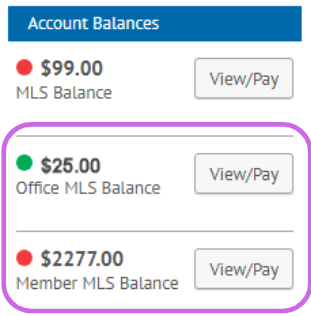
Office invoices, which include quarterly fees for admins and any fines associated to the office, display in 2 sections within Account Balances on the PrimeMLS Dashboard.
Office MLS Balance: this is where invoices for unlicensed admins (head office admins, branch office admins, and unlicensed assistants) and any fines assessed to the office are available to be viewed and paid. It is only accessible by Office Heads and auto-pay can be set up for invoices in this section. Autopay may be set up for these invoices - find instructions here.
Member MLS Balance: this section lets Office Heads view and pay all invoices associated with the office, including outstanding quarterly fees and any fines assessed to agents within the office. It is only accessible to Office Heads. Autopay cannot be set up for these invoices.
How to View & Pay PrimeMLS Office Invoices
Step 1: Log in to the Dashboard
- Go to myprimemls.com and log in.
- On the right side of the dashboard, you'll see "Account Balances." If there is an invoice to pay, the total will display.
- Click "View/Pay" on Office MLS Balance or Member MLS Balance.
Step 2: View Invoice
- If there are multiple invoices, you will see a list and each will have to be paid separately.
- Click "Pay Now/Account History" on the invoice you wish to pay.

Step 3: Confirm and Pay Invoice
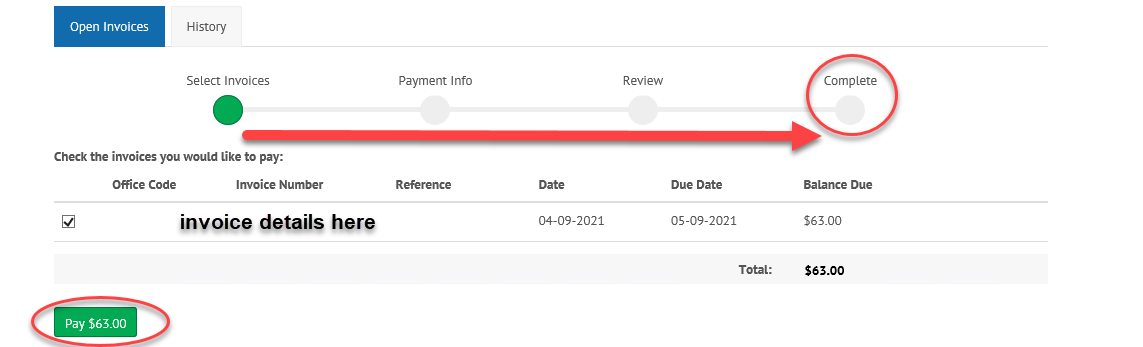
- Upon viewing the invoice details, you'll see the Invoice Number and the "Reference," which may include an agent name the invoice is for or other pertinent details, as well as the due date.
- Click the green "Pay" button"
- You will then need to enter and/or confirm payment information. Watch the prompt at the top. The payment process is finished when you reach "Complete."