Paragon Connect now gives you the power to tailor your experience. Customize your dashboard with the tools you need, organized your way.
TABLE OF CONTENTS
Customize Paragon connect Dashboard Widgets
You can customize your Paragon Connect Dashboard to match your workflow by removing the Primary Widget (Buyer Activity) and by adding, removing or rearranging the Secondary Widgets.
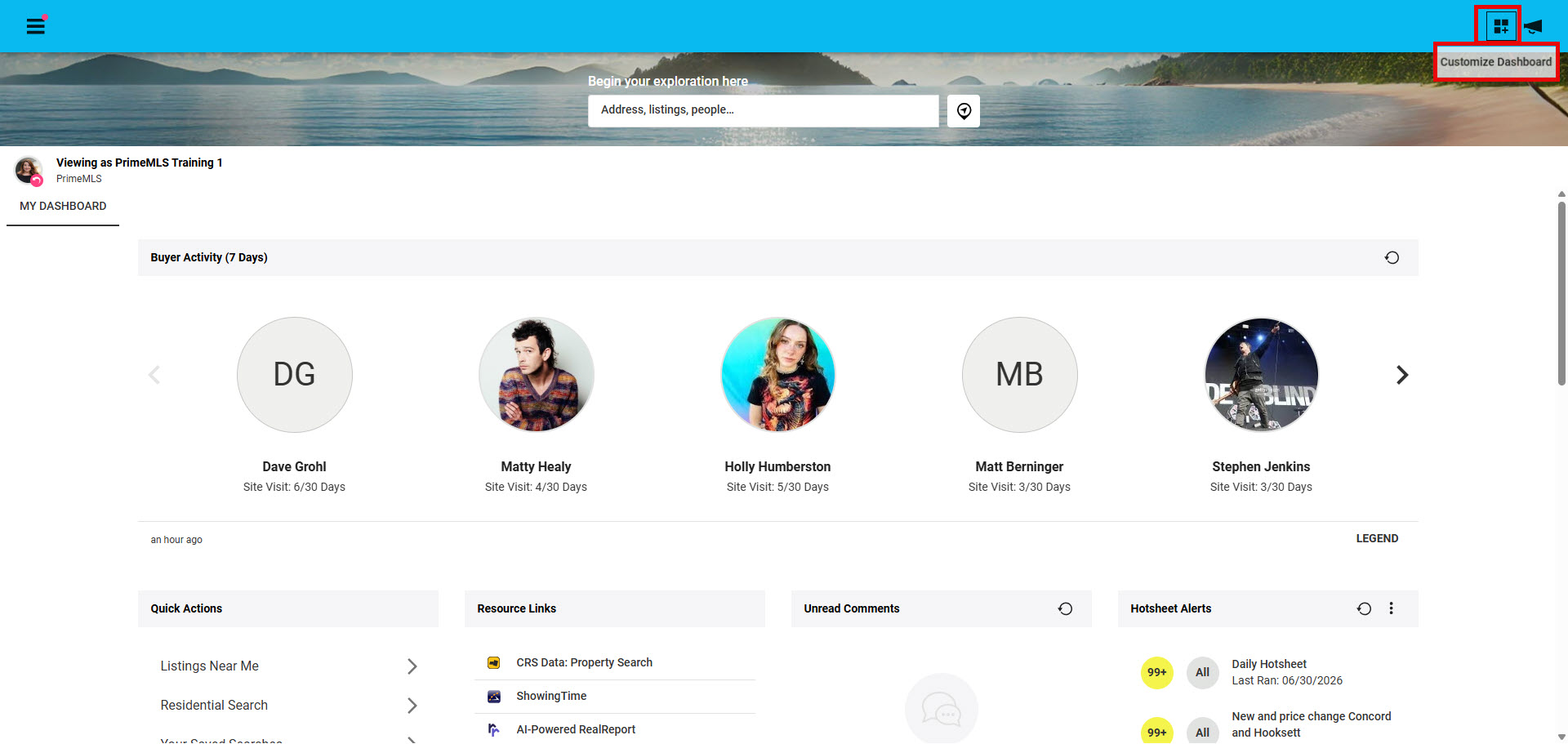
1. Click on the "Customize Dashboard" icon in the top right corner
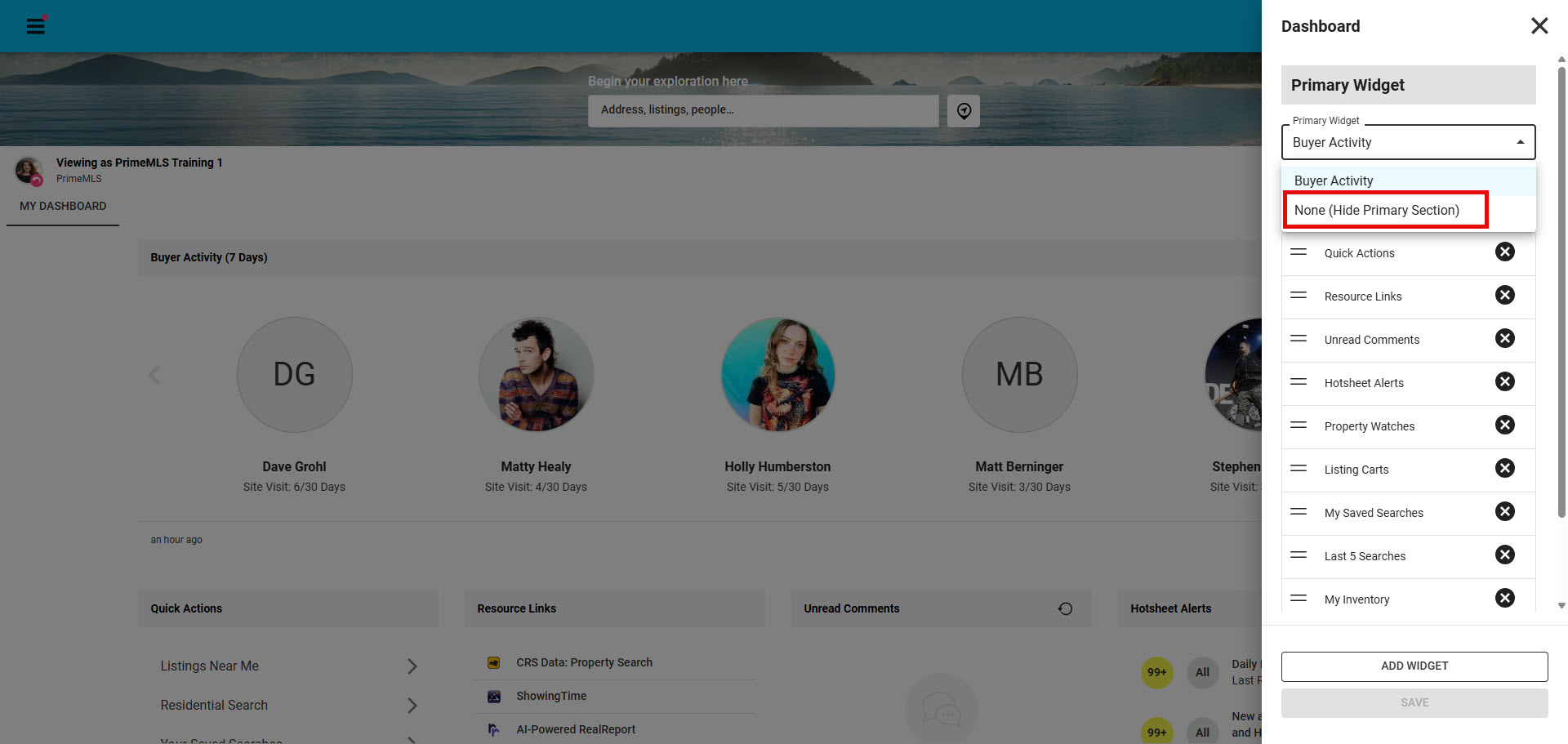
2. If you wish to not have Buyer Activity on your Paragon Connect Dashboard, select "none" to prevent that information from showing
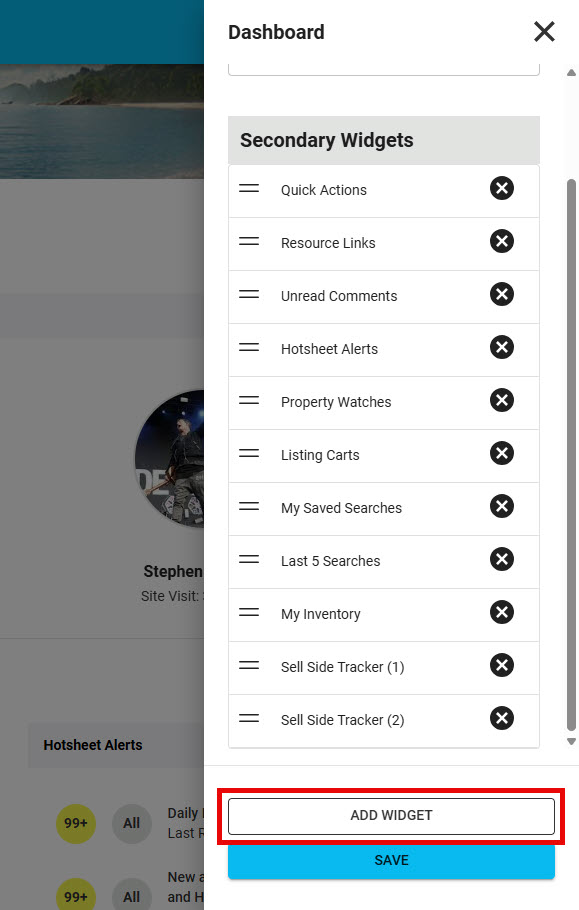
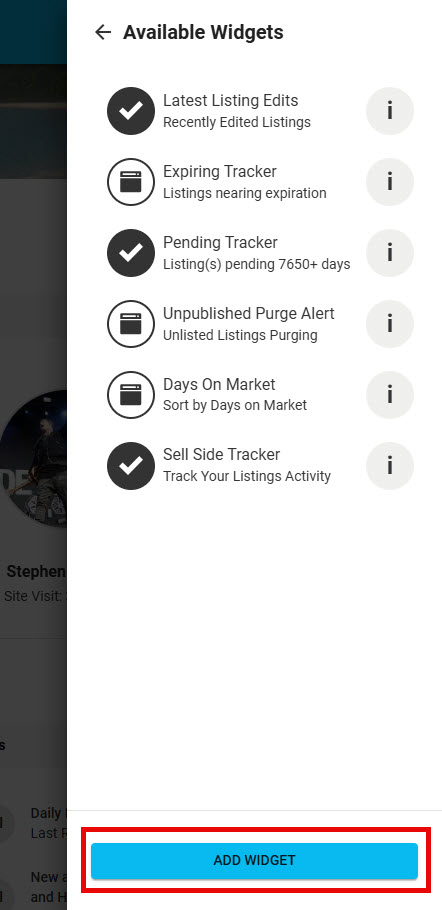
3. To add additional Secondary Widgets click "Add Widget"
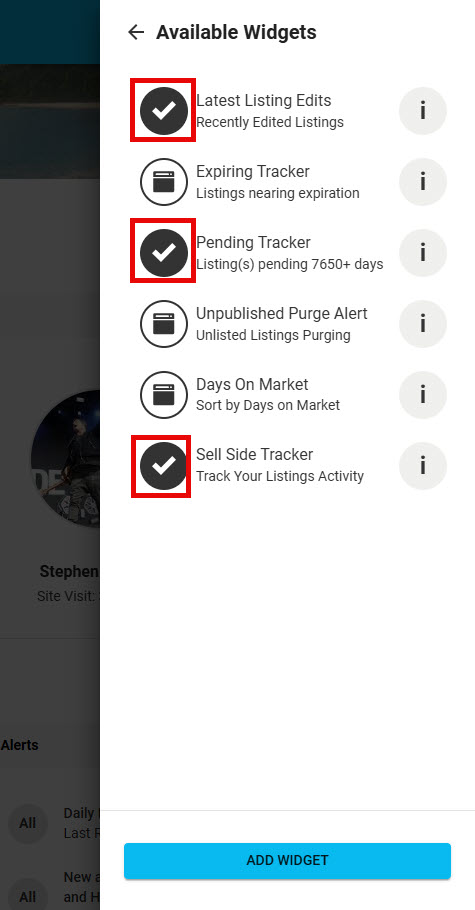
4. Select the widgets you want to add to your Paragon Connect Dashboard
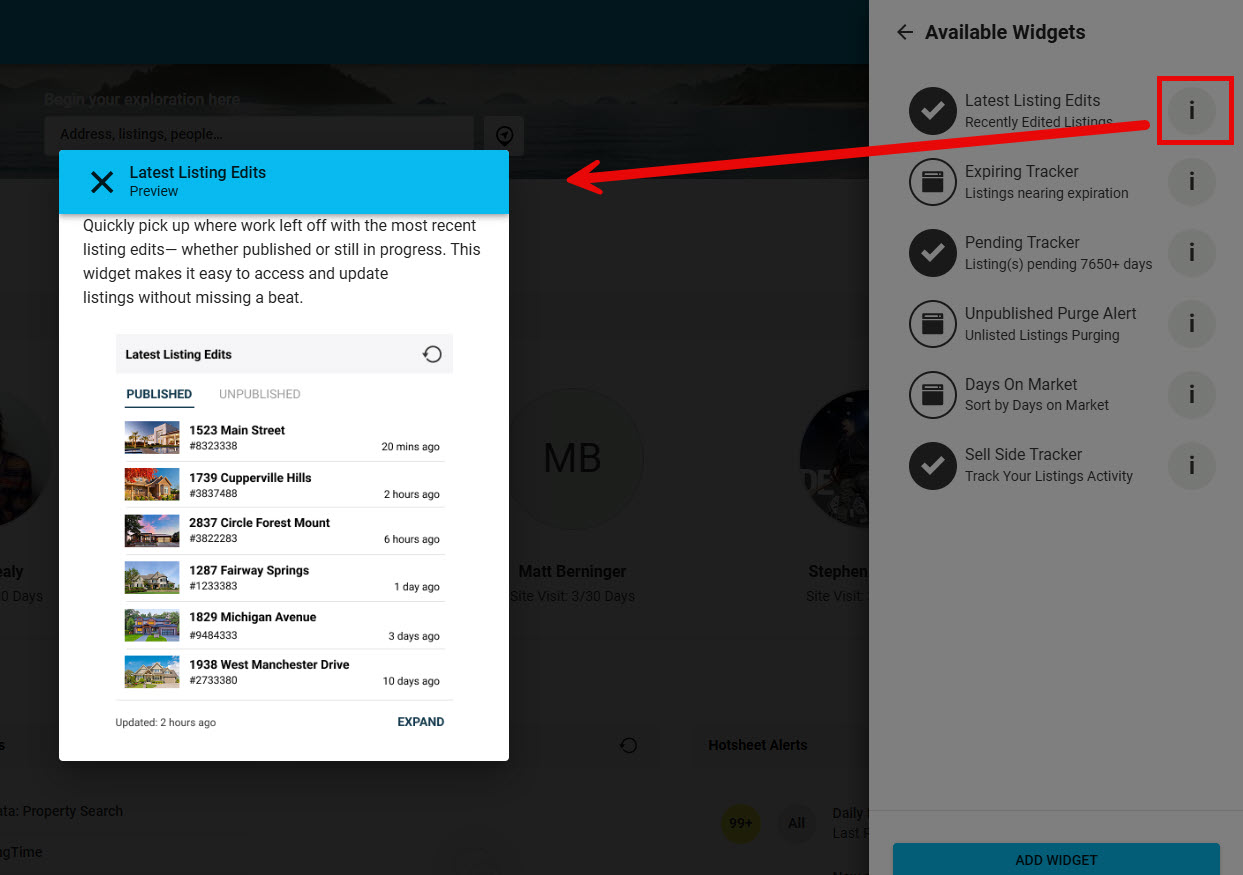
5. You can click in the circle with in "i" for details on what information the widget will provide to help decide if you want to add the widget to your Paragon Connect Dashboard or not.
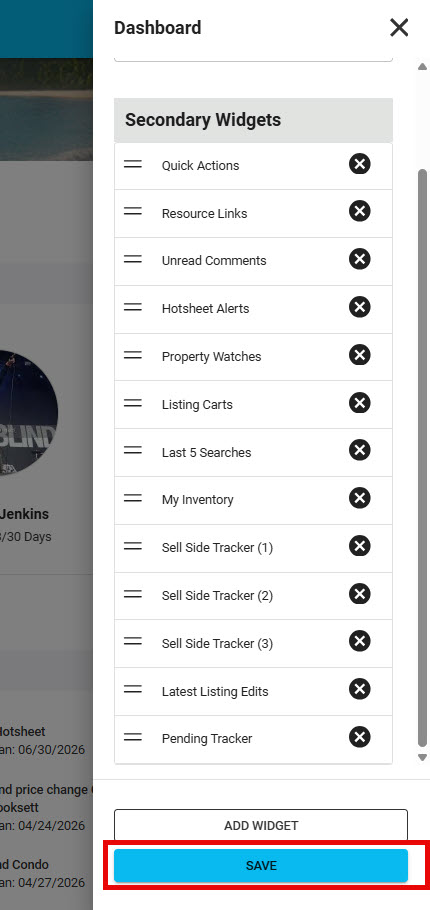
6. Once you have selected the widgets you want to add, click "Save"
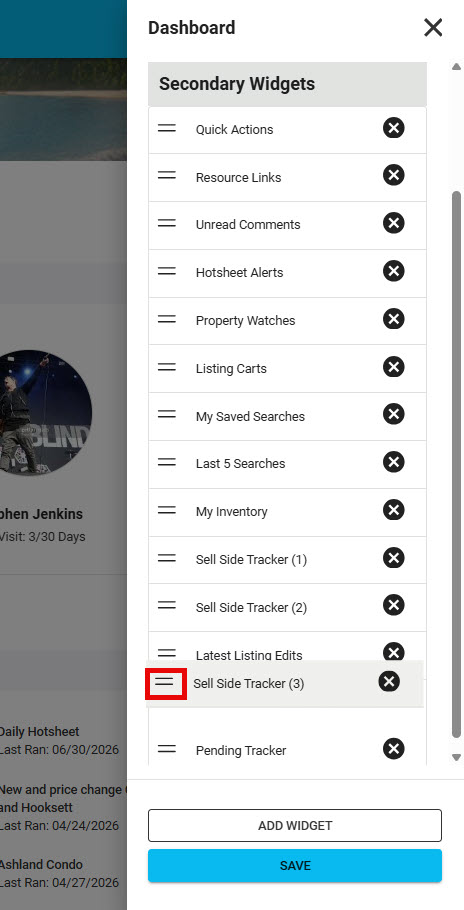
7. You can also rearrange the widgets my "click, hold, and dragging" them in the order you want them to display on your Paragon Connect Dashboard
8. If there are any widgets you want to remove from your Paragon Connect Dashboard, click on the "X" to remove
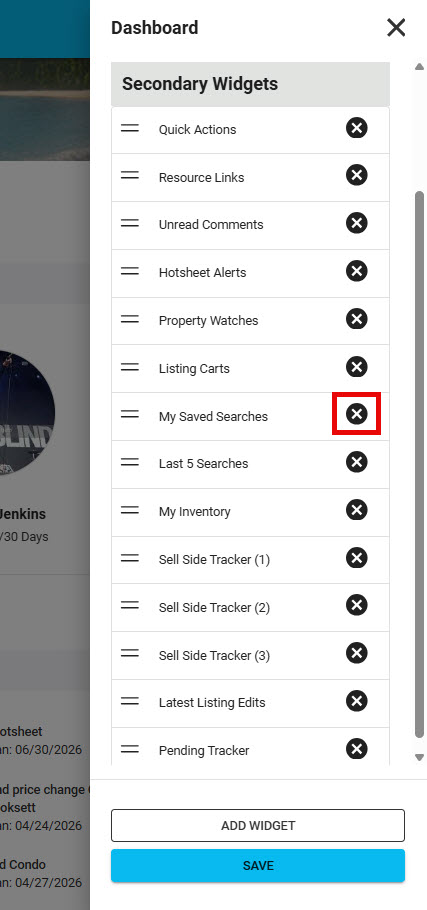
9. Once you are satified with the way you have added, rearranged and removed widgets, click "Save". You can Customize your Paragon Connect Dashboard as often as necessary.
Customize the "Look" of Paragon Connect
You can change the banner photo that displays at the top of your Paragon Connect Dashboard. You can also change the colors you see throughout Paragon Connect.
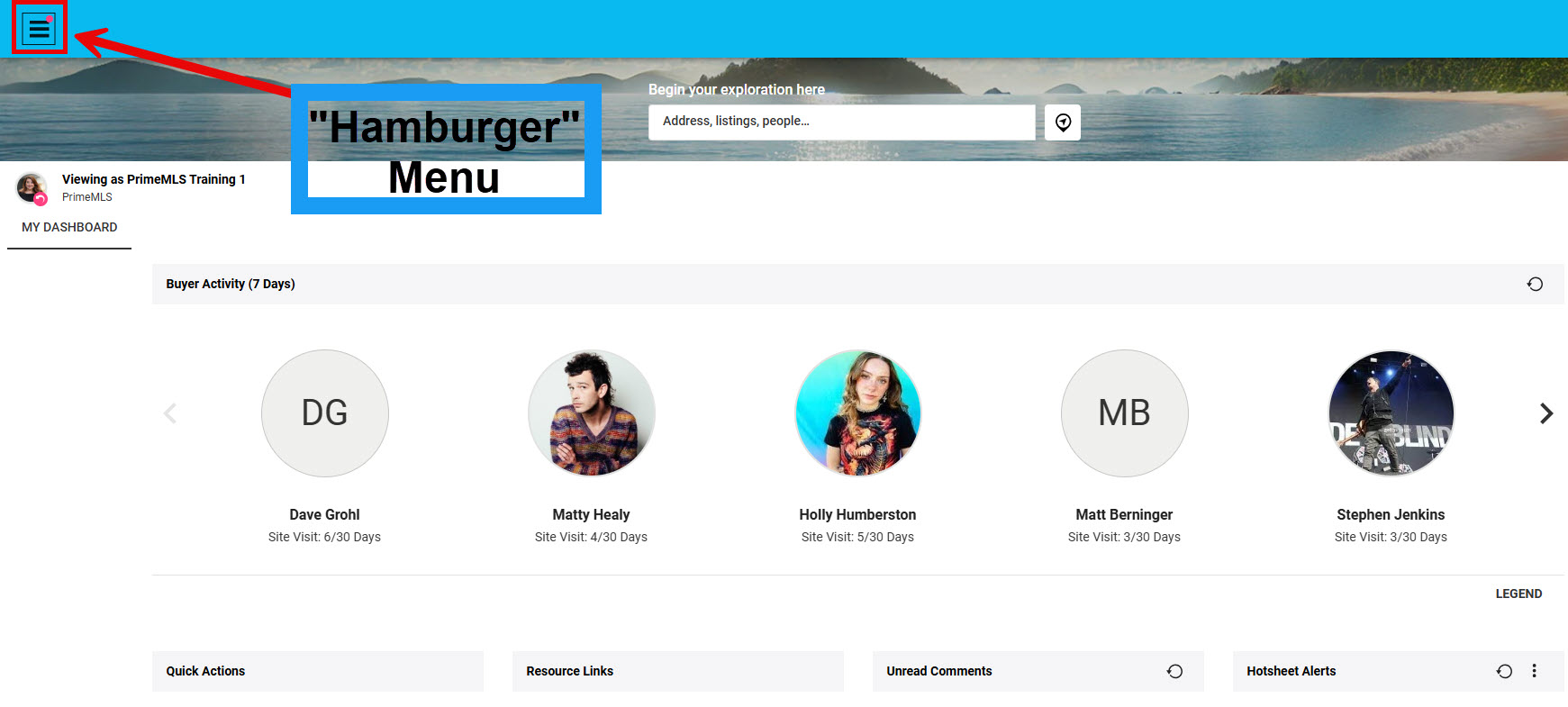
1. From the Paragon Connect Dashboard, click on the top left "Hamburger" menu
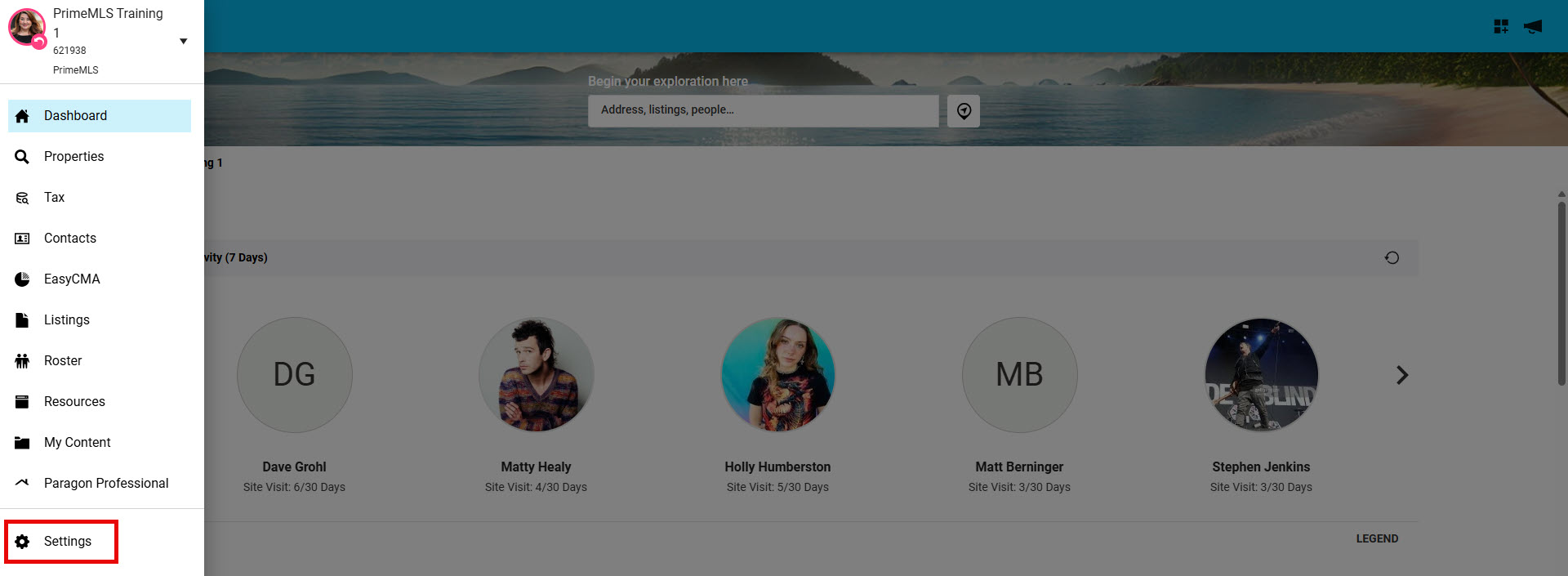
2. From your "Hamburger" menu options, select "Settings"
3. Select "System"
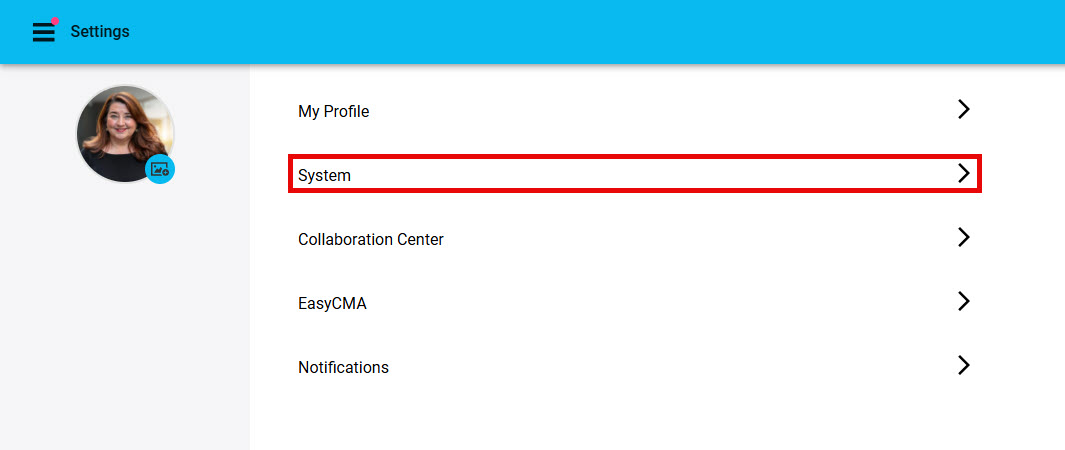
4. Select "Choose Theme"

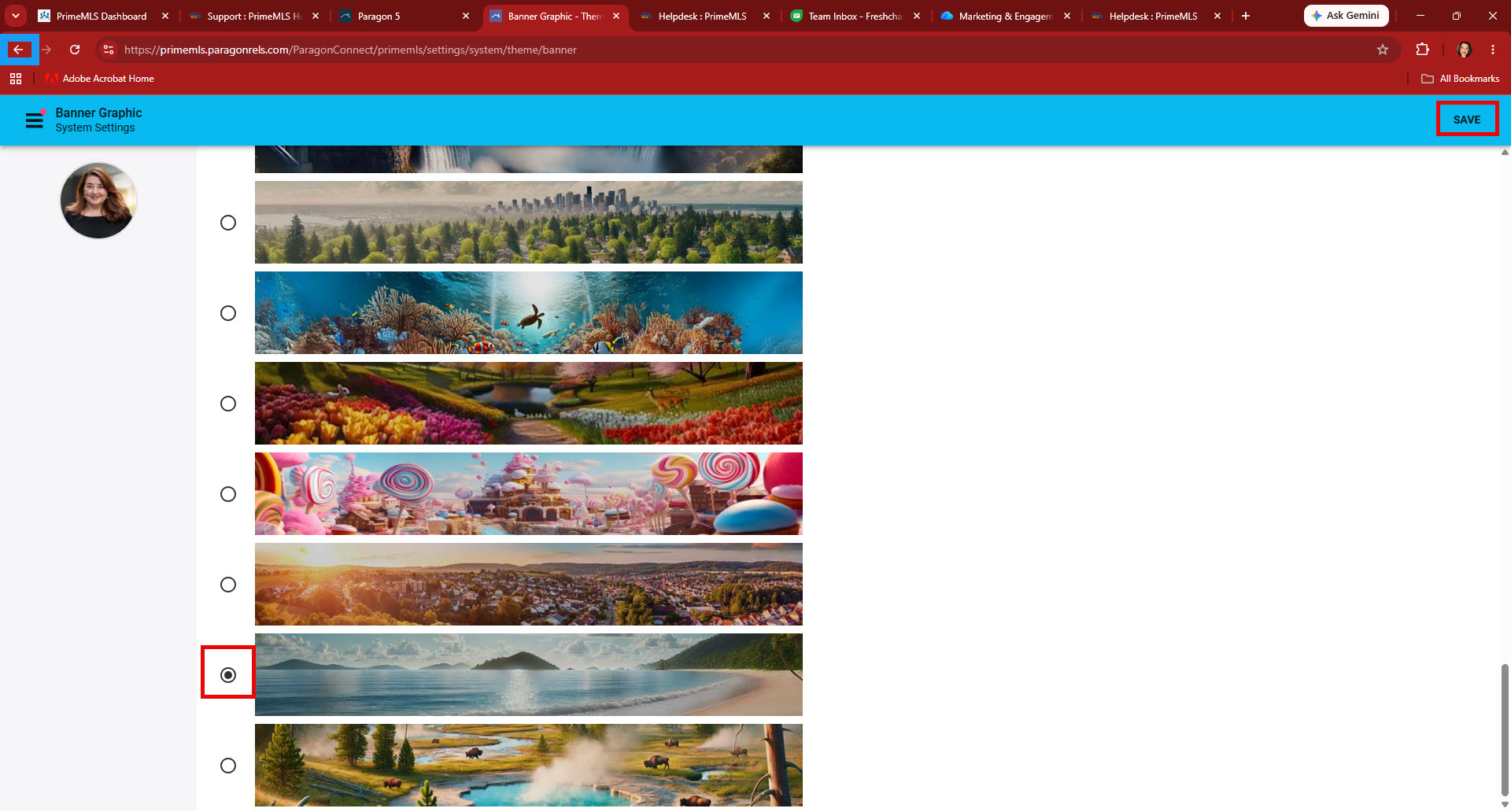
5. To change the Paragon Connect Dashboard "Banner" select "Banner Graphics

6. Scroll through the banner graphic options and choose the one you want to use
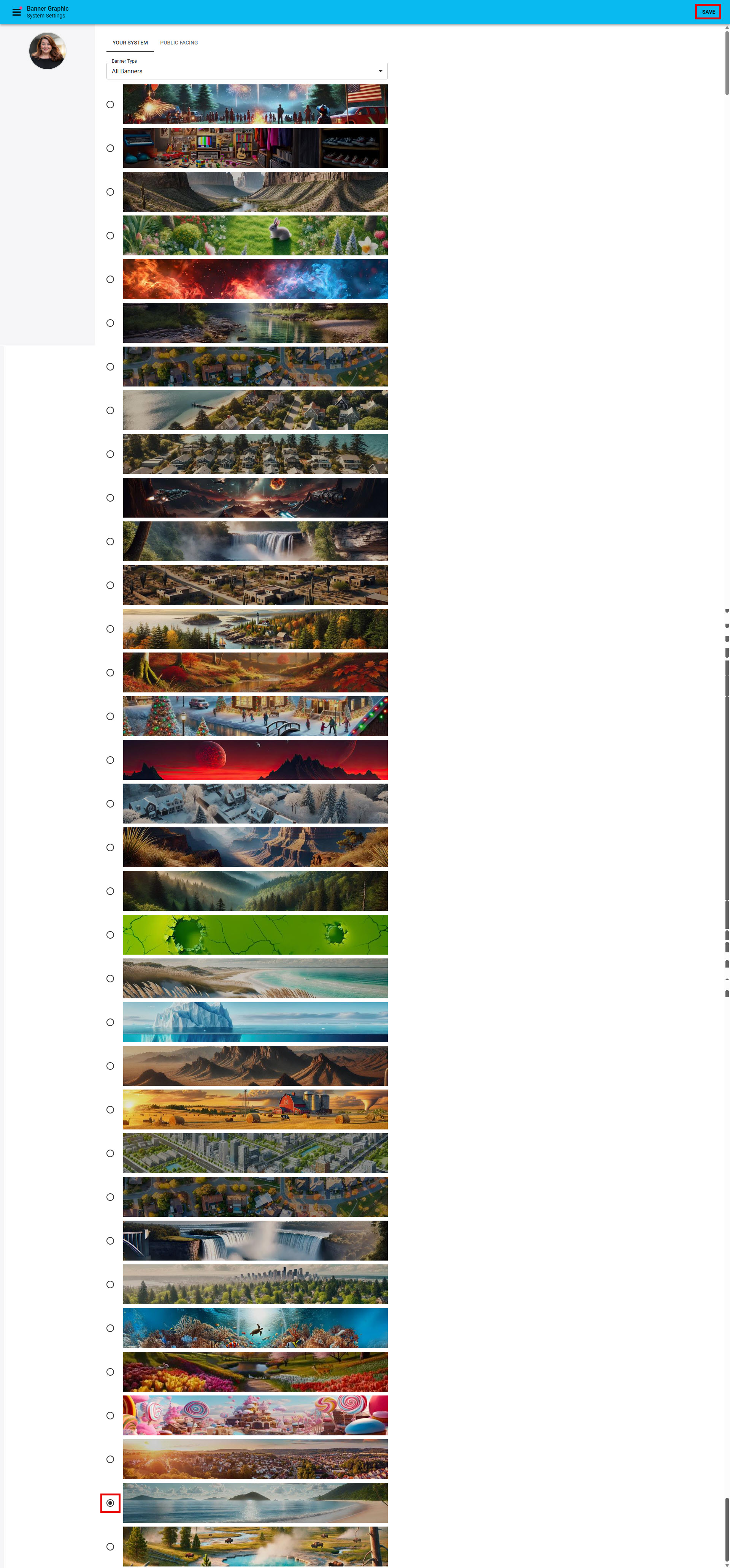
7. Once you select your new Banner Graphic, click on "Save" in the top right corner and use your "Back Arrow" in the top left corner of your screen to navigate back to the "Choose Theme" options