
The Office Profile is edited on the PrimeMLS Dashboard and can be accessed only by the Head Broker for the Firm/Office or Head Admin(s) for the Firm/Office. Contact information for the office can be edited, as well as data authorization permissions. Watch the video below to learn how to update the profile or scroll down for instructions.
Updating The Office Profile
Step 1: Log In to the Dashboard
Go to myprimemls.com and log in.
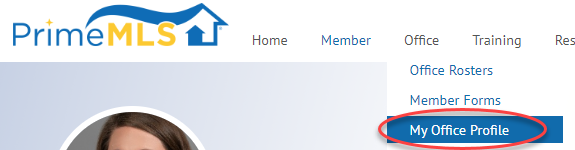
Open the Office menu at the top and select "My Office Profile."
Step 2: Update Contact Information
If you manage multiple offices, you will need to select the office that needs to be updated. If you do not manage multiple offices, you'll be navigated to the profile page.
Here you can update contact information and data authorizations, as well as billing.
Update office contact information as needed.
Step 3: Set Office Permissions
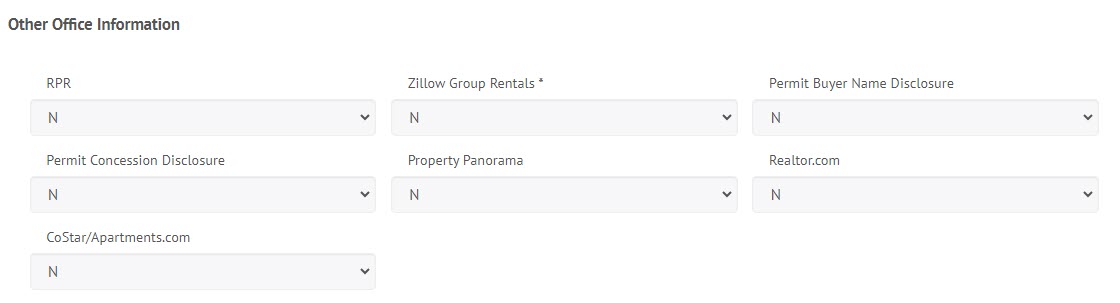
The broker of the office sets permissions for the data authorizations section in listing maintenance. The selections here determine whether or not the agents in an office will be able to share listings to the various websites noted. You can find more information data authorizations here.
You can set permissions for "Permit Buyer Name Disclosure" - a selection of "N" prevents agents in your office from being able to save a listing with the buyer name.
You can set permissions for "Permit Concession Disclosure" - a selection of "N" prevents agents in your office from being able to save a listing with concession details.
Step 4: Save
When you're finished making updates, click "Update."
Changes made that display in Paragon will take approximately 15-30 minutes to update in Paragon.