
Adding and transferring members is made easy with the PrimeMLS Dashboard. Follow the below instructions to learn how.
JUMP TO A SECTION
Adding a Member
Best Practices
Based upon what some of our members have reported, the following best practices could help ensure your compliance with PrimeMLS rules associated with the management of your office roster.
Adding Agents
The Office Head or Admin can add any agent to the office roster as soon as they become aware of the agent's intention to join the office.
PrimeMLS will add the member to your roster at the appropriate time, based upon the member's license status, as well as their status with their current office, if applicable.
Step 1: Log in
Go to myprimemls.com and log in.
Open the Office menu at the top of the dashboard and select "Member Forms."
Step 2: Previous Username Confirmation
Confirm that the person you are adding has never been a member of PrimeMLS.
If you are unsure, go to the "Paragon User Code Search."
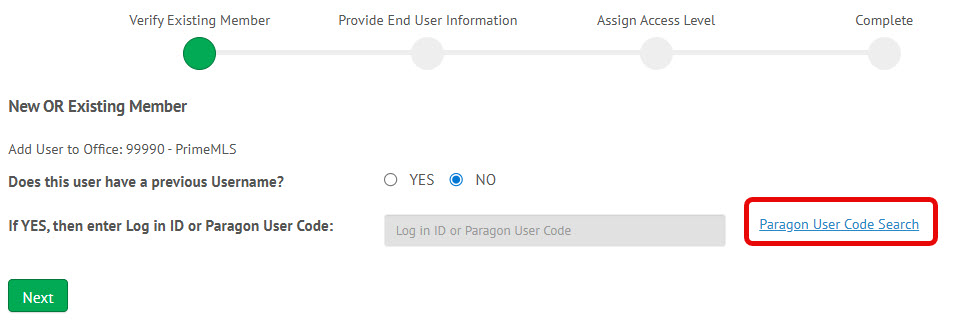
Enter their last name and click "Search." Note that by default it will show only 10 results per page, so there may be multiple pages. If you find the person, scroll down to the instructions for transferring an agent.
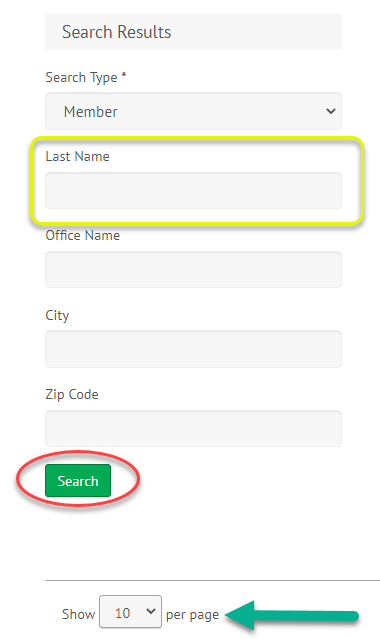
Step 3: Enter the User's Information
Upon confirmation that they have not previously been a PrimeMLS member, leave the selection of "NO" for "Does this user have a previous Username?" and click "Next."
Enter all required* information.
Every PrimeMLS customer must have a unique email address in the required *Email field. All PrimeMLS communications will be sent to this unique email address. If there is a shared email address that should be available in the MLS software (for other PrimeMLS customers to utilize) the optional Marketing Email address can be used. If no email address is added to the optional Marketing Email address the unique email address will be used for the MLS software.
Click "Next."
Step 4: Assign Access Level
Based on their customer type, there will be a list of access levels. Make the selection per the access level they will need.
Check the "I Agree" box for the Consent to Conduct Business Electronically information.
Click "Submit."
New members are typically processed day of submission, pending the time the application was completed related to PrimeMLS business hours and that all required information has been provided.
Transferring a Member
Best Practices
Based upon what some of our members have reported, the following best practices could help ensure your compliance with PrimeMLS rules associated with the management of your office roster.
Transferring/Departing Agents
The Office Head or Admin must remove an agent from their PrimeMLS office roster within 2 business days of the agent's departure from the office.
Whenever an agent is removed from the office's roster, the Office Head or Admin must also follow the applicable state real estate commission procedures (electronic or otherwise) to disassociate the agent's license from the office.
Step 1: Log in
Go to myprimemls.com and log in.
Open the Office menu at the top of the dashboard and select "Member Forms."
Step 2: Previous Username Confirmation
Since you are transferring a member from one office to another, the user has previously had a PrimeMLS account. Accordingly, select "YES" for "Does this user have a previous Username?"
If you are unsure of their log in ID or Paragon User Code, use the "Paragon User Code Search."
If you are unsure, go to the "Paragon User Code Search."
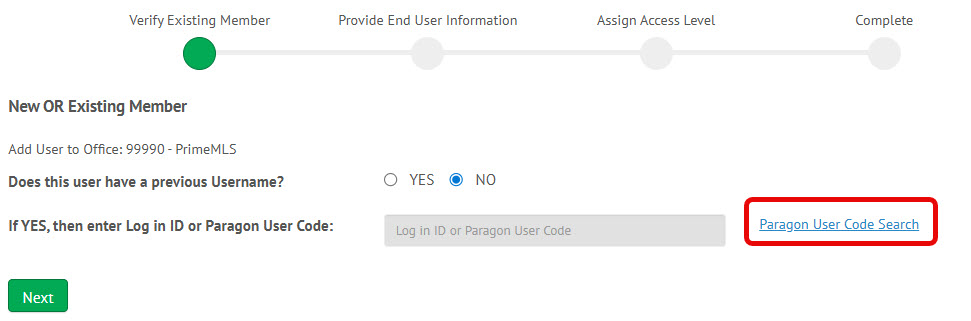
Enter their last name and click "Search." Note that by default it will show only 10 results per page, so there may be multiple pages.
Step 3: Enter the User's Information
By entering the user's login ID or Paragon User Code, their basic contact information will auto-populate.
Enter the rest of the required information.
Every PrimeMLS customer must have a unique email address in the required *Email field. All PrimeMLS communications will be sent to this unique email address. If there is a shared email address that should be available in the MLS software (for other PrimeMLS customers to utilize) the optional Marketing Email address can be used. If no email address is added to the optional Marketing Email address the unique email address will be used for the MLS software.
Click "Next."
Step 4: Assign Access Level
Based on their member type, there will be a list of access levels. Make the selection per the access level they will need.
Check the "I Agree" box for the Consent to Conduct Business Electronically information.
Click "Submit."
Transferring members are typically processed on the day of submission, depending upon the time the application was completed related to PrimeMLS business hours and whether all required information has been provided.
If the transferring member has not yet been removed from their previous firm/office, that removal must be completed by the previous firm/office before PrimeMLS can process the transfer request.
However, when transferring a member between two branch offices with the same firm/office ID, a member removal is not required.