If you need to remove a member from your roster, you can complete that quickly and easily via the PrimeMLS Dashboard.
How to Remove a Member from your Office
Best Practices
Based upon what some of our members have reported, the following best practices could help ensure your compliance with PrimeMLS rules associated with the management of your office roster.
Transferring/Departing Agents
The Office Head or Admin must remove an agent from their PrimeMLS office roster within 2 business days of the agent's departure from the office.
Whenever an agent is removed from the office's roster, the Office Head or Admin must also follow the applicable state real estate commission procedures (electronic or otherwise) to disassociate the agent's license from the office.
Step 1: Log In
Go to myprimemls.com and login
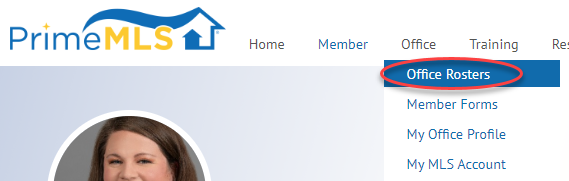
Click the "Office" menu at the top of the dashboard and choose "Office Rosters."
Step 2: Find the Member
This navigates to a list of all active agents/members in your office.
If you manage multiple offices, you'll have a drop-down menu to select the appropriate office.
Click the name of the member you wish to remove.
Step 3: Remove
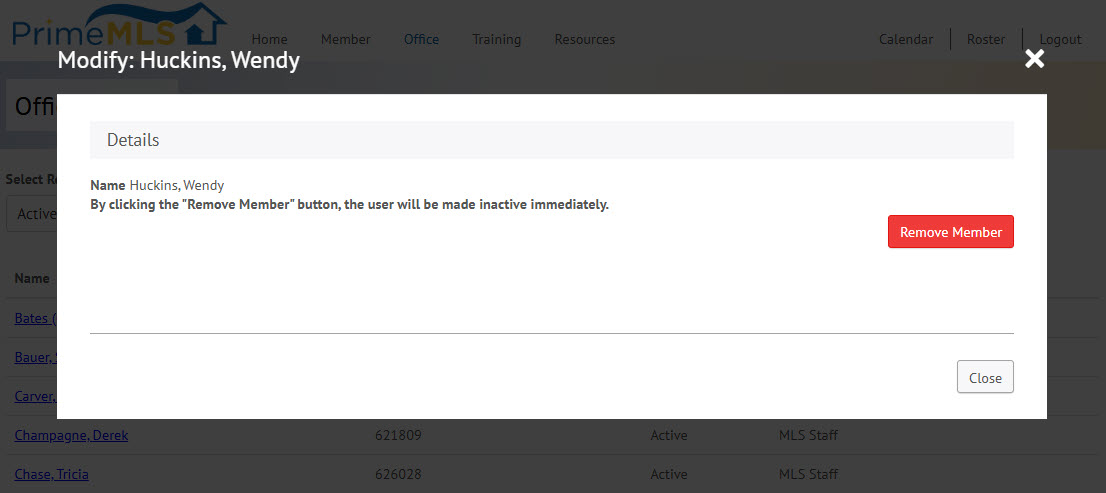
Click "Remove Member." The member will be removed from your office roster.