
This page covers how to update your contact information via your member profile on the PrimeMLS Dashboard. Some of the information updated in your profile will be fed into the Paragon database, and you'll find instructions on how to update that, as well. For a quick explanation watch the video below or scroll for instructions.
CHOOSE AN UPDATE METHOD:
Updating Contact Information on the PrimeMLS Dashboard
Step 1: Log in to the PrimeMLS Dashboard
Once logged in to the PrimeMLS Dashboard, click the "Edit" button on the left.
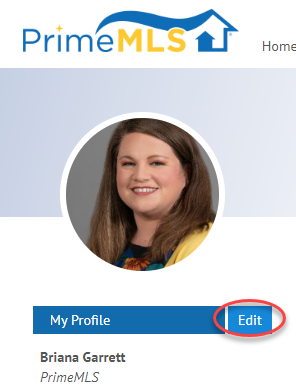
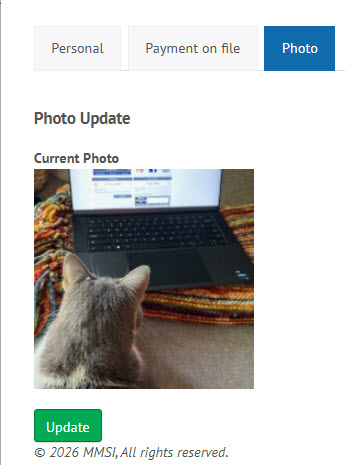
There are 3 tabs - Personal, Payment on file, and Photo.
Go to the PrimeMLS Billing tab on your Helpdesk for detailed instructions on adding a payment on file or signing up for auto-pay.
Updating the photo will add a photo to your dashboard. This photo does not feed into Paragon or any other site and can be left empty or a fun photo can be added as you are they only person who should access your PrimeMLS Dashboard.
Step 2: Make Your Edits
On the Personal tab, fields that are required are denoted by an asterisk.
Every customer of PrimeMLS must have a unique Customer Subscription Email address. If you leave the Marketing Email address field blank, your Customer Subscription email address will populate in Paragon.
If you have a shared email address, add it in the Marketing Email address field and that is the email address that will populate in Paragon.
Add different phone numbers, which will display as selections in Paragon.
Add your website for display in Paragon and within the Collaboration Center.
The PrimeMLS Account Services Team must update any licensing information.
Step 3: Save Your Changes
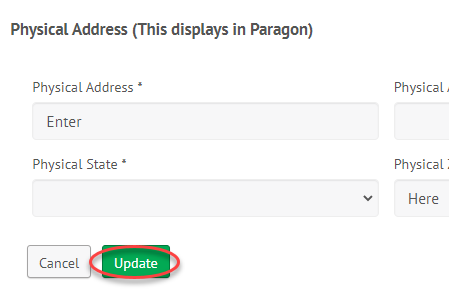
Once you are finished making changes, click "Update." The changes will be immediately updated on the Dashboard; it takes approximately 30 minutes for the information to update within Paragon.
Updating Contact Information in Paragon
Step 1: Confirm Information is Available
- Any contact information you'd like to have in Paragon for yourself must first be in your member profile.
- Ensure that information is already in your member profile by going to the PrimeMLS Dashboard and clicking the "Edit" button.
- Follow the above instructions if necessary.
Step 2: Update Phone Numbers
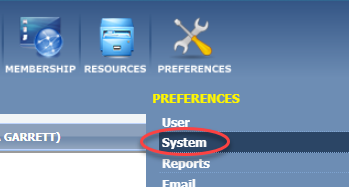
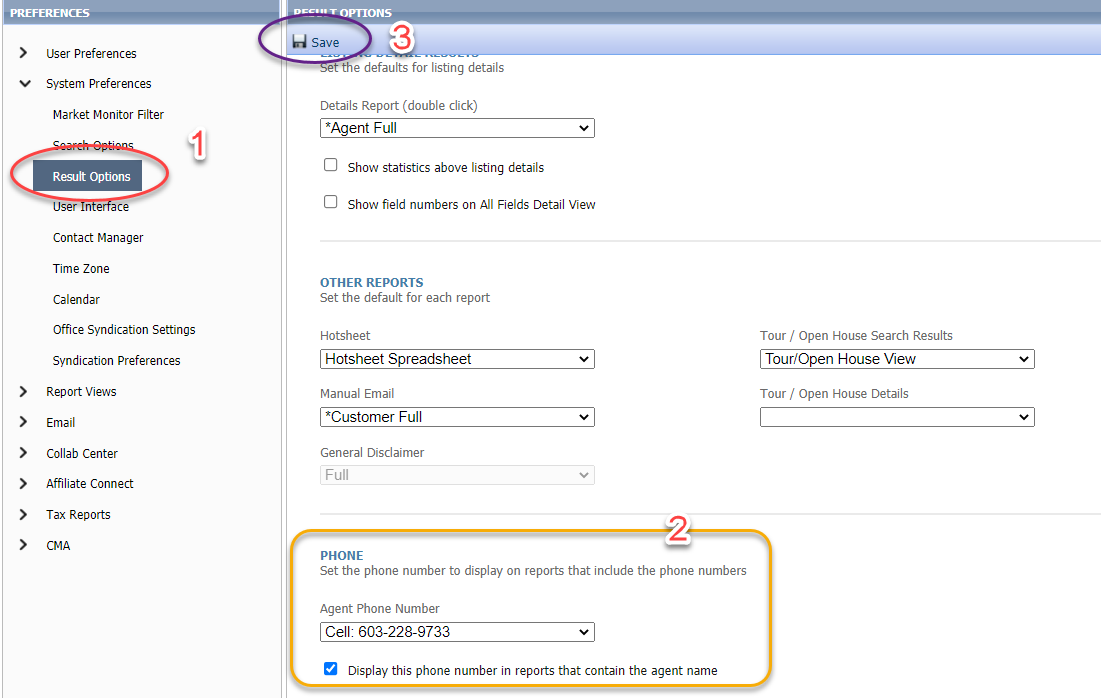
- To change your primary phone number in Paragon, go to the "Preferences" menu.
- Select "System."
- From the menu on the left, choose "Result Options."
- Scroll to the bottom and select the phone number you want to display associated with you on reports.
- Click "Save."
Step 3: Email Verification
- Upon changing your email in your member profile, you will need to verify your email address in Paragon.
- Go to "Preferences" and select "Email."
- At the bottom of the page, review your "Email Verification Status." If your email is not yet verified, you will see a grey button that says "Send Verification Email." Click that button and click "Save."
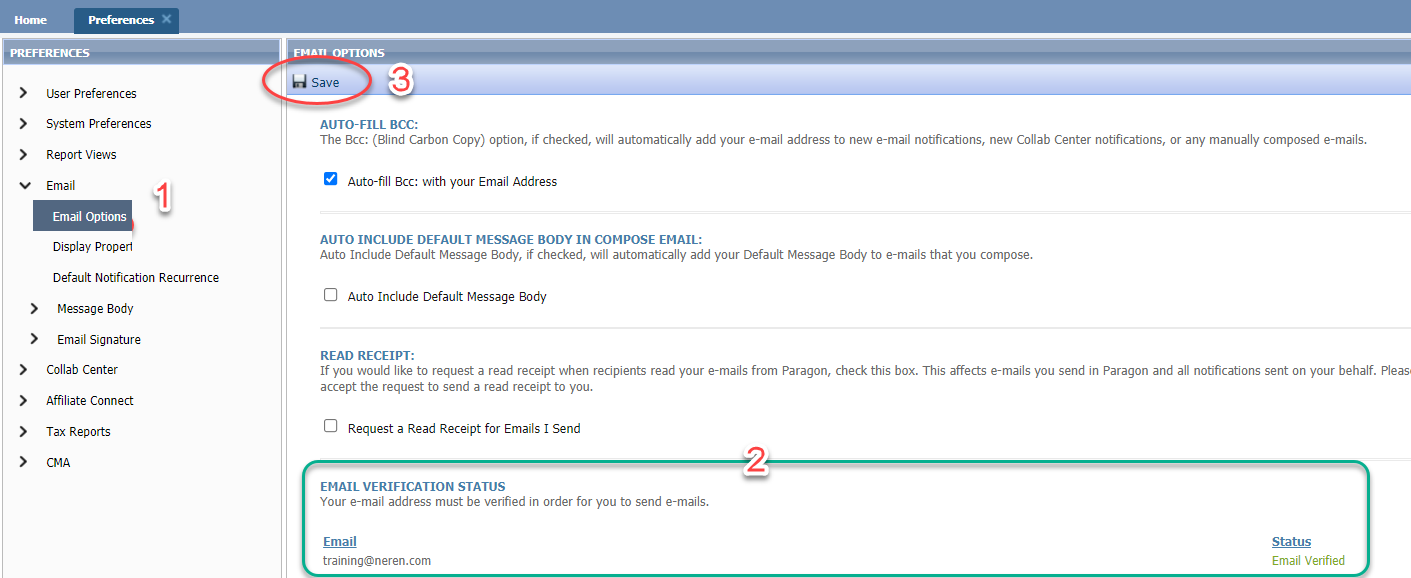
You will receive an email from Paragon. Click the link and your email will be verified. This has to be done any time you update your email address.