
Because different system ID numbers are needed for access to various software products, we created this guide to help you find different codes/ID's associated with your account/membership. This list may continue to grow as we are able to confirm information from additional platforms.
CHOOSE A PLATFORM:
RPR or RatePlug
To access RPR or RatePlug, you'll need your User Code.
Step 1: Log in
Go to myprimemls.com and log in
Click "Roster" in the top, right corner of the PrimeMLS Dashboard
Step 2: Search
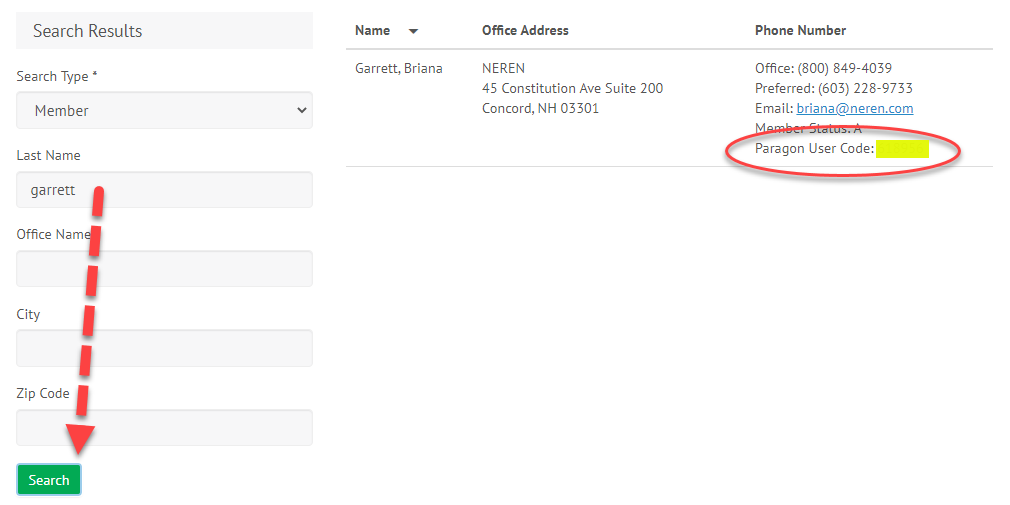
Search for yourself by last name and click "Search."
Under the Phone Number Column, you'll see "Paragon User Code." That's the number you'll need to set up your RPR account.
Realtor.com and SmartCharts
To create an account with Realtor.com, you'll need your User ID. For SmartCharts, you'll need the User ID and Office Code.
Step 1: Log in
Go to myprimemls.com and log in.
Click into Paragon.
Step 2: Search
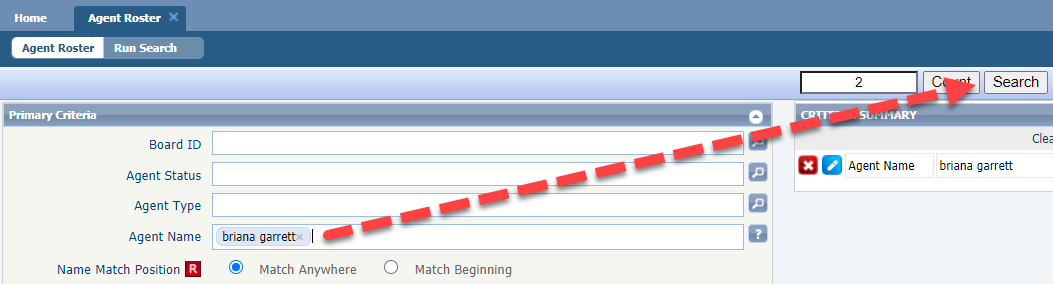
Go to the "Roster" menu and choose "Agent Roster."
Enter your own name in the "Agent Name" field.
Click "Search."
Step 3: Get User ID
- Upon clicking search, you'll see the results.
- Find the "User ID" column. That's the number you'll need for Realtor.com.
- Also note the Office Code listed a couple columns over from User ID - you'll need this for your SmartCharts registration.
