If you have an outstanding invoice, the amount due will display on your PrimeMLS Dashboard. Quarterly invoices and anything billed directly to the customer will display as an MLS Balance. Office Heads will also see the "Office MLS Balance" and "Member MLS Balance" for invoices billed to the office. Click here for instructions on how to pay those invoices.
How to View and Pay Your PrimeMLS Invoice
Step 1: Log in to the Dashboard
- Go to myprimemls.com and log in.
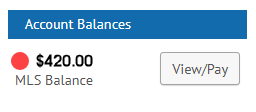
- On the right side of the dashboard, you'll see "Account Balances." If there is an invoice to pay, the total will display under MLS Balance.
- Click "View/Pay."
Step 2: View and Pay Invoice
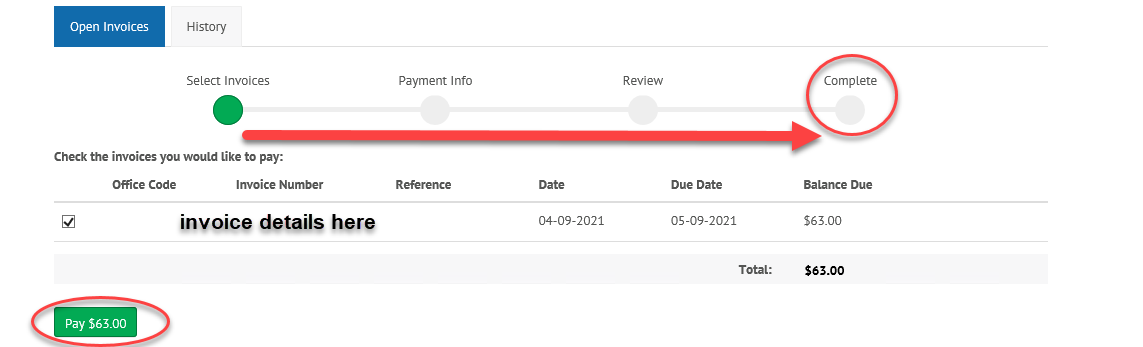
- Upon viewing the invoice details, you'll see the Invoice Number and the "Due Date."
- Click the green "Pay" button"
- You will then need to enter and/or confirm payment information. Watch the prompt at the top. The payment process is finished when you reach "Complete."