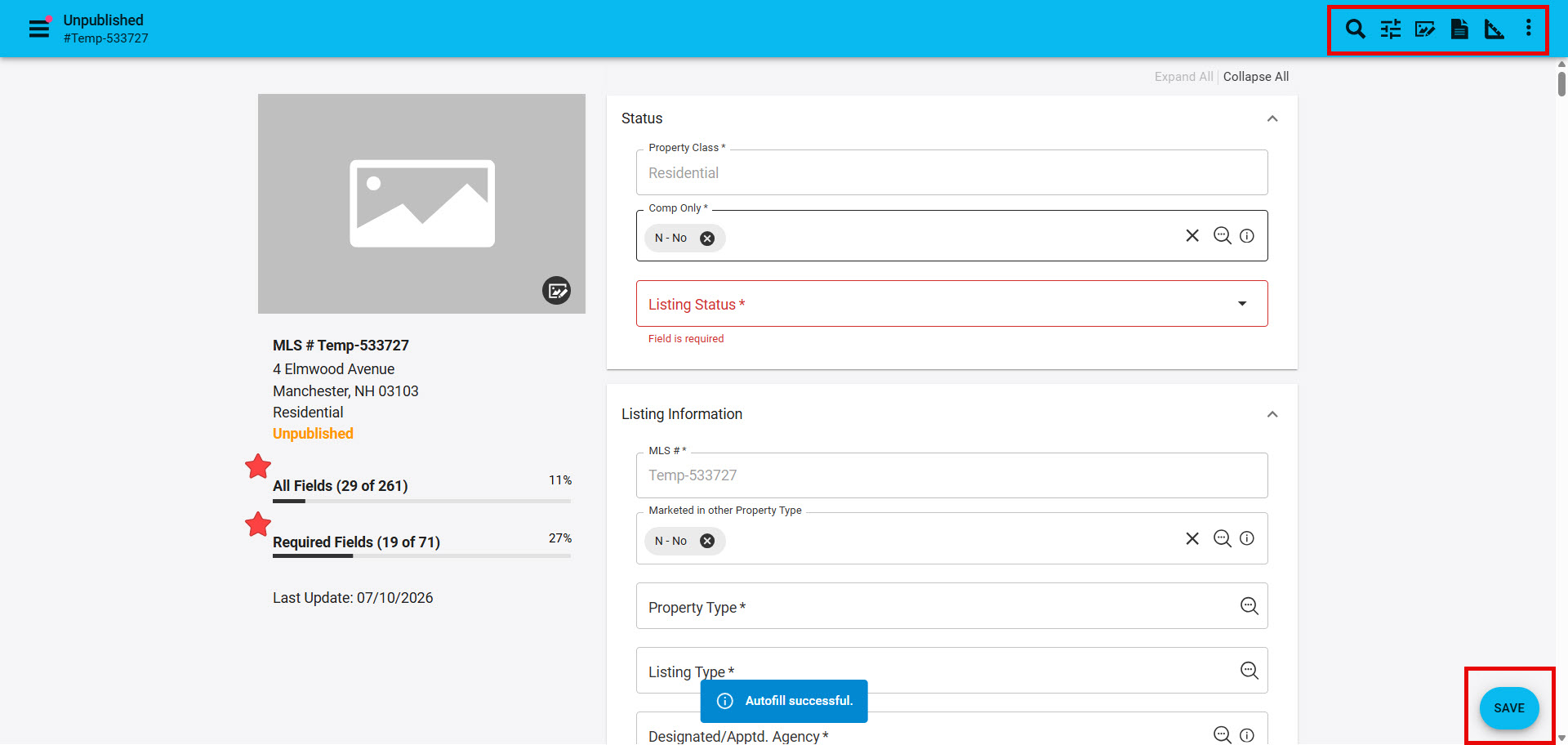
CRS Tax Auto-Fill uses the public records available in the CRS database to auto-populate fields to your listing upon input. This features allows the system do the work for you by completing several required fields, plus it syncs your listing with the CRS public records database.
Adding a Listing with CRS Tax Auto-Fill
Step 1: Begin the listing
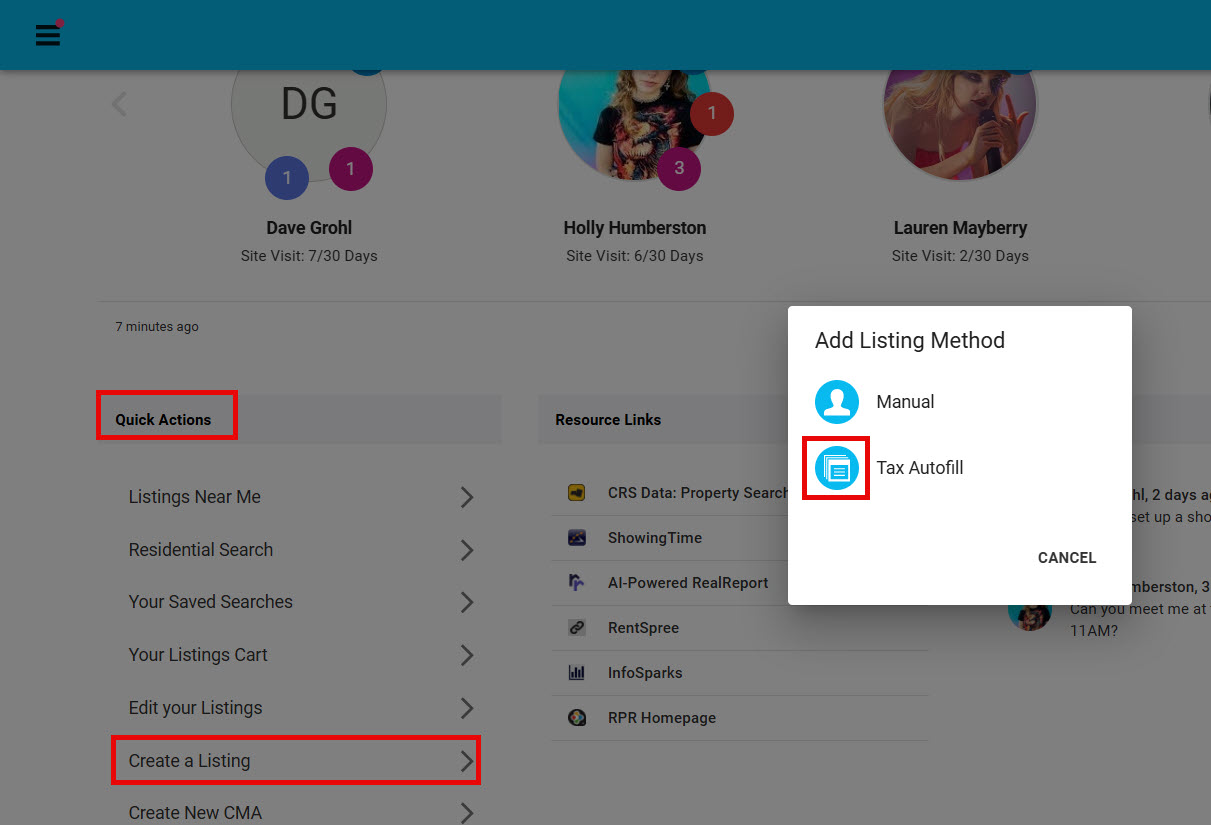
Go to Quick Actions on your Paragon Connect Dashboard
Select "Create a Listing"
Select "Tax Autofill" from the pop-up
Step 2: Find the Property
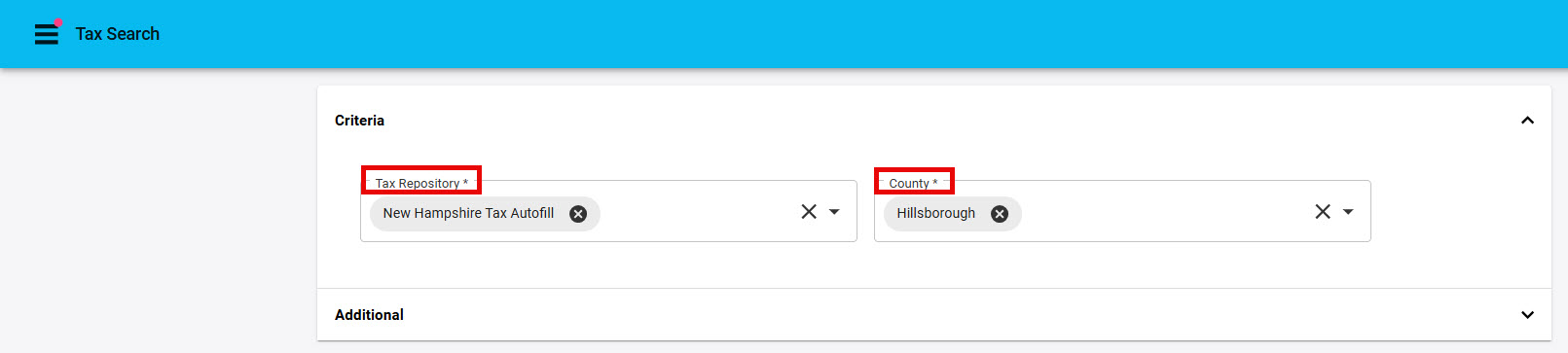
- From Tax Search, "Criteria" begin by selecting the State
- Then select the County the property is in
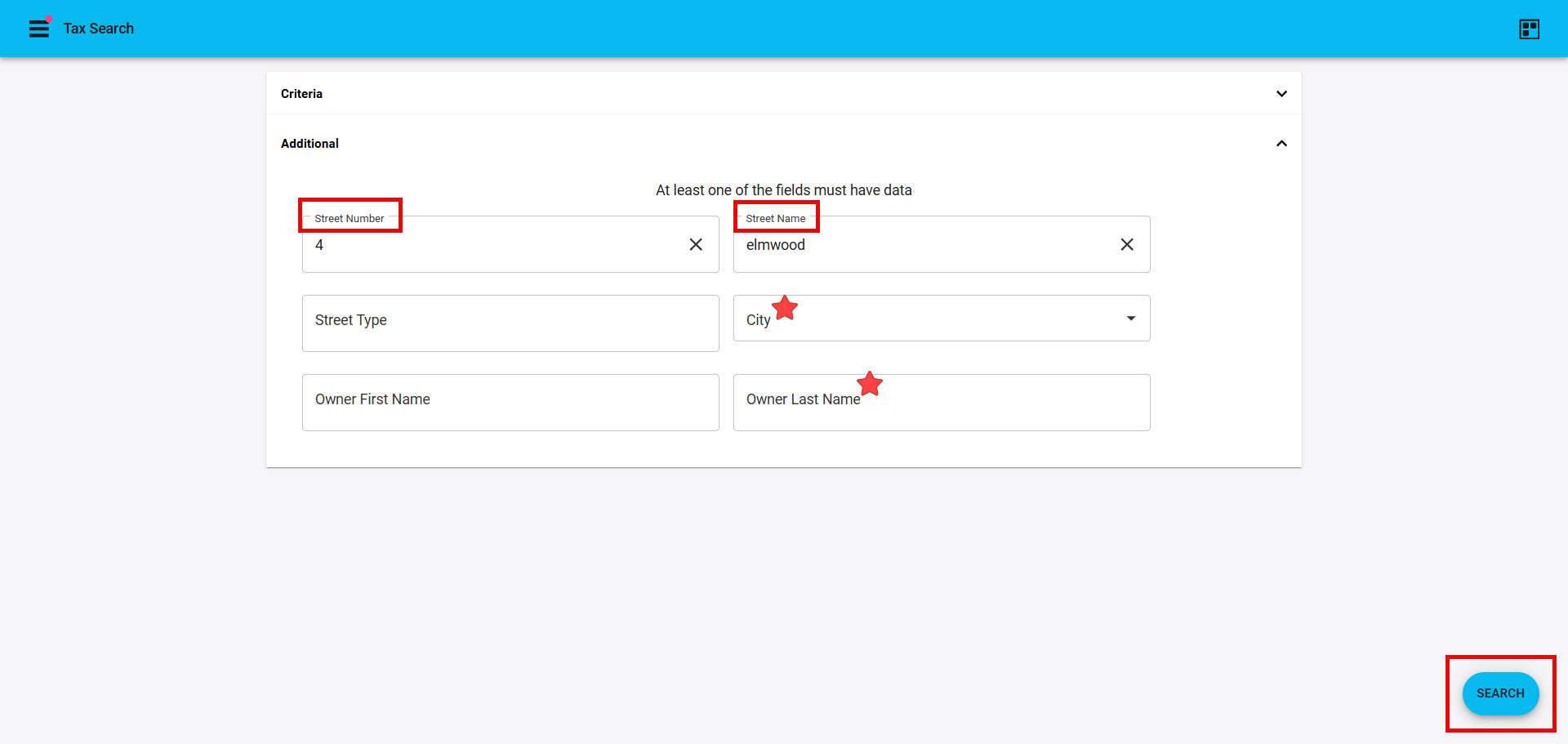
Step 3: Add "Additional" information to find the exact address you are searching for
- You must enter either"Street Name" or "Owners Last Name"
- TIP: Street Name tends to be easier, but Owner's Name can be helpful for condos that all have the same address, save for a varying unit number. The maximum number of results you'll receive is 30, so if the amount of condos is over 30, search by the City and Owner's Last Name.
- Addionally: Narrowing down "Street Name" results by adding "Street Number" (or "Owner's Last Name" with "City") will help you find the exact address you are searching for
- Click "Search" to see result
Step 4: From Tax Results
- Click "Autofill" on the property address you are looking for
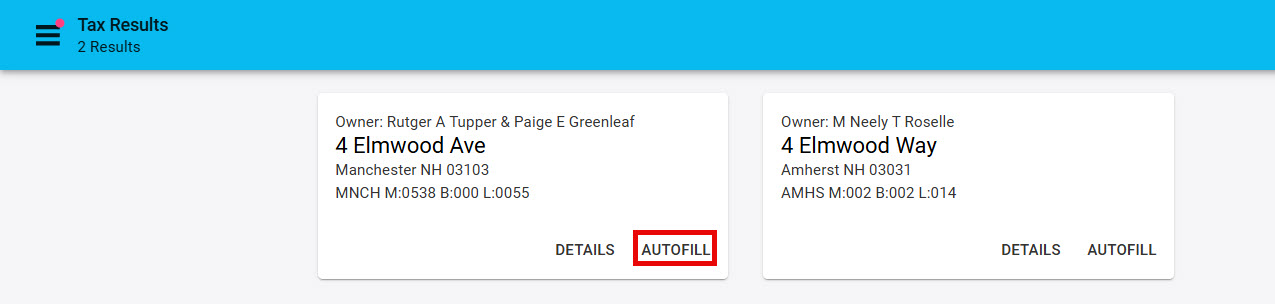
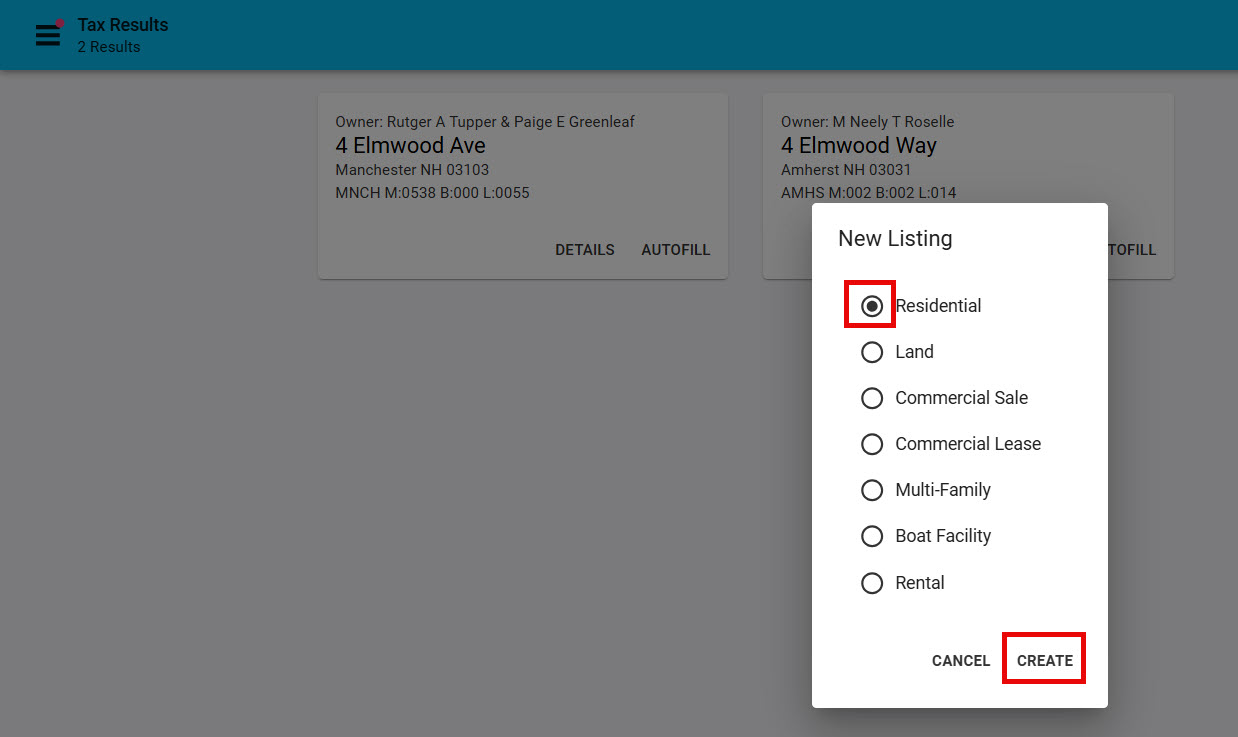
Step 5: Tax Results Pop-up
- Seclect the property class
- Click "Create"
Step 6: Unplished Listing
- You'll be able to see the % of Required and All Fields that have been populated by using CRS Tax Auto-Fill
- Start adding criteria to the listing
- In the top right corner, use the icons to add documents, photos and floor plans
- Behind the snowman/3 vertical dots icon you have access to Verify Location, use the Price Analysis Tool and add Open Houses and Tours.
- "Save" (in the bottom right corner) "Save Unpublished" until you are ready for the property to display to all PrimeMLS customers when you "Save" "Publish"