Faster Listing Entry with EasyListing
Paragon Connect now offers an easy way to add a new listing! The EasyListing option uses known data for the property address to pre-fill the listing form. Agents review the pre-populated data, fill in the remaining fields, and complete the listing process faster than ever.
WHY IT MATTERS: Less time spent re-entering property details means more time to review, finalize, and publish. With EasyListing, agents can keep new listings moving quickly, especially when speed matters most.
Here's How to Create a Listing
Follow these steps to create a new EasyListing in Paragon Connect:
Step 1: Open Quick Actions
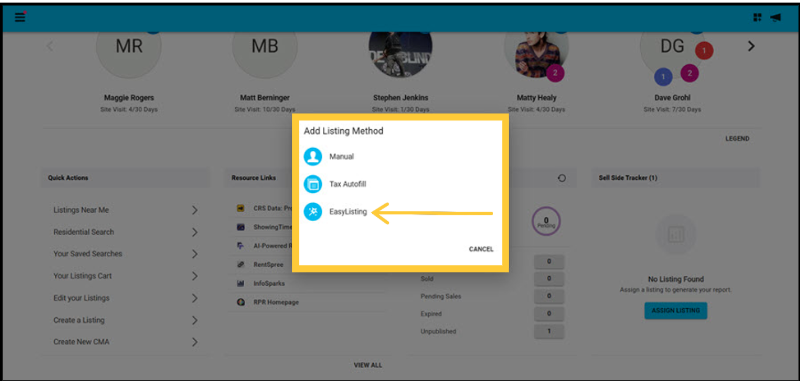
- From the Paragon Connect Dashboard, select Quick Actions, then choose Create a Listing.
- Select EasyListing.
Step 2: Select the Class
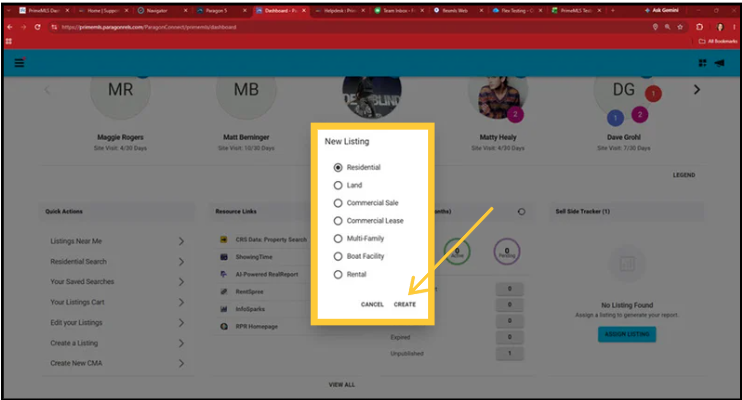
- Choose the appropriate listing class, then select Create.
Step 3: Find the Property
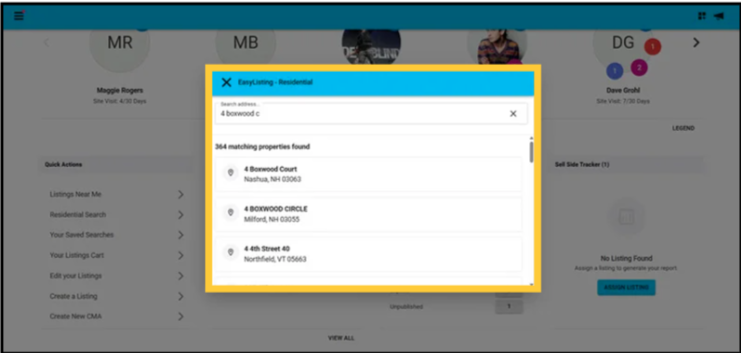
- Enter at least three characters of the property address. The more information you enter, the more accurate your search results will be.
- Select the matching property card from the search results.
Step 4: Review and Save
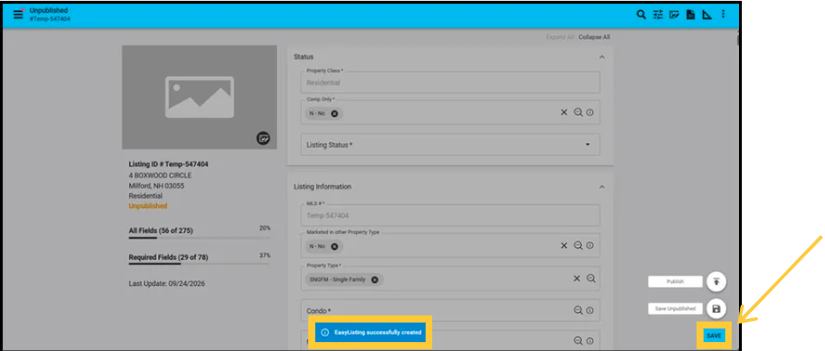
- Review the information that has been automatically populated on the Listing Input form.
- If everything looks correct, select Save to continue with your normal listing publishing workflow.