
Throughout Paragon, various customizations can be made to set up the system for the way you work. This section will cover the customization opportunities related to emailing. For any changes made in this section, make sure to click "Save" at the top in Paragon.
EMAIL PREFERENCES
Auto-Fill BCC
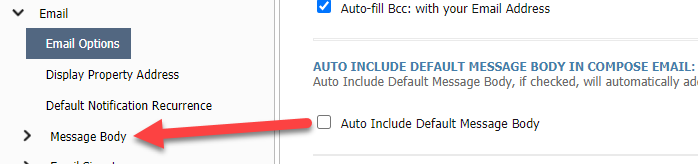
Auto-Include Default Message Body in Compose Email
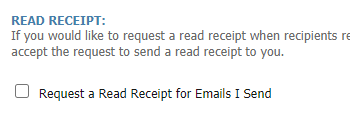
Read Receipt
Email Verification Status
Auto-Fill BCC
Checking this box means that you will be automatically blind copied on every email you send from Paragon. This includes Collaboration Center auto-emails.
Paragon holds emails that you send from the system within the Contacts menu under Sent Items. Manual emails are kept for 180 days while auto-emails from the Collab Center are kept for 60 days. If you wish to hold records for longer than this, checking the "Auto-Fill BCC" box will be beneficial to you. If on a particular email you do not wish to be blind copied, you will have the option to not be blind copied, but if more often than not you wish to be blind copied, checking this box will make that easy for you to achieve.

Auto-Include Default Message Body in Compose Email
In Paragon, you can create message bodies. If there is text that you include with every email (this does not refer to an email signature), check this box to include that message body automatically in every email you send out of Paragon. Click here to learn how to create message bodies.
Read Receipt
Check this box to request a read receipt for every email you send from Paragon. In order for this to work, the recipient must use an email server that allows for read receipt functionality. Recipients will have the option to decline sending a read receipt.
Email Verification Status
When sending emails from Paragon, you are utilizing the Paragon servers to send those email. Accordingly, all Paragon users must verify their email to ensure that real people are using their servers, as opposed to spam-bots. If you have verified your email, you will see the green text reading "Email Verified."
Otherwise, there will be a grey button that says "Send Verification Email." Click this and you'll receive an email with a link to your inbox. Click the link and your email is verified. This is a one-time process unless you change your email address. If your email address is updated, you will need to verify the new email address.
Users have 30 days from the first time you send an email out of Paragon to verify it. Once the 30 days is reached, your email privileges will be turned off. This can be quickly resolved by clicking the "Send Verification Email" and clicking the link in the email you receive.
