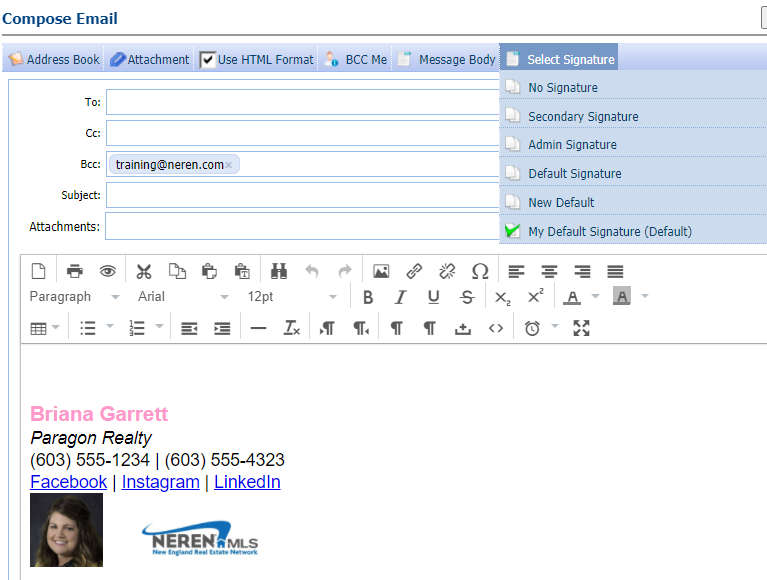
Email Signatures can populate at the bottom of every email you send from Paragon to include your name, office and contact information, as well as links, photos and more. This guide will cover how to create and use email signatures.
TABLE OF CONTENTS
Creating Email Signatures
Step 1: Access Preferences
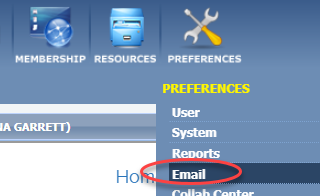
- Go to the Preferences menu and select "Email."
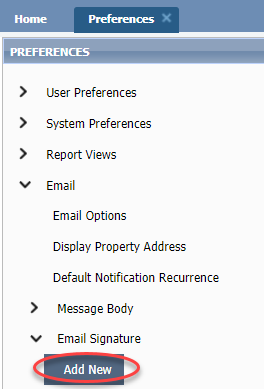
- From the menu on the left, open "Email Signature" and click "Add New."
Step 2: Create your signature
You will find a basic signature already created. You can delete this by clicking the text and deleting the entire box to leave you with a blank page to create your own.
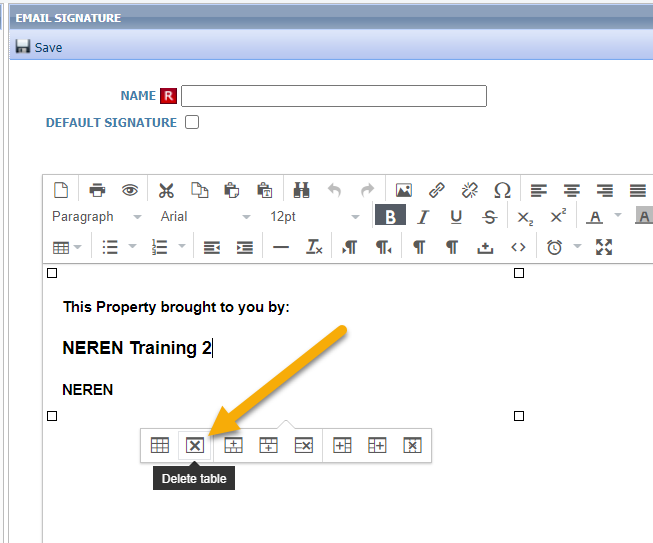
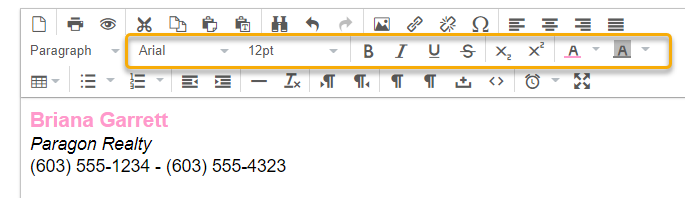
- The email signature you have currently can be copied and pasted here, or you create an original. Text can be updated with different fonts, sizes, styles, and colors.
Adding Links
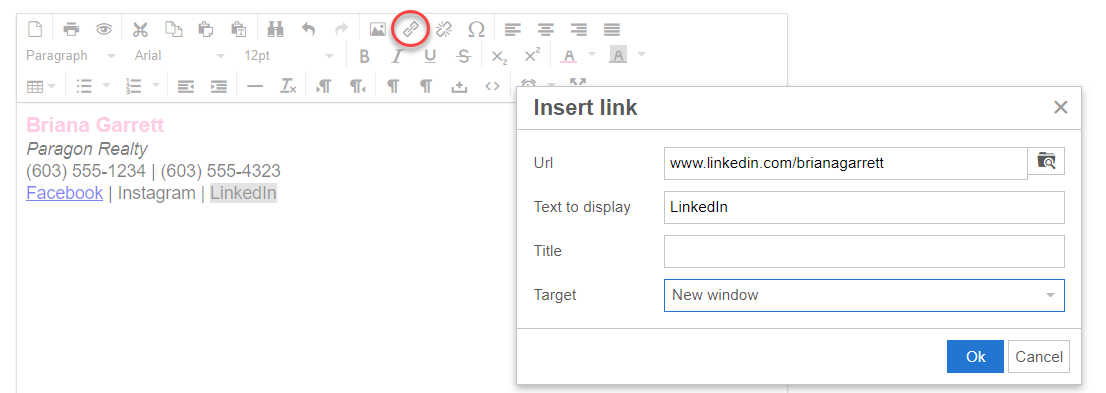
1. Links can be added with the chain icons in the tool bar. Type the text, then click the linked chain.
2. In the pop-up, type or paste the URL and under "Target" choose "New Window" so that if the recipient clicks the link it will open in a new browser tab.
Adding Photos
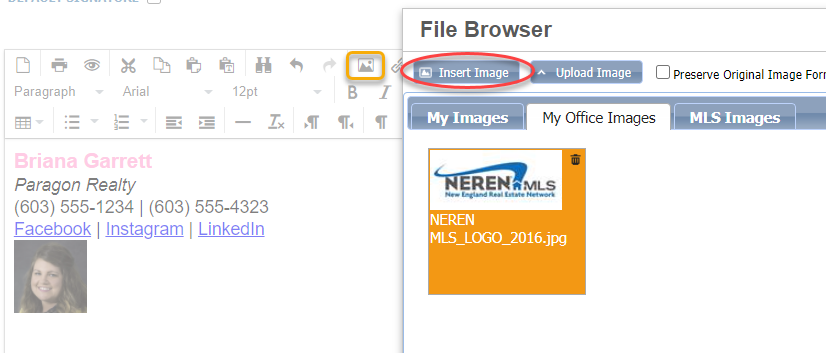
1. Click the picture icon in the toolbar.
2. In the pop-up, click the file search icon.
3. This will open the photo storage of photos you have uploaded into Paragon. If the photo you want is there, select it so it's highlighted orange and choose "Insert Image." If it's not uploaded, first click "Upload Image," then select it and insert it.
4. Images will be quite large when they are inserted, but you can use the resizing square around the photo to minimize.
Step 3: Name and save
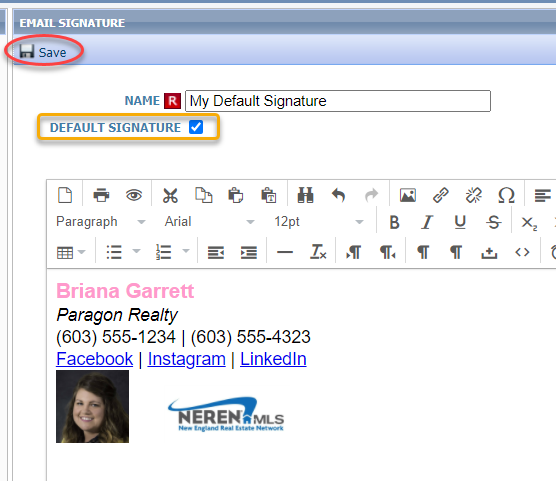
- Once the signature is completed, be sure to give it a name. This is how it will display in your list of signatures. Multiple signatures can be created, which is benefit for those who wear many hats. Create a signature for agent-to-agent emails, agent-to-consumer emails, admin work emails, etc.
- Lastly, if this is the signature you plan to use most often, check the "Default Signature" box. This will auto-populate the signature you have created automatically every time you send an email from Paragon.
- Once you have completed the signature, click "Save" at the top.
Using Email Signatures
Using an email signature is easy! As long as you have checked the "default signature" box for one, it will populate automatically at the bottom of the manual emails you send out of Paragon.
If you wish to use a different signature, click the "Select Signature" menu and choose the one you want. Upon selection, it will populate in the body of your email template.