
If you are often typing the same or similar messages to send to people via email, using Message Bodies will be a great time saver! Create templates and whenever you send an email, choose the applicable template to populate and send your email in seconds.
MESSAGE BODIES
Creating Message Body Templates
Step 1: Access Preferences
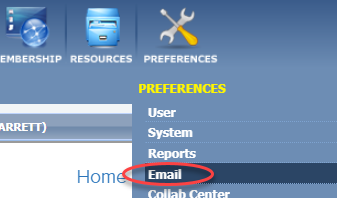
Go to "Preferences" menu and select "Email."
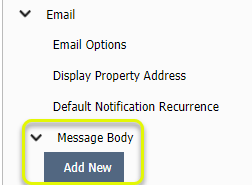
From the menu on the left, open "Message Body" and click "Add New."
Step 2: Create messages and save
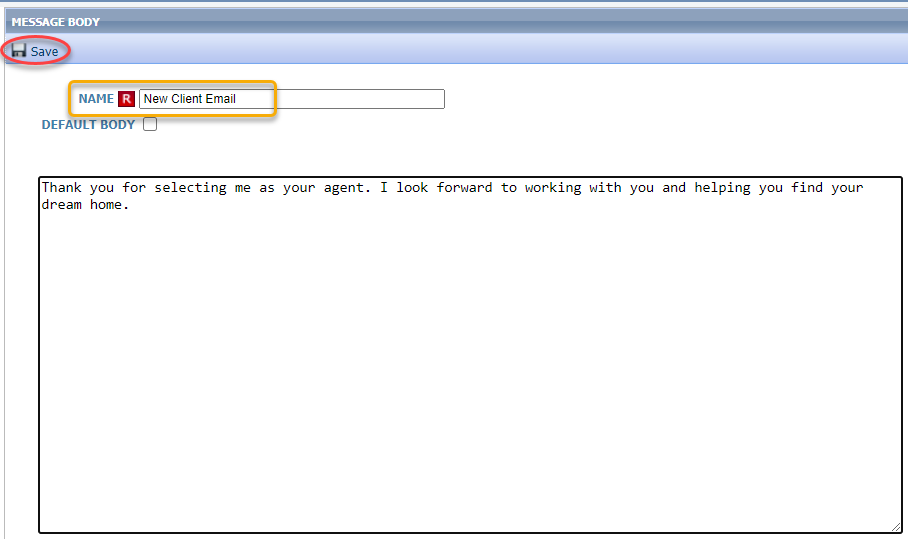
Here you can write the message. Notice the text cannot be customized. The text will be whatever you have set within the User Interface section of Preferences. If you have not made customizations there, the system defaults are Arial, size 12, black text.
When your finished typing the generic message, provide a name. The name is how it will be listed in your saved templates so you'll know which one to select when you need it.
If you check the "Default Body" box, that means this message will be automatically included in every email you send from the system, as long as you checked the appropriate box in Email Preferences. Only check this box if you truly believe you will use this message body more often than not, otherwise you'll be removing text every time you send an email.
Make sure to click "Save" when you are finished.
Using Message Bodies
These instructions cover just one method of how to send emails out of Paragon, but keep in mind that whenever you send an email, you will have the "Message Body" button available.
Step 1: Create an email
Click "Compose Email" in the top, right corner of Paragon.
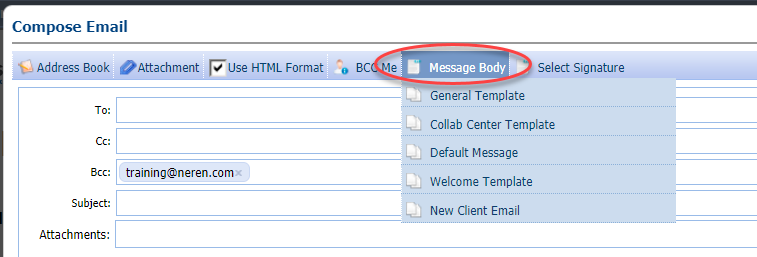
When the modal opens, click the "Message Body" button at the top and choose your template.
Step 2: Edit, if needed
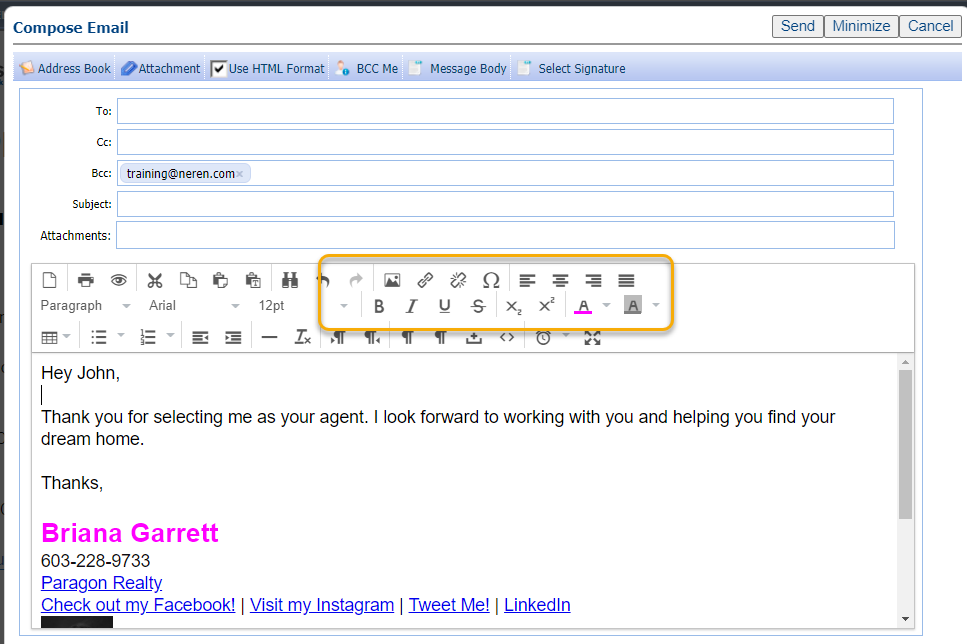
The text will populate into the body of the email.
The text is editable if you need to change the font or style, plus you can add salutation and closing lines. Whatever you choose to add, the majority of the work is done!
Step 3: Send
- In the "To" field, enter the recipient's email address.
- Click "Send."