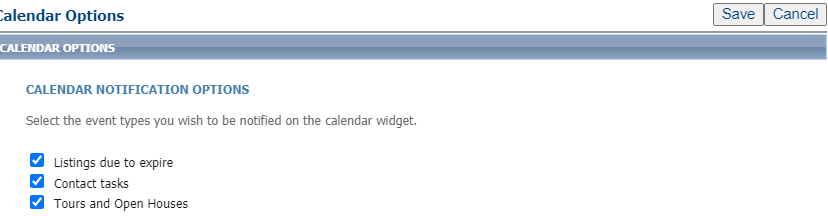
The Calendar on the Home page of Paragon is a simple tool that provides helpful information. By default, it displays any upcoming tours and open houses that you schedule, your own expiring listings as the expiration date approaches, and tasks that you've set for contacts. Plus, users can add their own events to display; Brokers/Admins can display events for the entire office/firm to see. This page explains how easy it is to add events to the calendar.
Adding Events to the Calendar
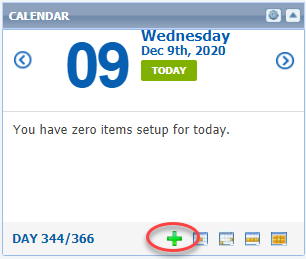
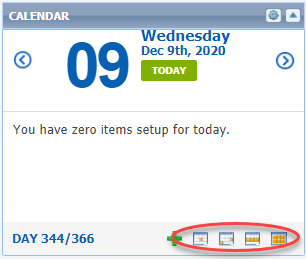
Step 1: At the bottom of the calendar, click the green + icon.
Step 2: Enter Event Details
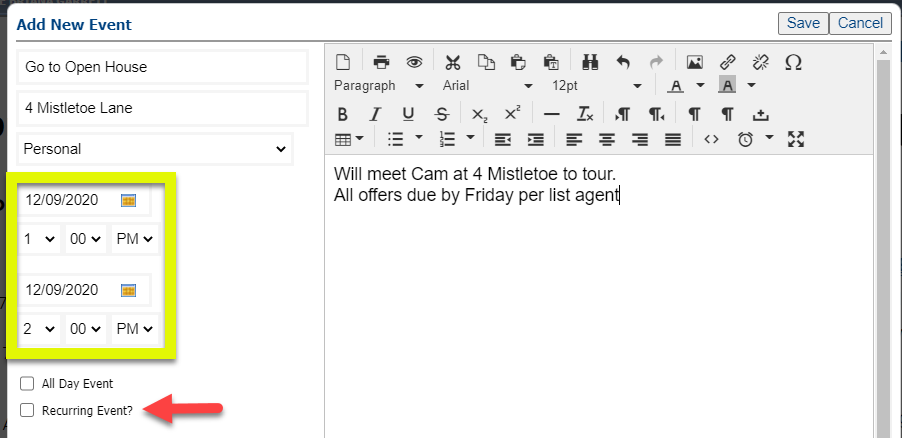
In the pop-up, you can enter the event details including:
- Title
- Location
- Dates and Times
- Recurring Event or All Day Event
- Choose the view - Brokers/Admins/Head Office types can choose to display on their own calendar or the calendar for the entire office/firm, depending on the member type.
- Additional event details
Step 3: Save and Review
- Once the information is saved, the event will display on the calendar on the appropriate date.
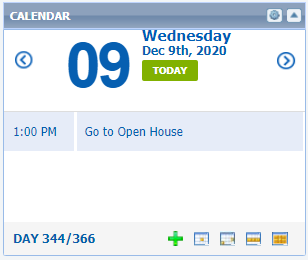
- Click the event to review more details that you inputted when the event was added to the calendar.
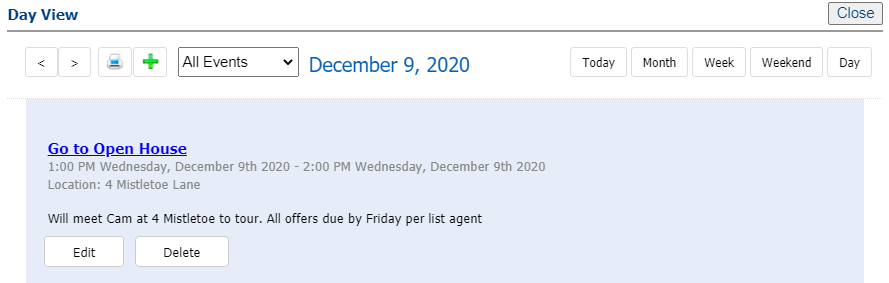
- At the bottom of the calendar, you can change the view from the default Day View to Weekend, Week, and Month views.
- In the top, right corner, clicking the gear icon allows you to customize what displays by default. Here you'll find that all 3 options are selected. If for some reason you didn't want any of these to display, simply uncheck the boxes and click "Save."