The Message Center of Paragon is located on the Home Page. It dynamically assembles and displays a wide rage of useful information. Watch the below video to learn what valuable information is provided via this tool or read on for details.
JUMP TO SECTION
MLS Messages
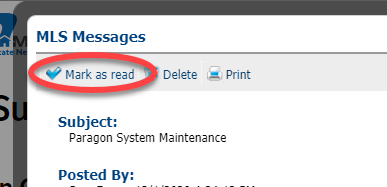
MLS Messages come to you directly from PrimeMLS! These messages will pop up every time you log in to the system because it is important information we want to ensure you review.
| Notification Types included, but not limited to: | |
| Training Opportunities | Rules & Policy Changes or Updates |
| Important real estate news | Summaries of Paragon enhancements & updates |
| System downtime details | Changes to PrimeMLS and Paragon business hours |
TIP: As you read each message, click the "Mark as Read" button. This will stop that particular message from popping up every time you login, but also retains it in your "Message History" (in the Message Center) for you to access for as long as PrimeMLS Staff has made the message available.
Expiring Notifications
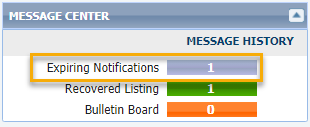
Every time you set up a contact with a saved search for the Collaboration Center, that auto-email will expire on a date that you can set for each individual notification. A year is the default and the maximum time frame before it will expire. The Message Center will alert you to those notifications as they approach expiration so you can extend them without the contact noticing any lag in notifications. These messages pop-up automatically upon login, but can also be accessed directly from the Message Center on the Home page.
Step 1: In the pop-up modal, you have 2 options,
- Extend: this will extend the auto-email for a time period. The time period depends on how long you had set the notification to go. If you left the default of a year, it will re-set to another year. If you adjusted it to a different time period, i.e 6 months, in Preferences, it will extend the auto-email for another 6 months.
- Notifications: The slide is green indicating the auto-email is active. If the Buyer no longer needs to receive this auto-email, click the slide so it turns grey. This indicates the auto-email for that particular search is inactive and the Buyer will stop receiving auto-emails.

Recovered Listing
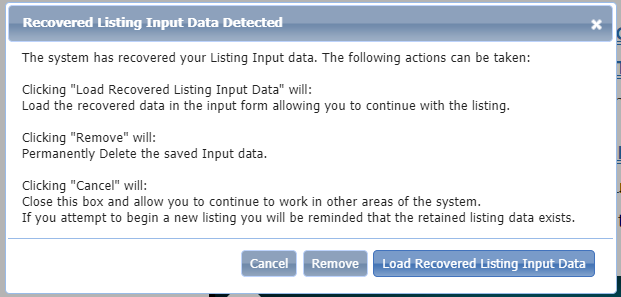
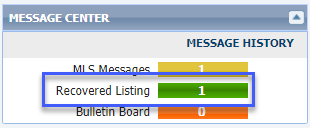
A recovered listing occurs when an agent is adding a listing and exits listing maintenance without having saved the listing, including not saving as a partial. It's a beneficial feature if you get timed out of Paragon or accidentally close the browser without clicking "Save." These messages pop-up automatically upon login, but can also be accessed directly from the Message Center on the Home page.
In the pop-up, you'll have the option to "Load Recovered Listing Input Data." If you aren't sure what this could be referring to, it's a best practice to click that button and review the entry. If you don't need it, you can close listing maintenance without saving and that record will be gone. If you click "Remove," you will not have the opportunity to review/assess if it's needed and the record will be gone.