
Paragon Connect has made setting a contact with the Collaboration Center fast and easy to complete on-the-go. Watch the video or follow the below instructions.
TABLE OF CONTENTS
Creating a New Contact with the Collab Center
If the contact has not yet been saved in Paragon, follow these instructions for creating a new contact, setting up a search, and activating the Collab Center in Paragon Connect.
Step 1: Save the Search
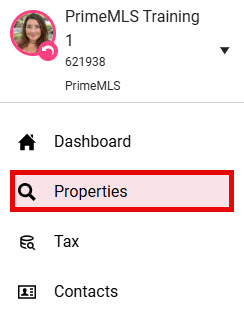
In Paragon Connect, go to the top left hamburger menu and choose "Properties."
Select the Property Class.
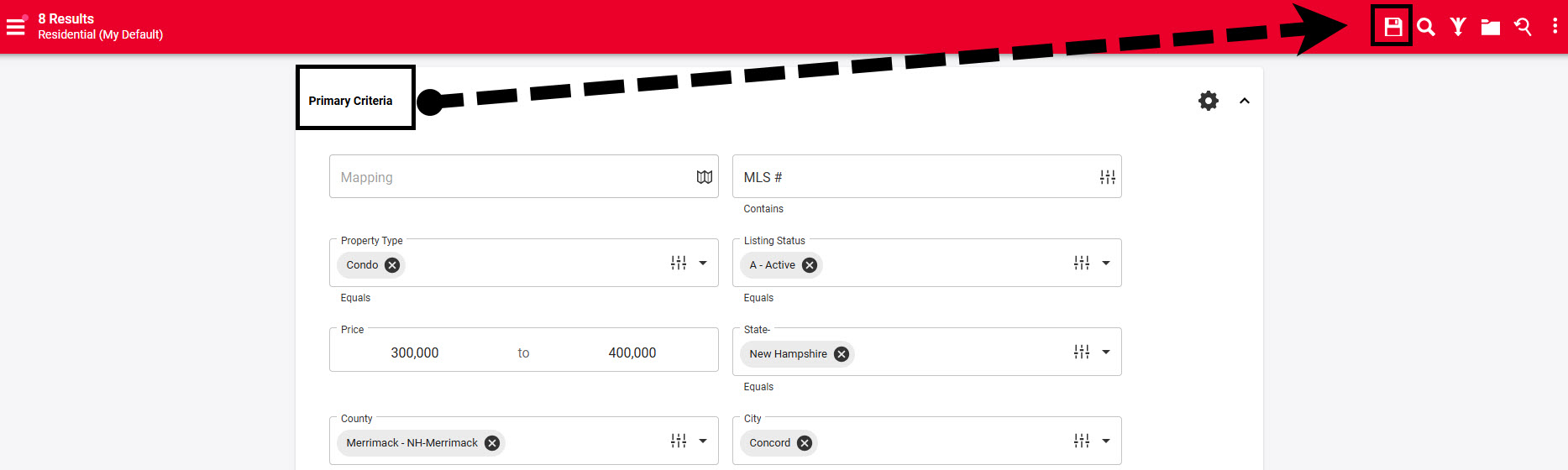
On the search template, enter the search criteria, then click the "Save" icon at the top left of the screen.
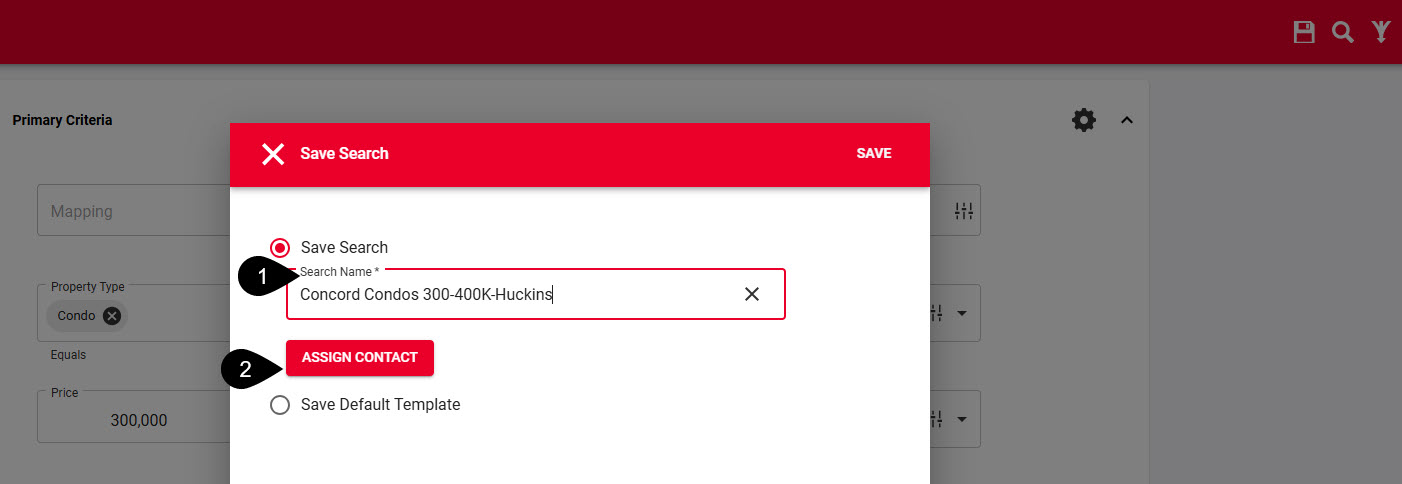
Enter a name for the search, keep in mind the contact can see the name of the search (and can have up to 500 saved searches) so you'll want to make the name of the search descriptive.
Click "Assign Contact."
Step 2: Choose or Add Contact
- Either choose your contact from your contact list or click on the "+" icon in the bottom right corner to add a new contact.
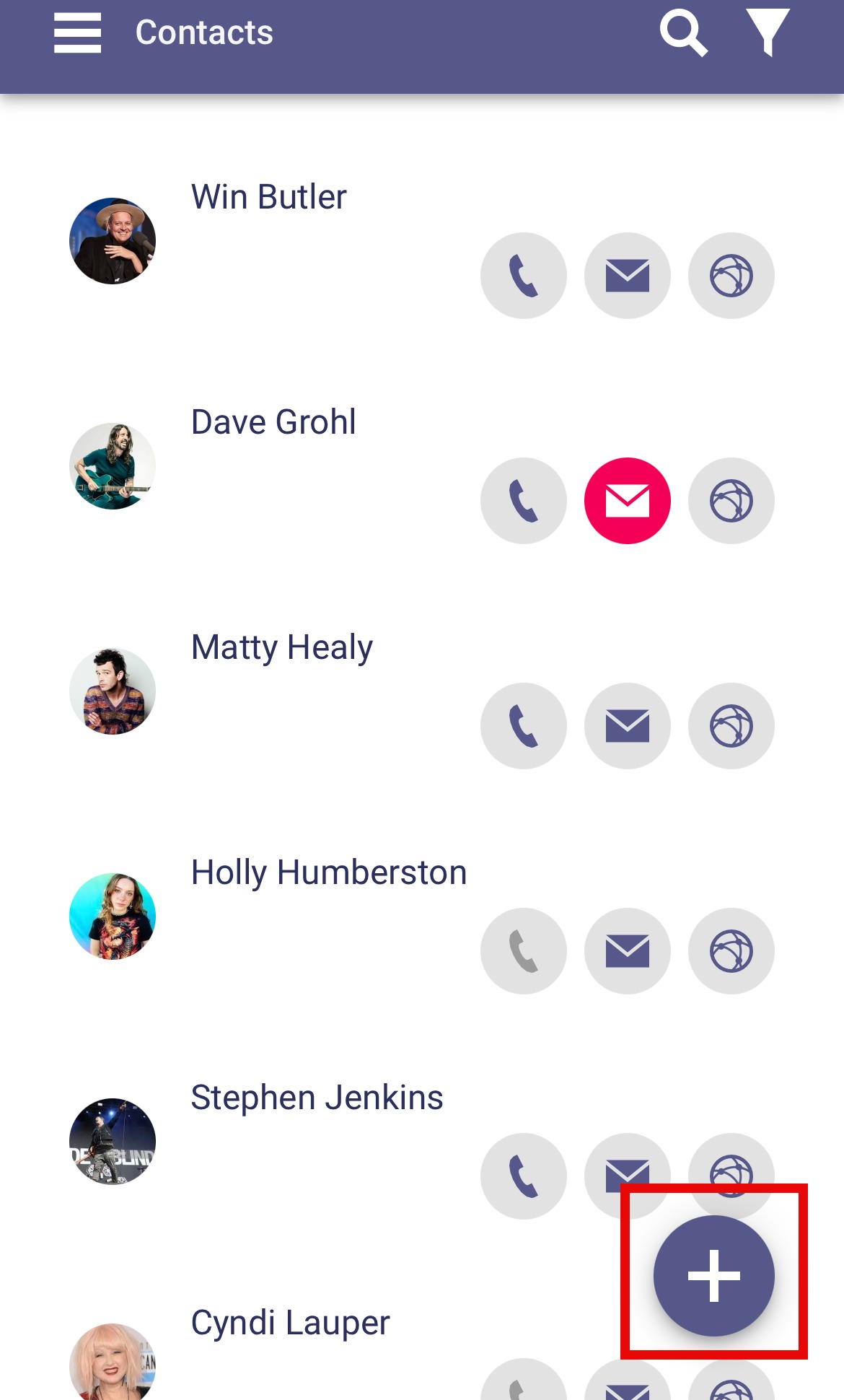
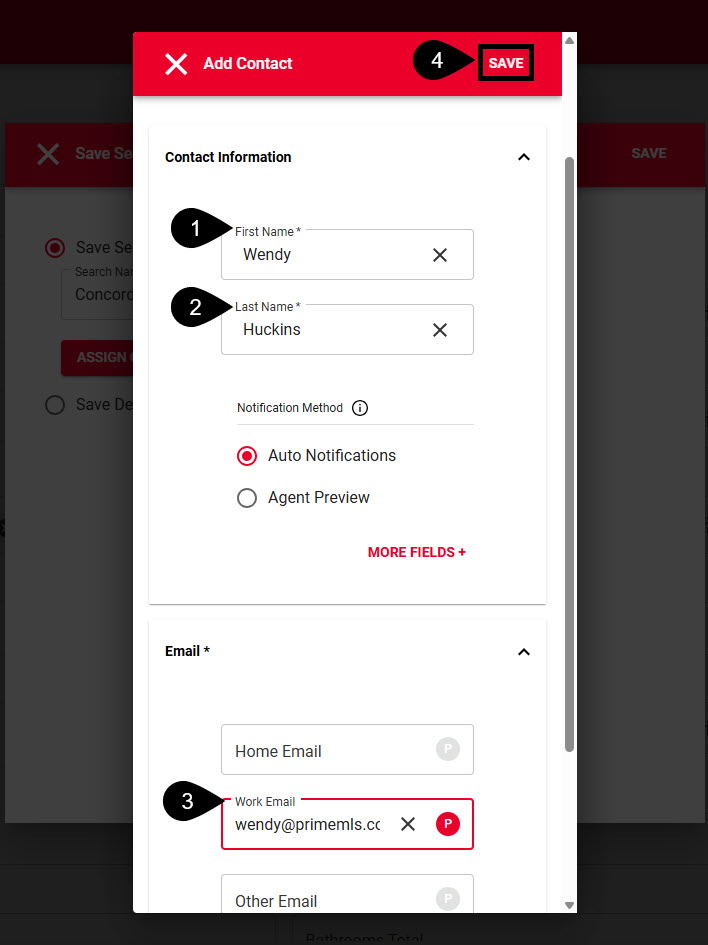
- To Add a new contact you will enter the contact's First Name, Last Name and Email Address then "Save".
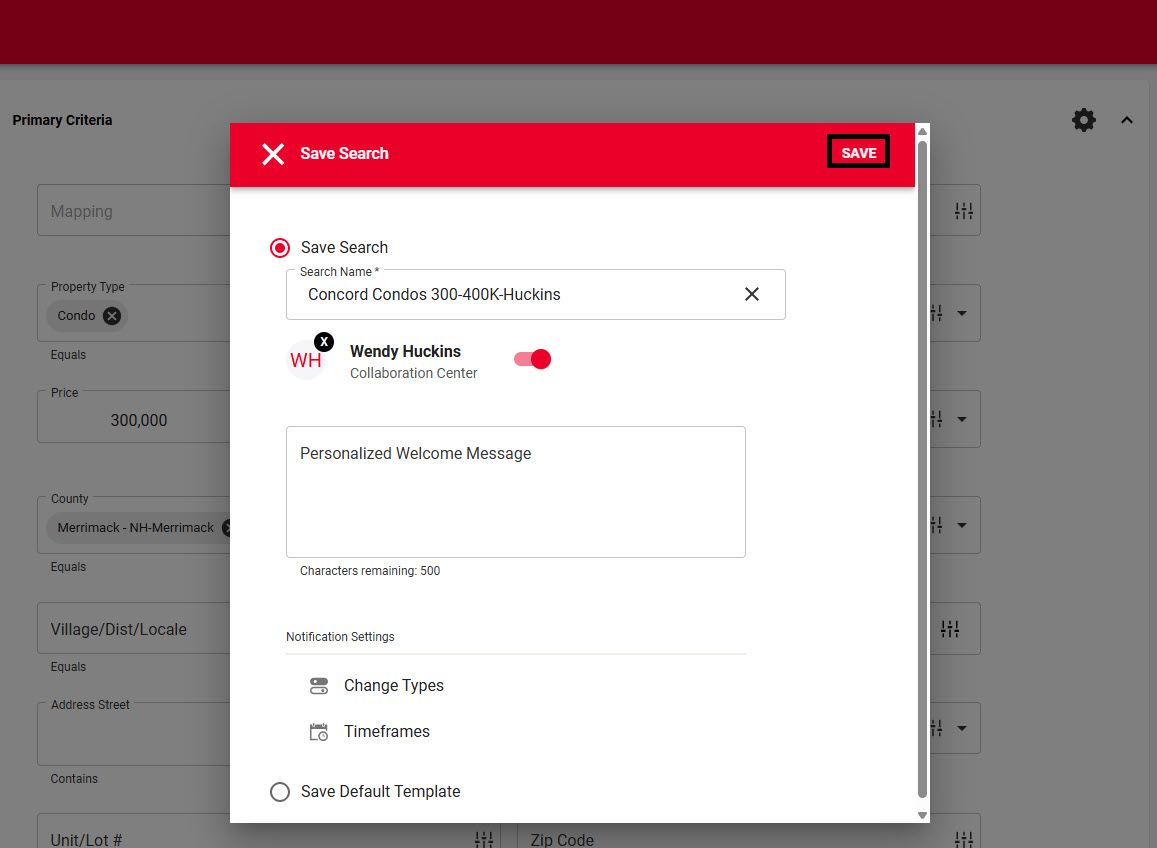
Step 3: Confirm and/or update Search Name and Contact and Save to finish the process.
The contact will be emailed the "Welcome Email," which includes details on using the features of the Collaboration Center and can be reviewed under the Contacts name, "Message History".
If additional people should receive the notifications, go into the Contact, Buyer Activity, to the right of the search name the 3 vertical dot overflow menu allows additional email address to be added under "Email Options" . The timing for the new contact to receive updates will be "immediately," which is every 15 minutes if there are updates/changes and this can be modified in the overflow menu under "NotificationTimeframes".
Setting Up A Current Contact with the Collab Center
If the contact is already saved in Paragon, follow these instructions for attaching a saved search or creating a new search and activating the Collaboration Center in Paragon Connect.
Step 1: Go to Contacts
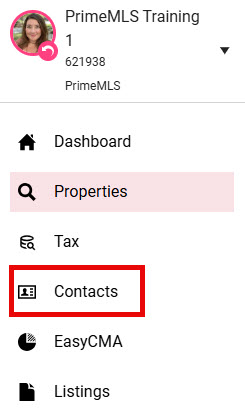
In Paragon Connect, go to the hamburger menu in the top left corner and choose "Contacts".
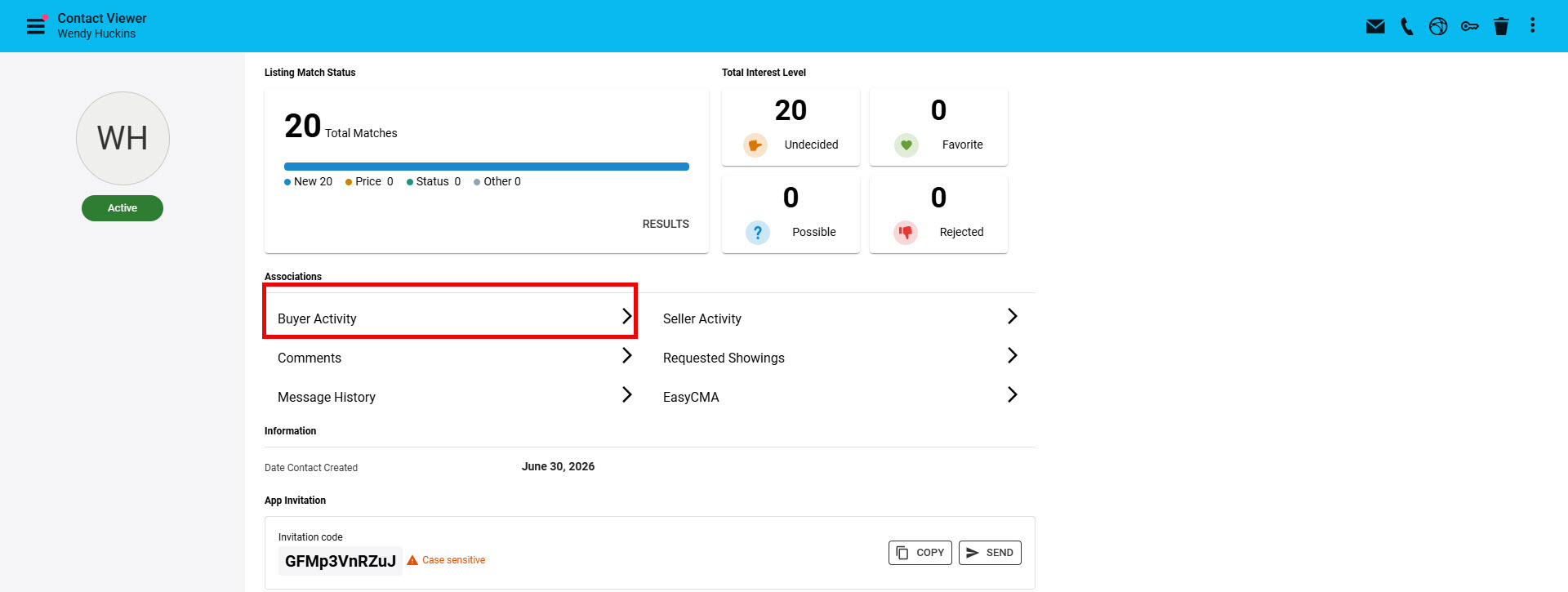
Select the Contacts name and then "Buyer Activity"
On the "Buyer Activity" page click on the "+" icon in the bottom right corner.
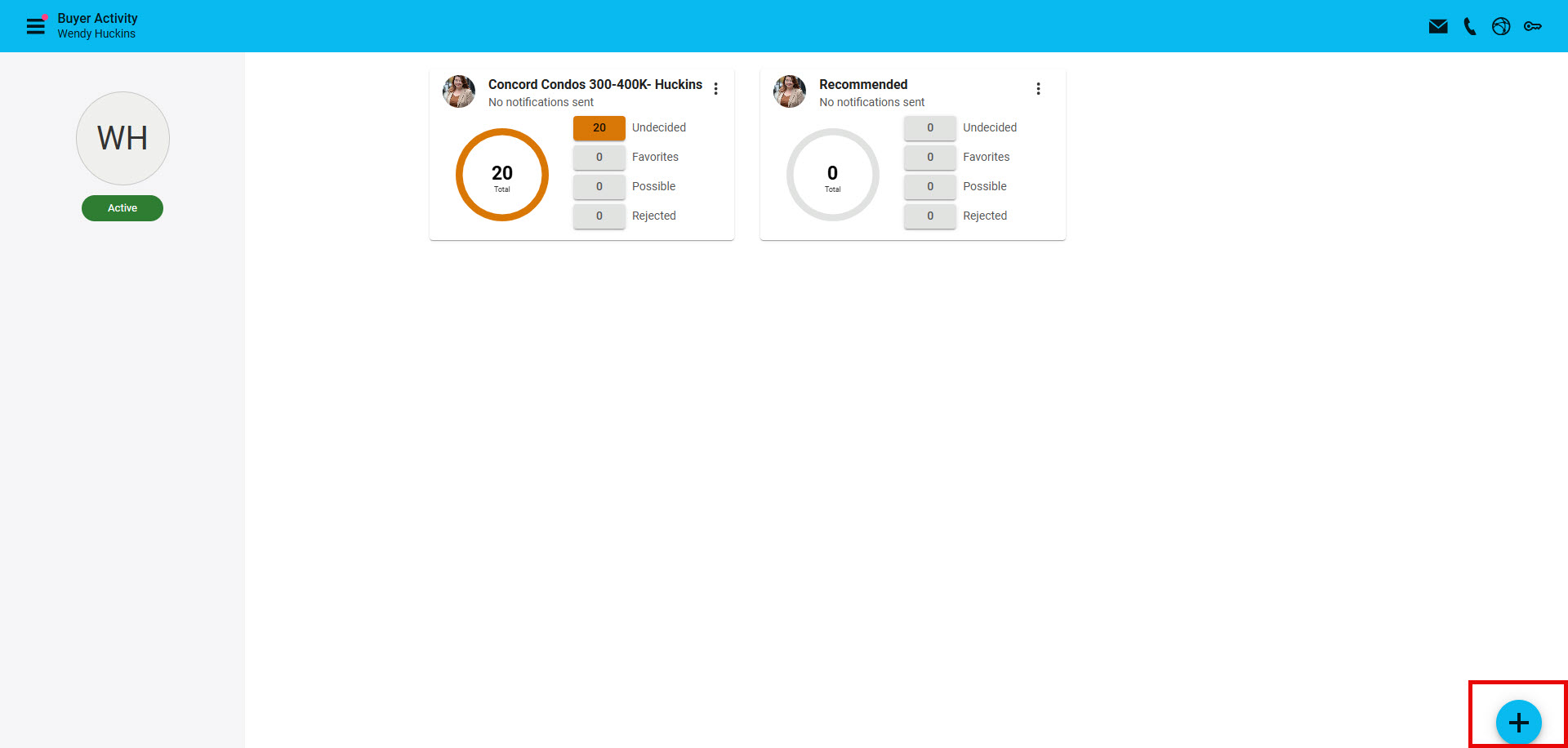
Choose the Property Class then click "Select".
A previously saved search can be attached to the contact from the "file folder/saved search" icon. Find the search name, click on the 3 vertical dots/overflow menu and click "Assign Contact".
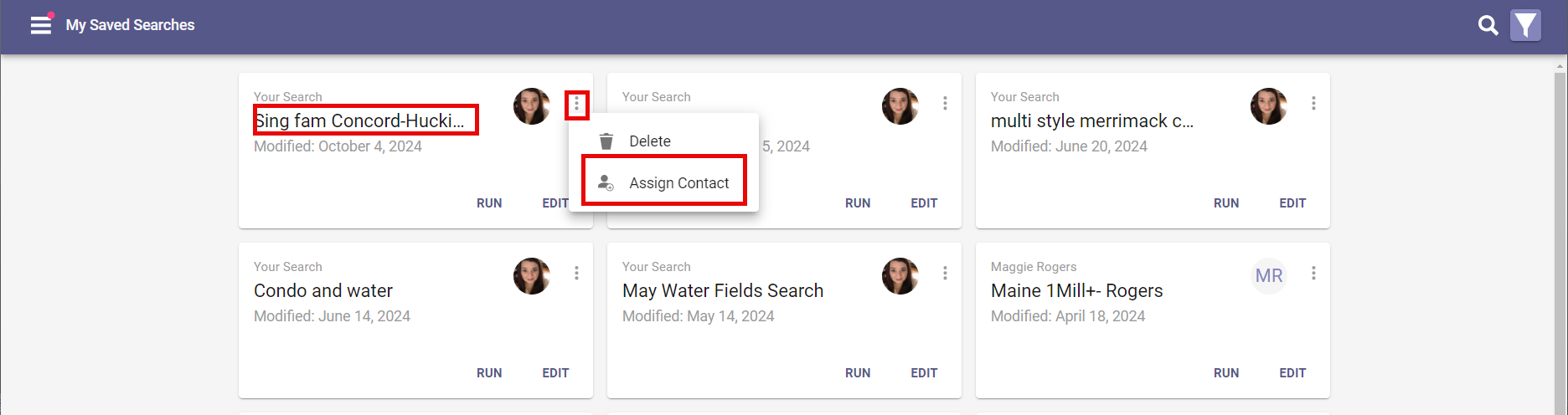
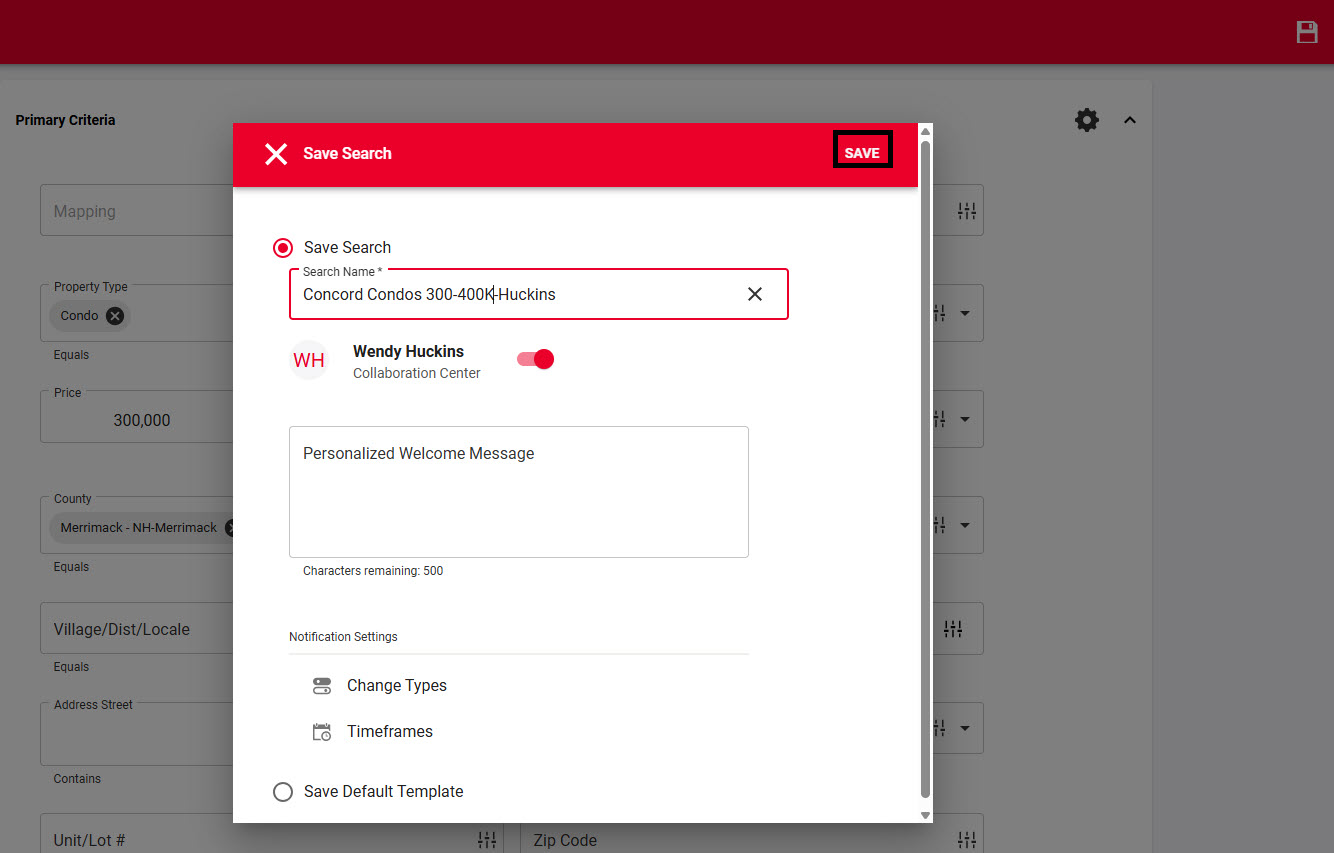
You will get pop up letting you know the Collaboration Center is on (the toggle is the darker shade) and you can add a Personalized Welcome Message if you wish. "Save" and you will get a pop up letting you know the search has been saved to the Contact.
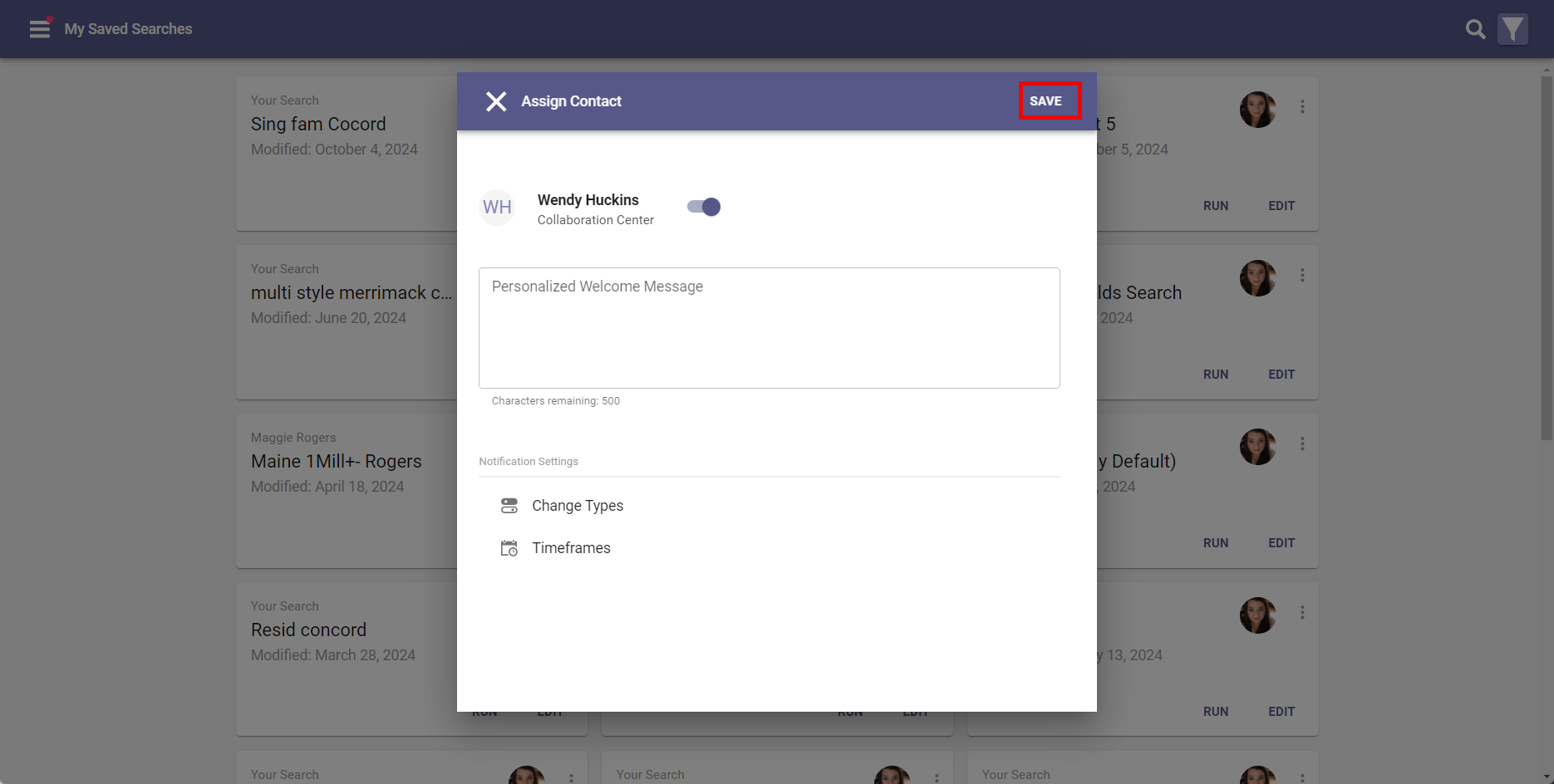
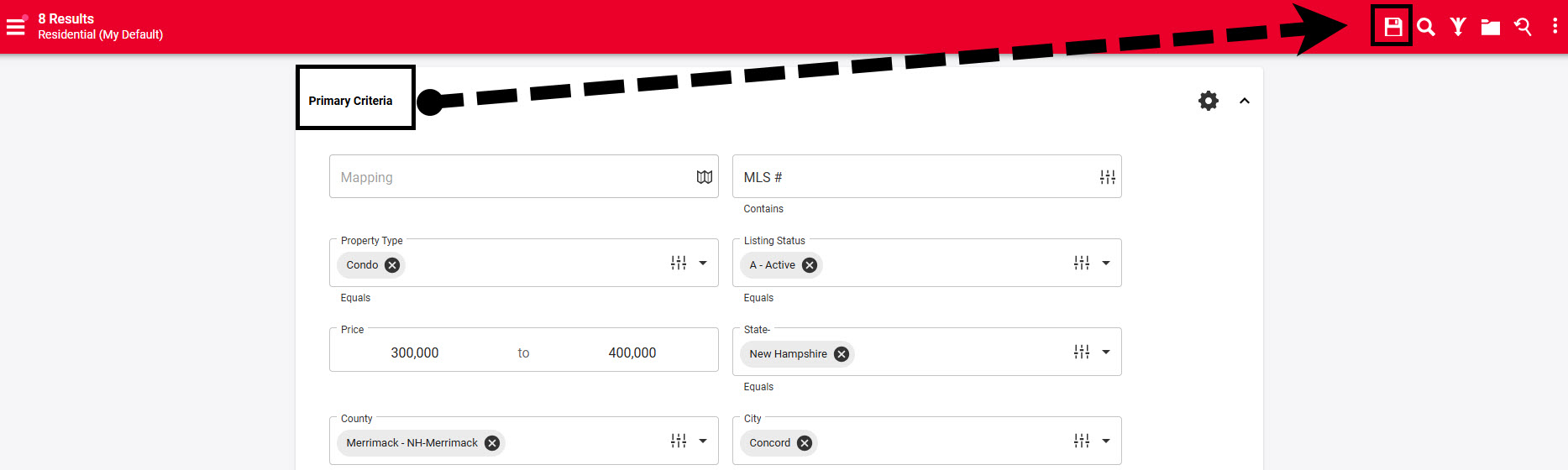
To save a new search, enter all search criteria on the search template and save by clicking the "disk icon" in the top right corner.
Click "Save Search" and then enter a name for the search. Keep in mind, the buyer does see the name of the search, so you'll want it to make sense to them.
The Collaboration Center will be turned on (dark toggle) and you can add a personalized Welcome message to the preformatted Collaboration Center email if you wish.
Click "Save"
You will get a pop up at the bottom middle of the screen indicating the search as been saved to the contact.
The contact will be emailed the "Welcome Email," which includes details on using the features of Collaboration Center and can be reviewed under the Contacts name, "Message History".
If additional people should receive the notifications, go into the Contact, Buyer Activity, to the right of the search name the 3 vertical dot overflow menu allows additional email address to be added under "Email Options" . The timing for the new contact to receive updates will be "immediately," which is every 15 minutes if there are updates/changes and this can be modified in the overflow menu under "Notification Timeframes".