The Collaboration Center for buyers is a portal for them to review listings they are receiving from the system. They can favorite listings, mark others as possible or reject listings. They can add comments and requests showings, which go directly to their agent. They can compare listings and more. All of this can be done on any device, as the portal is entirely mobile friendly. This page covers how to set up additional searches under a contact.
Setting Up A Contact with Additional Searches
Step 1: Find the Contact
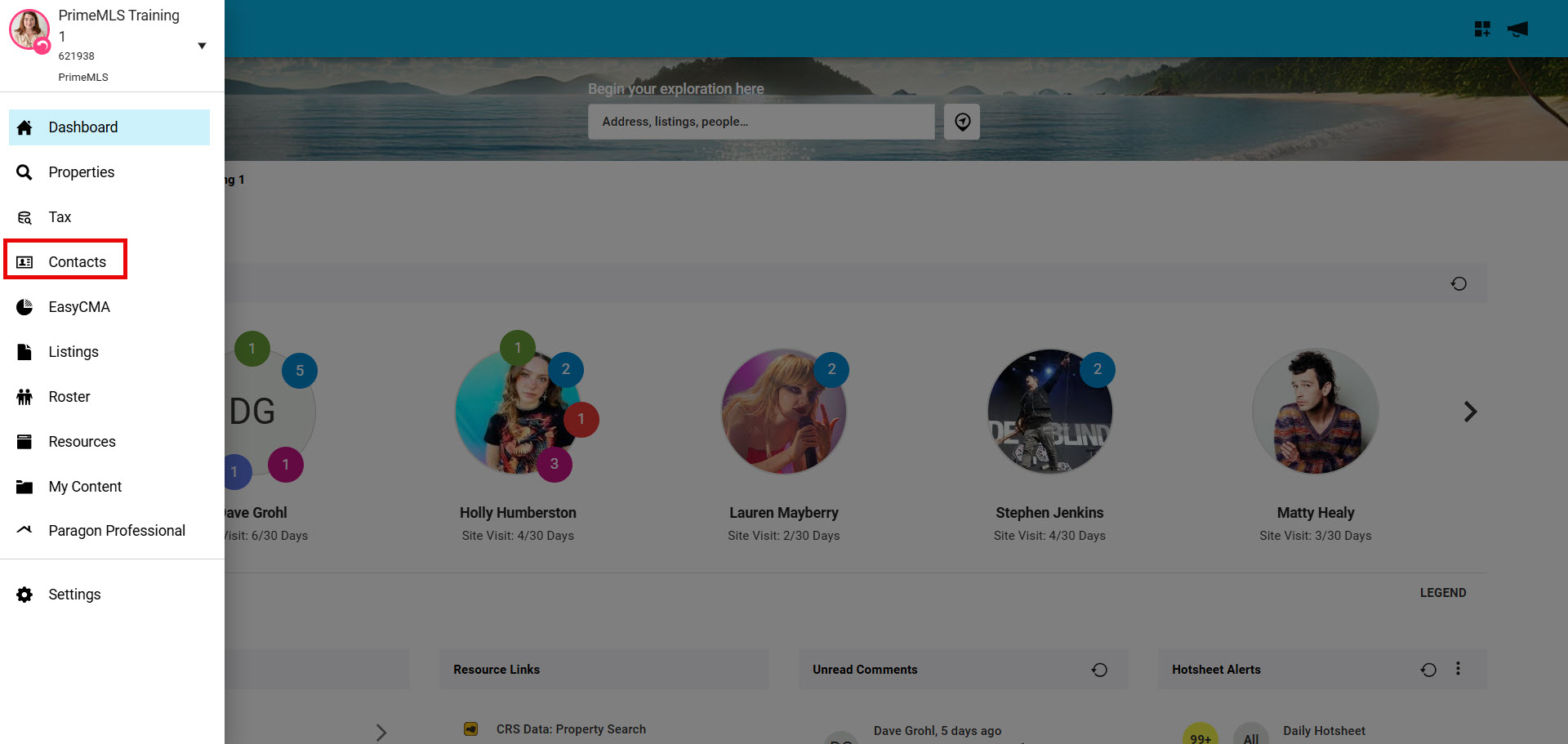
- From the Paragon Connect Dashboard, click on the top left corner "Hamburger" menu
- Click on Contacts
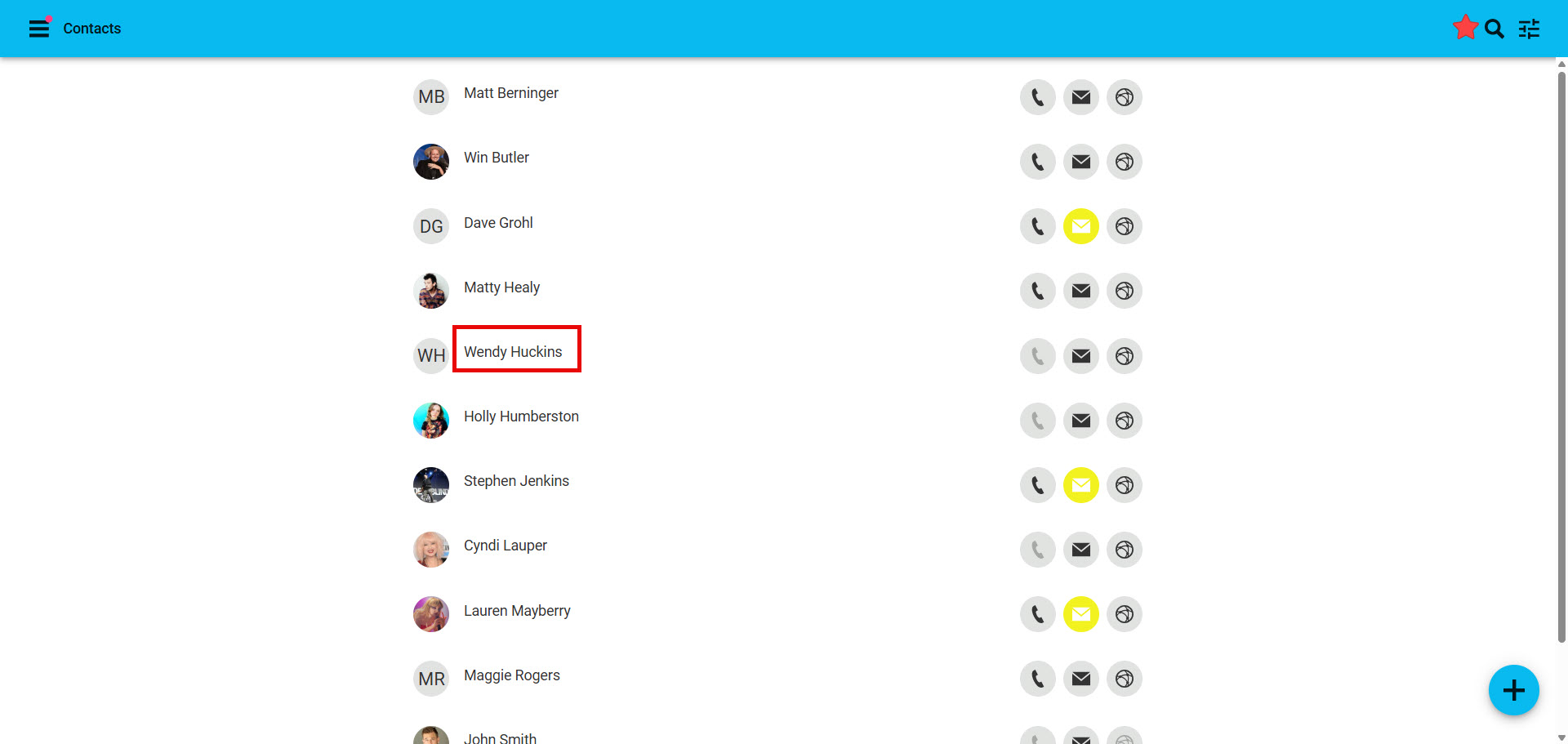
- Find the Contact to add the additonal search
- Note: You can use the "magnify glass" icon in the top right corner to search your list of Contact
Step 2: Click on the Contacts name to go into the Contacts "Contact Viewer"
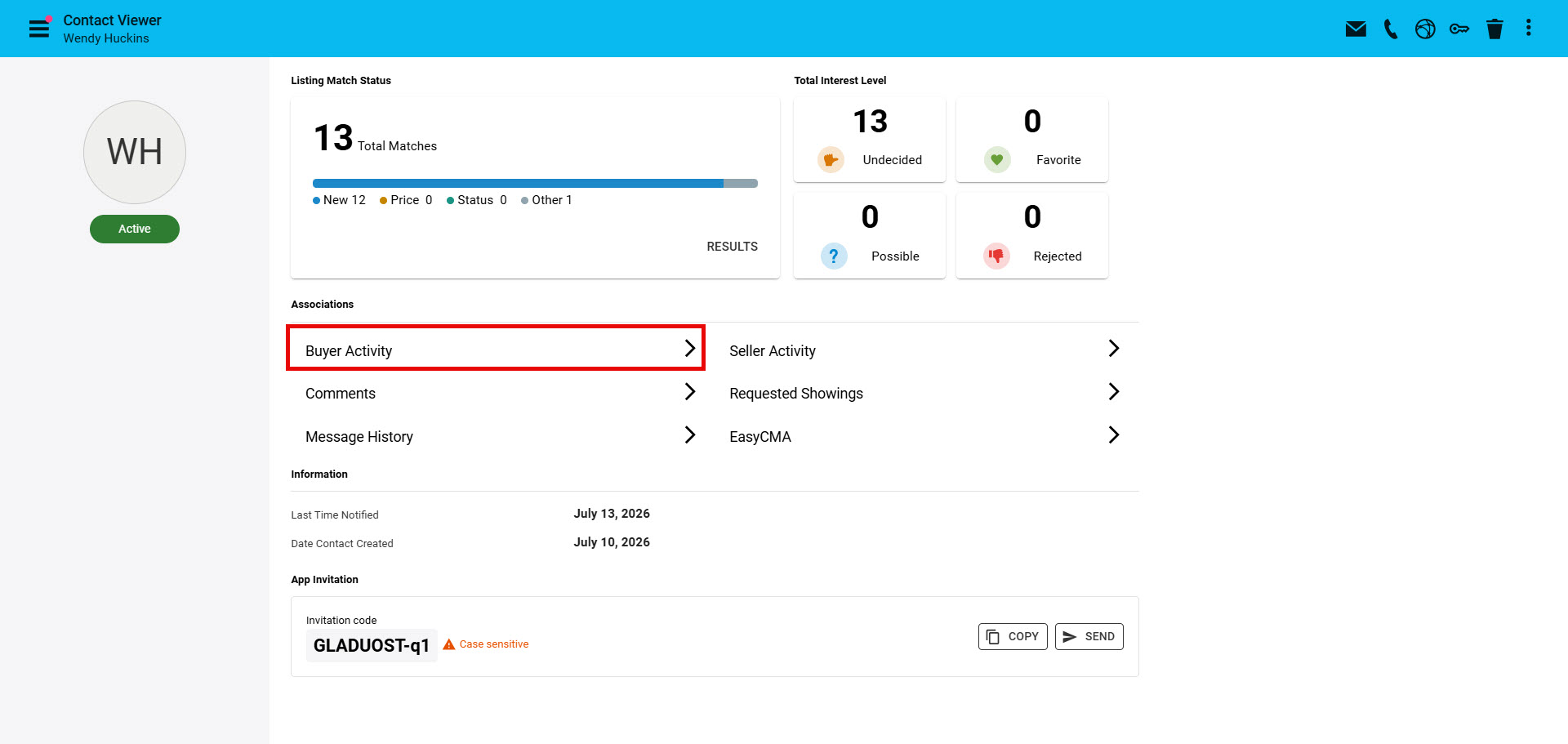
Step 3: Click on Buyer Activity
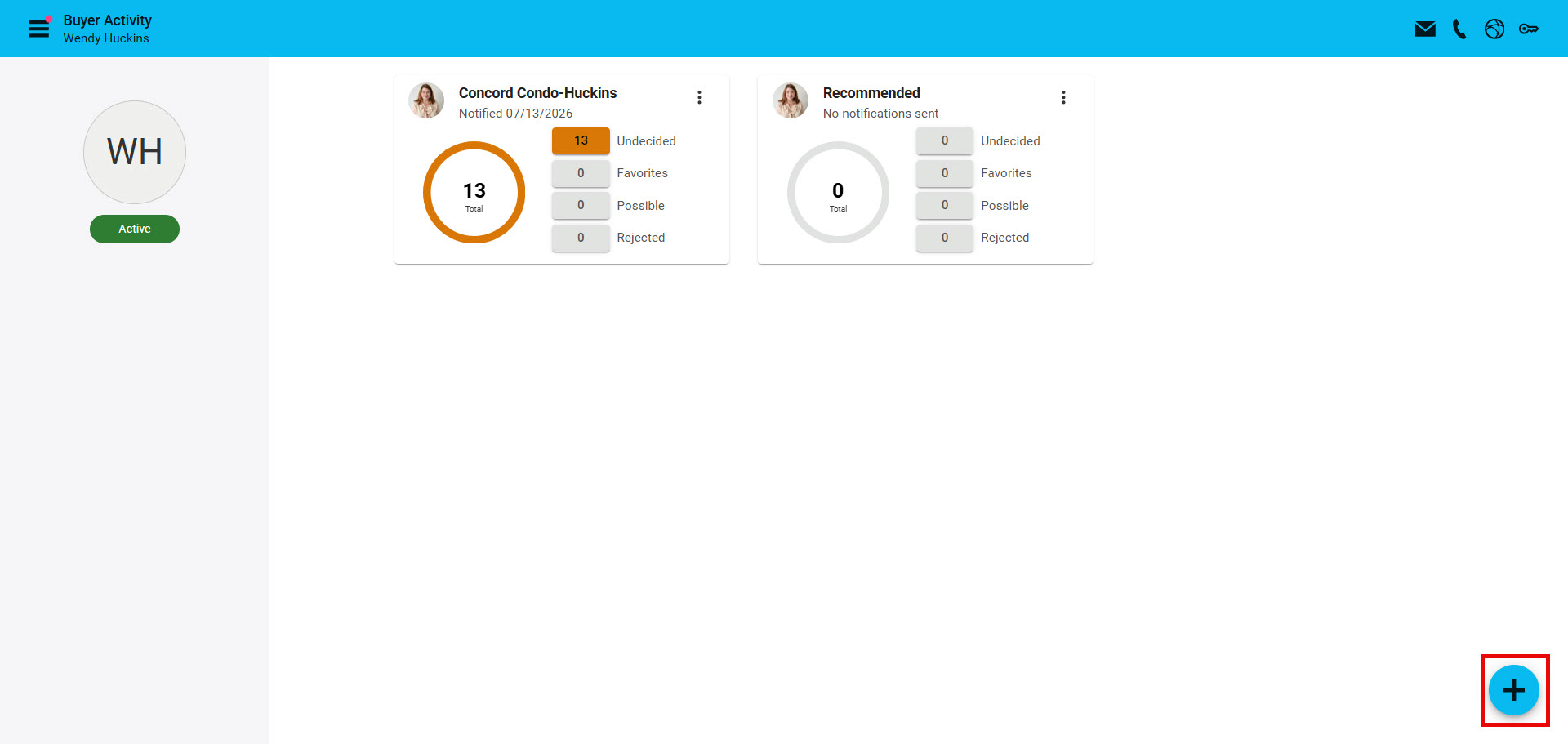
Step 4: From the bottom right corner click on "+"
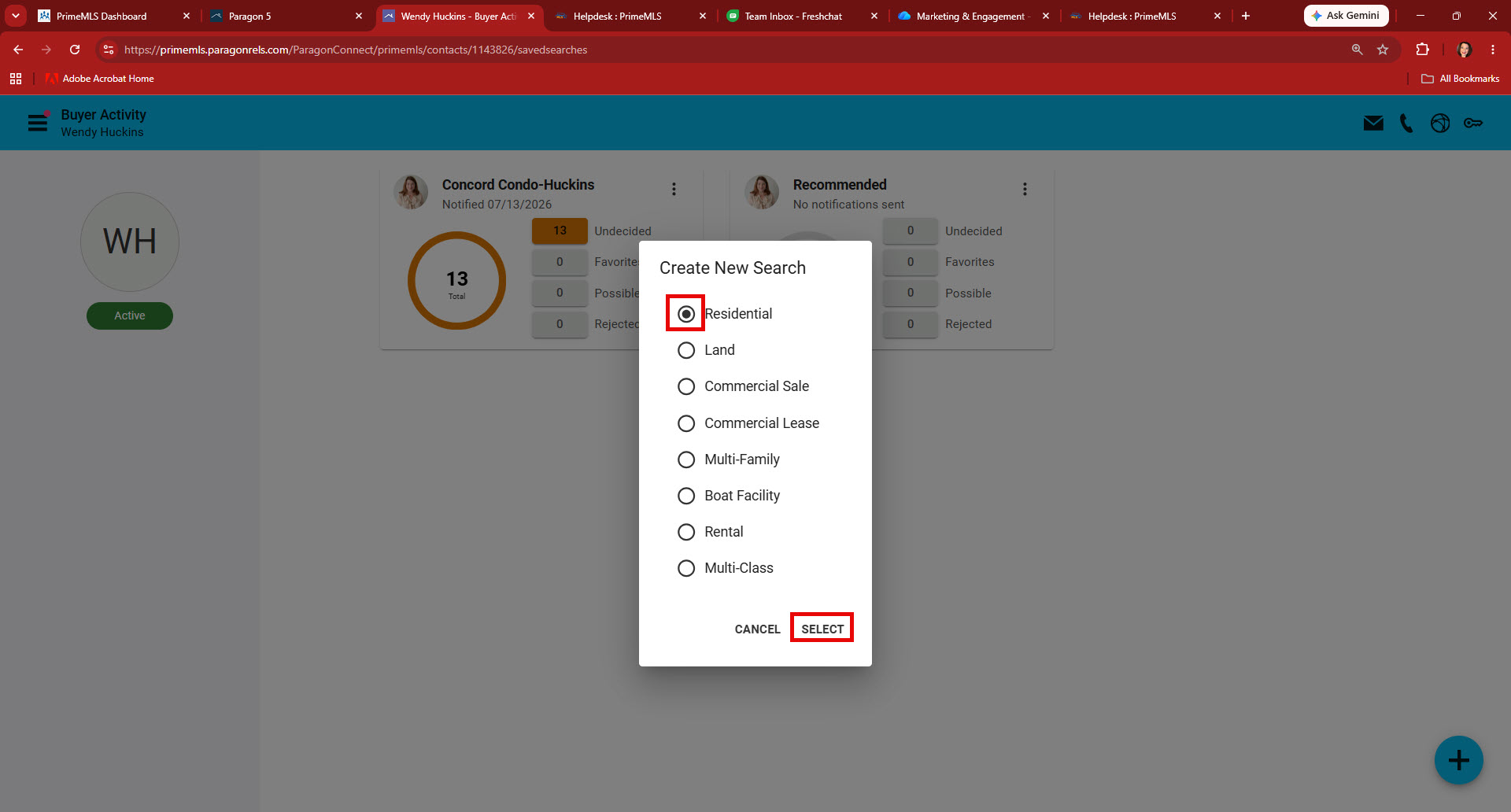
Step 5: From "Create New Search" click on the correct property class and click "Search"
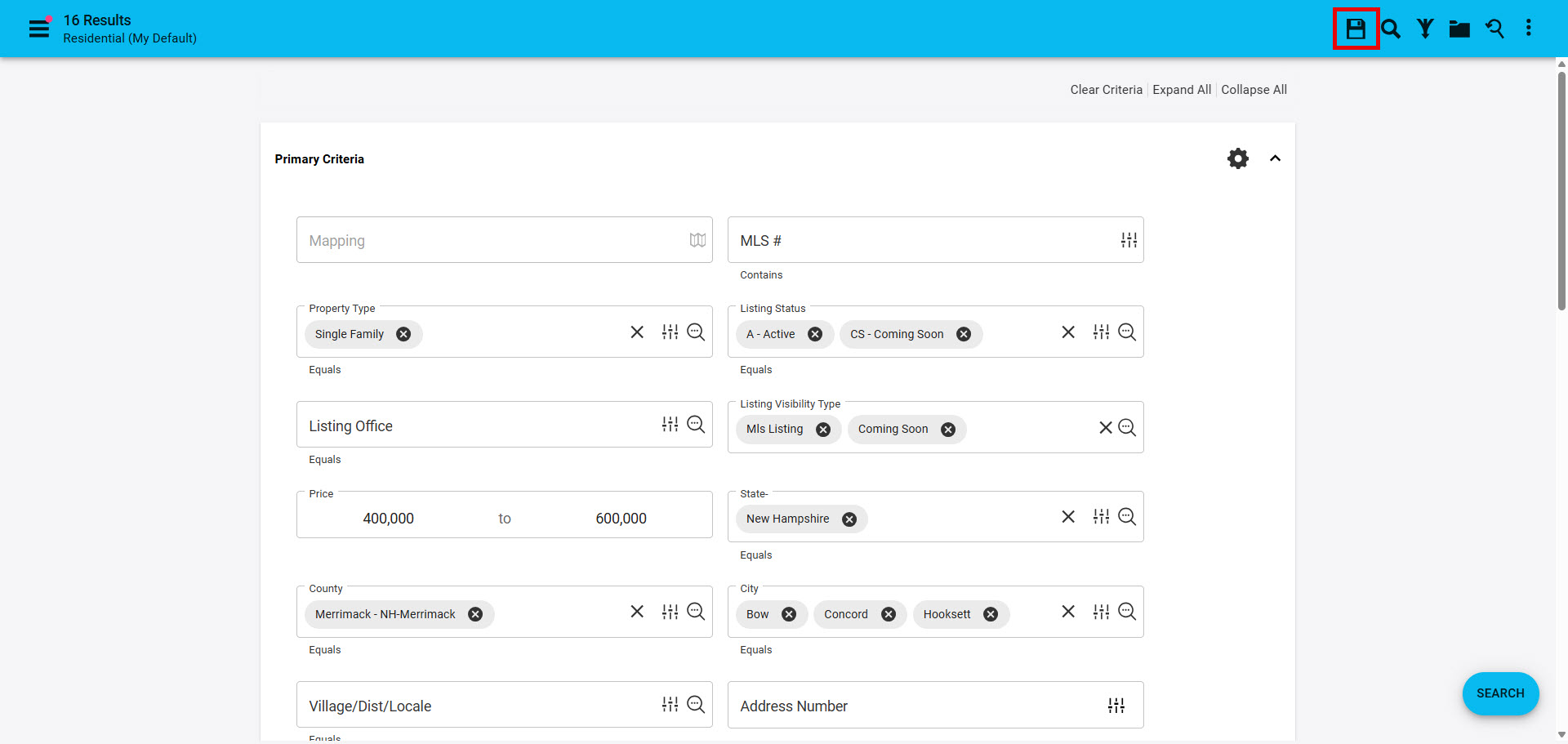
Step 6: From the Search Template input all search criteria and then click "Save" in the top right corner
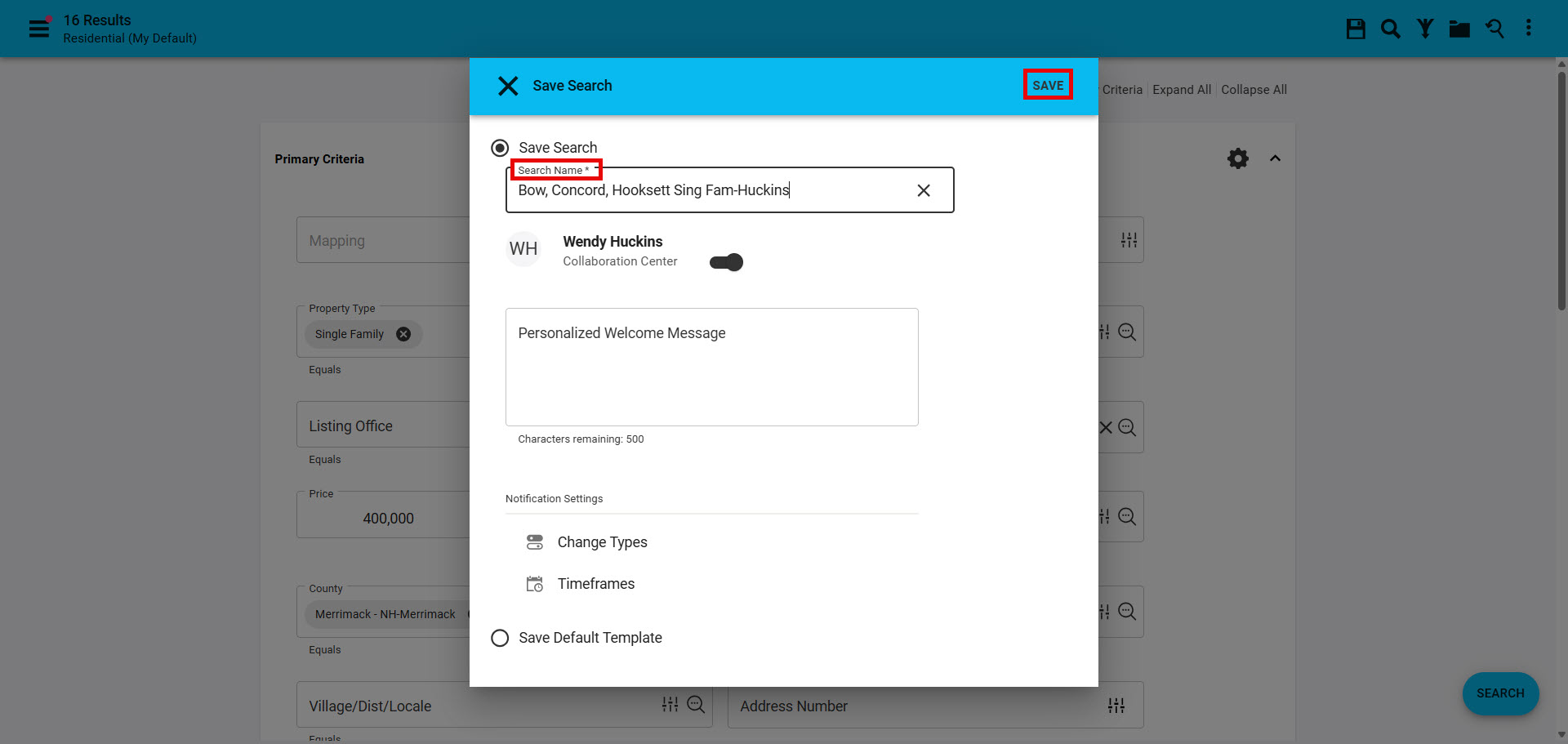
Step 7: Give the search a meaningful name (so your contact will know what results to expect) and click "Save"
Note: adding the contacts last name helps you know what saved searches are attached to contacts
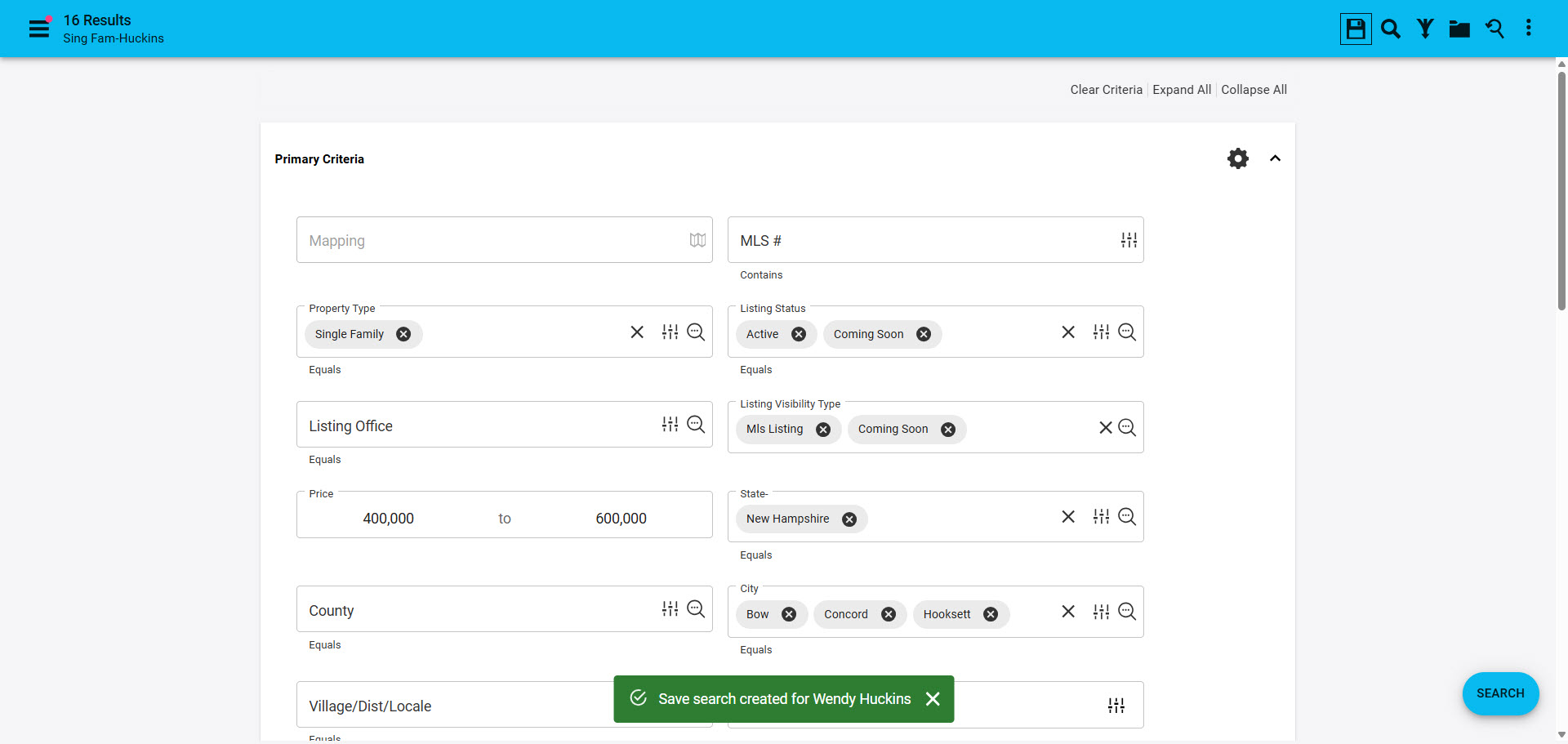
Step 8: The greeen " Save Search created for 'Contacts Name'" popup at the bottom of the search template indicate you have added a new search for the contact