The Paragon Connect Near Me map opens based on your location and is a great for both quick and easy on-the-go searches, and larger, location based searches, on any device.
If you drive by a house and you see that it's on the market, pull over and in just a few seconds, you'll have the property details by using Near Me map search on your phone!
How to use the "Near Me" map in Paragon Connect on your phone.
1. Access Paragon Connect from the app, or your phone browser.
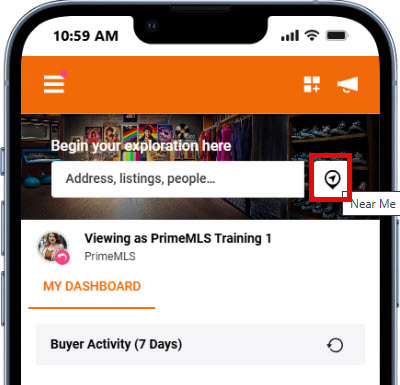
Open the Near Me map from the icon on your Paragon Connect Dashboard
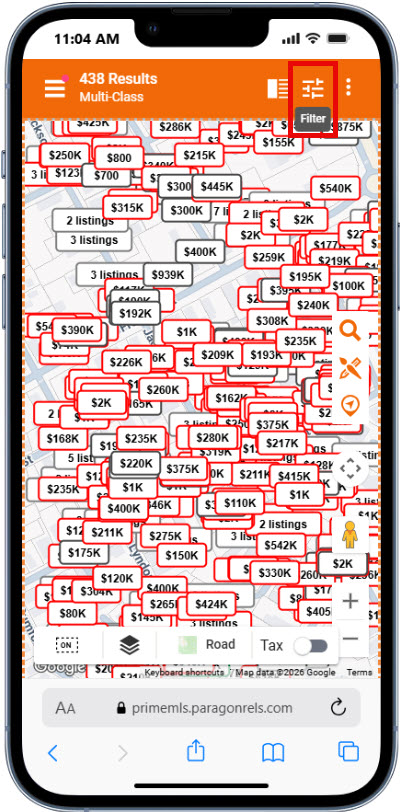
2. The Near Me map in Paragon Connect is a mulit-class search.
Until the top right Filter option is used, the Near Me map will display the history of MLS data based on your location.
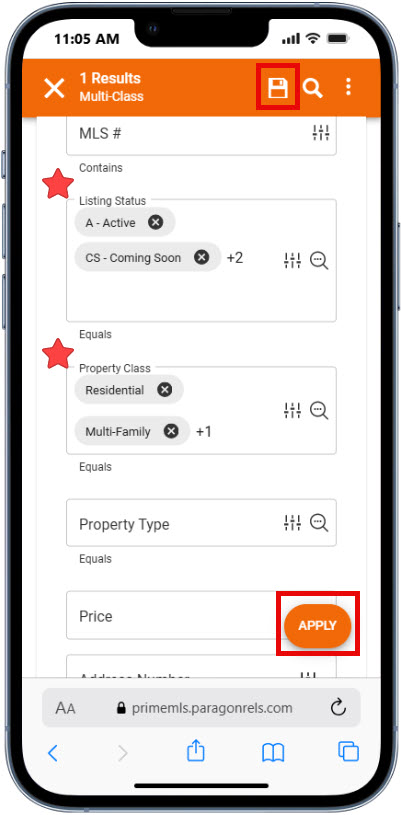
3. "Filter" to narrow down the information displayed.
Filter by Class and/or Status to limit the property flags that display.
"Apply" to filter results for this map view only.
The "Disk" icon (in the top right corner) will save the selected filters as a multi-class saved search, or as your Default multi-class search, which is helpful for limiting results displayed every time you access the Near Me map.
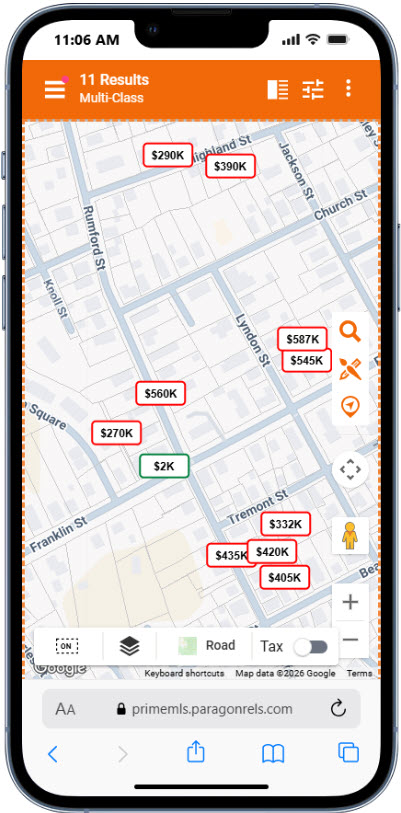
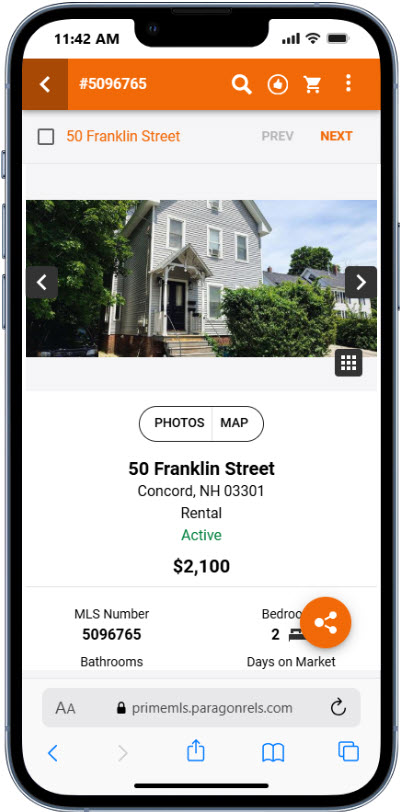
4. Click on any property flag to see the full property report.