Track market areas easily with hotsheets and hotsheet alerts in Paragon Connect. Quickly review updates on the go and from any device!
Creating and Managing Hotsheets in Paragon Connect
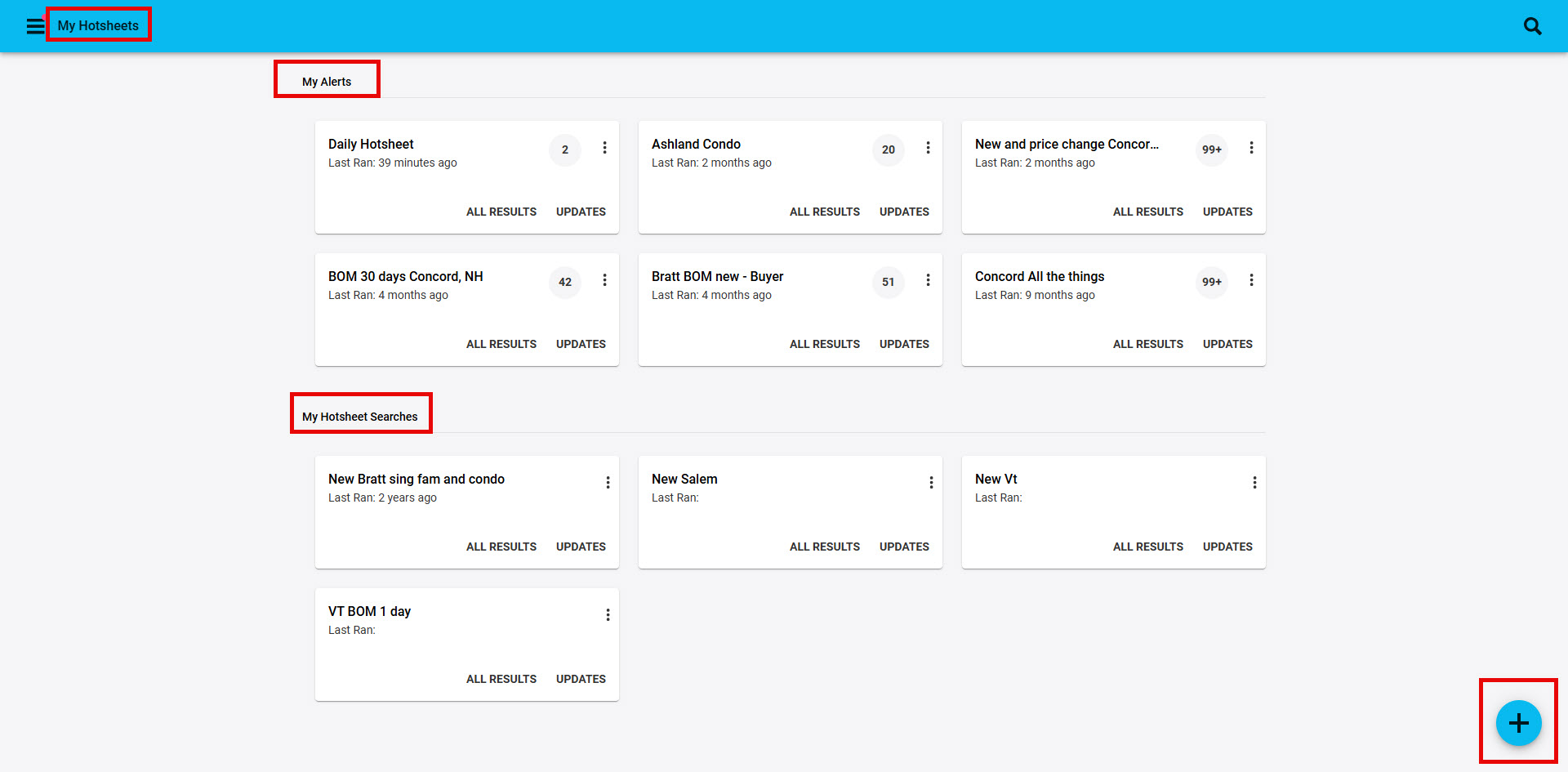
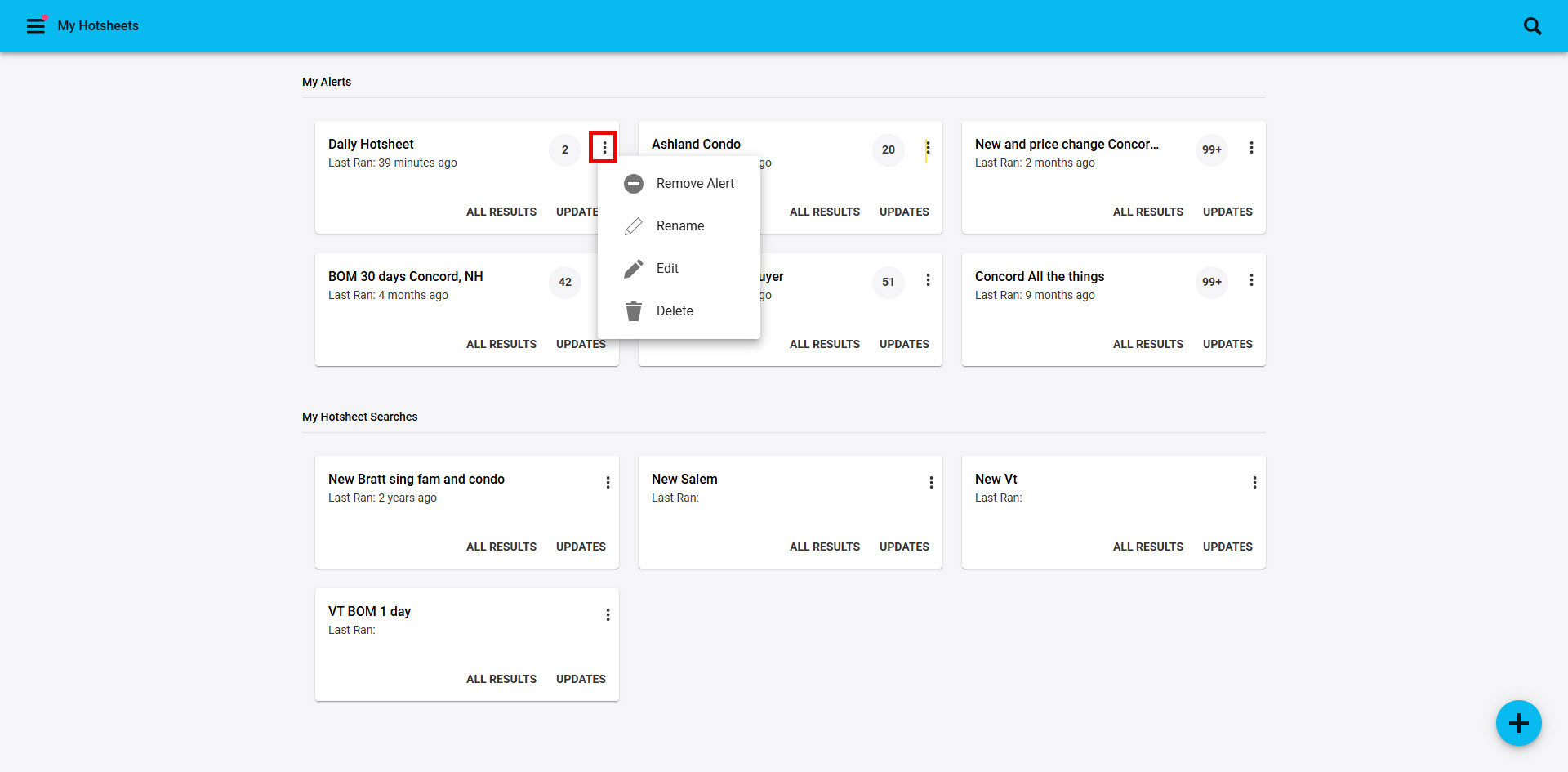
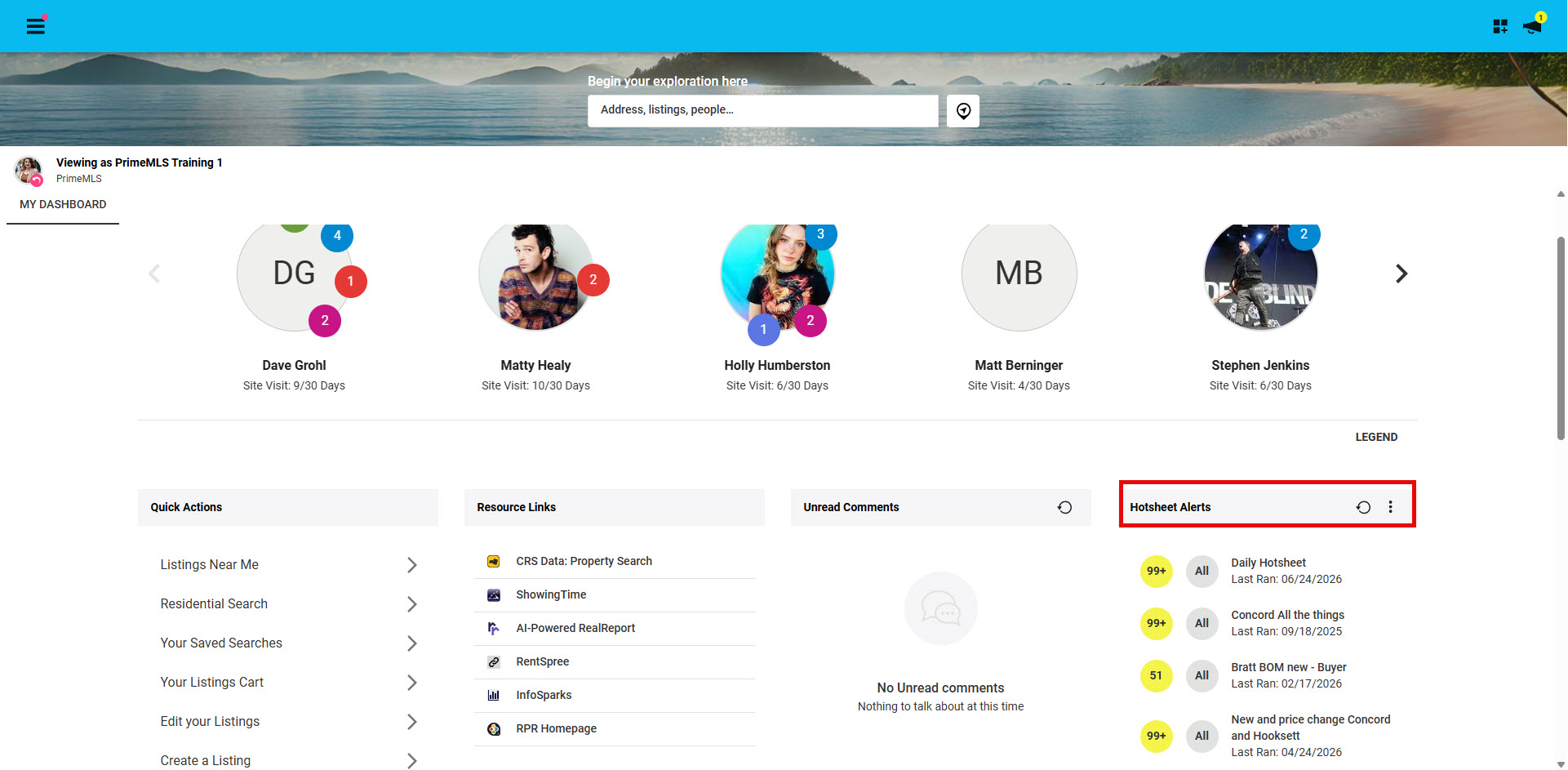
1. Hotsheet Alerts are available from a widget on your Paragon Connect Dashboard.
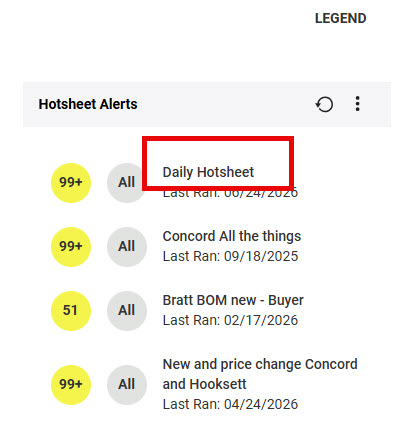
2. From your Hotsheet Alerts widget click on "Daily Hotsheet" to set the perameters to quickly show updates for your market area
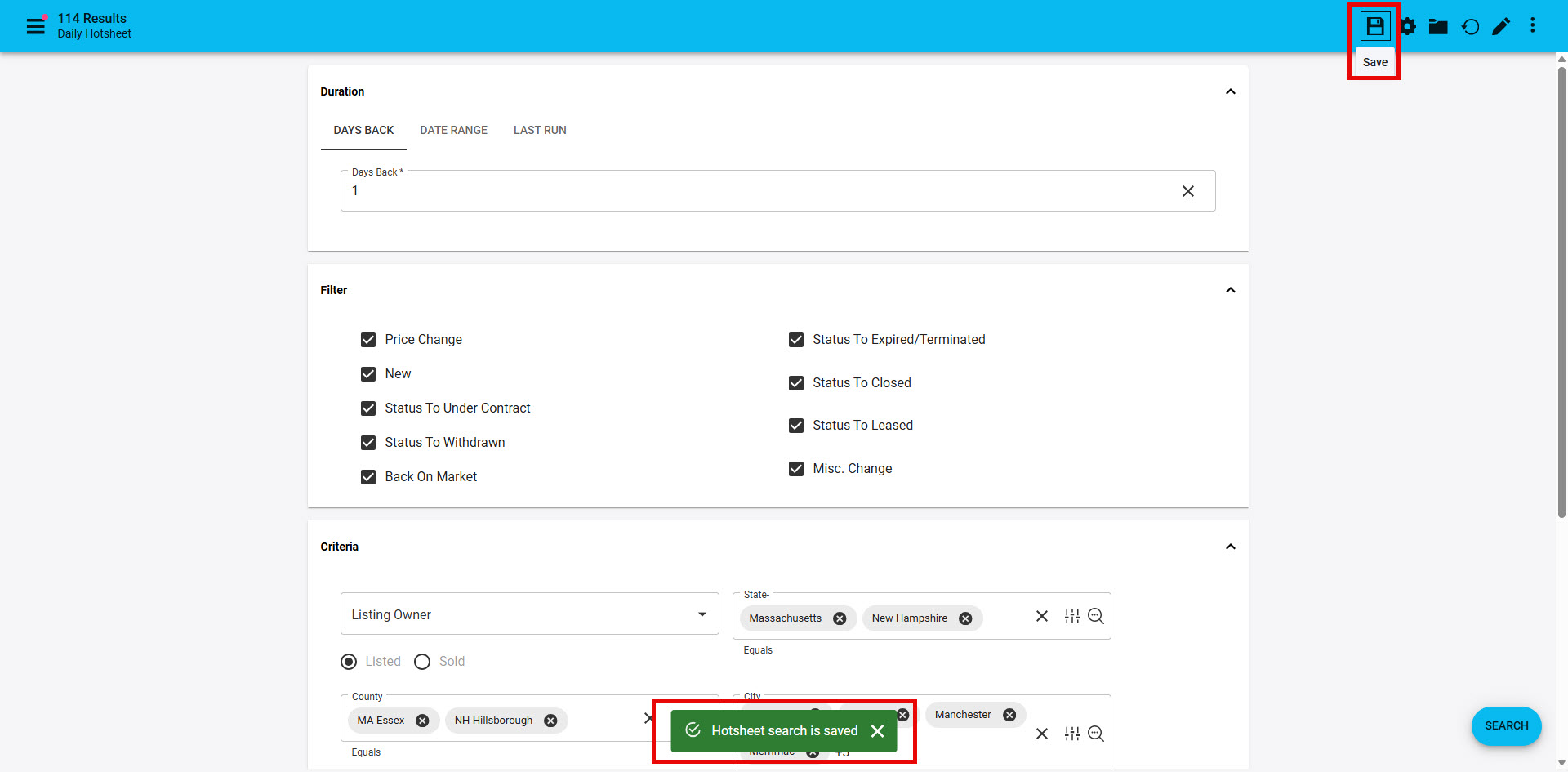
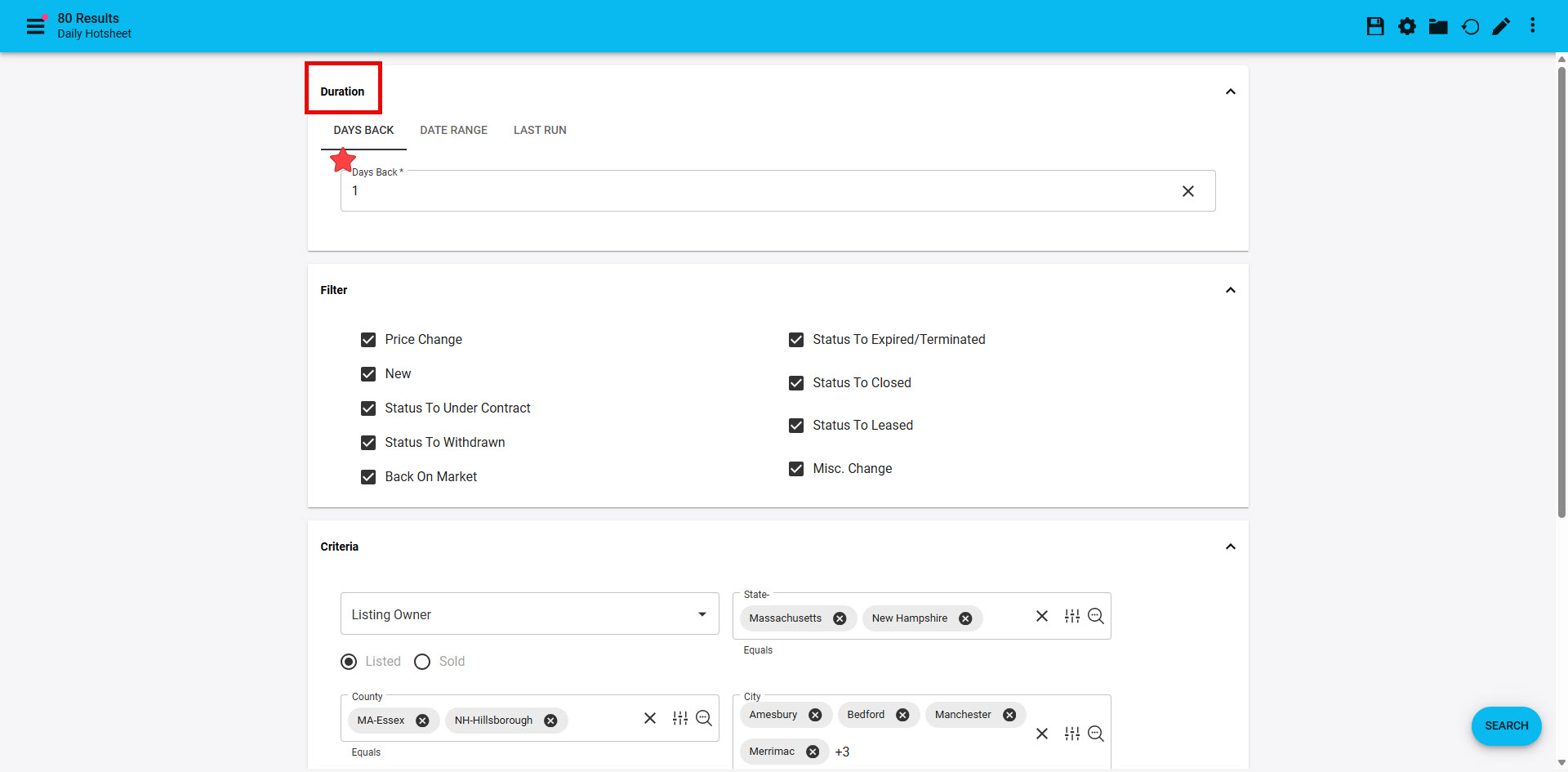
3. Set up your Daily Hotsheet starting with "Duration". Options for "Days Back" "Date Range" and "Last Run" are available. For your Daily Hotsheet you likely want to use "Days Back" with either "0" "Days Back" (which shows updates from midnight today) or "1" (which shows updates from midnight yesterday)
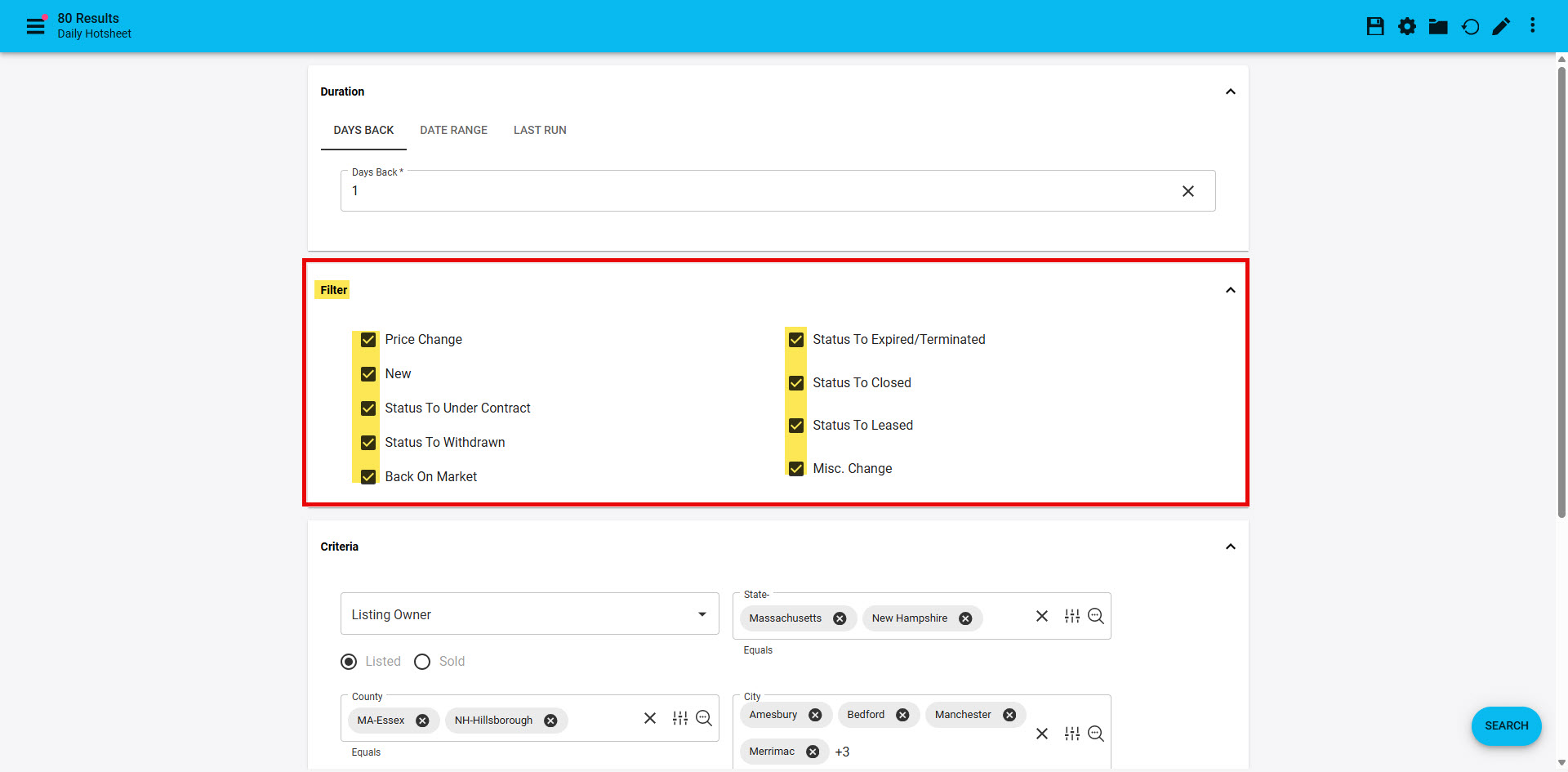
3. Use "Filter" to "check" all the updates to show on the Daily Hotsheet. Anything not "checked" will not be included.
4. "Criteria" allows you to narrow down what you want to see on the Daily Hotsheet
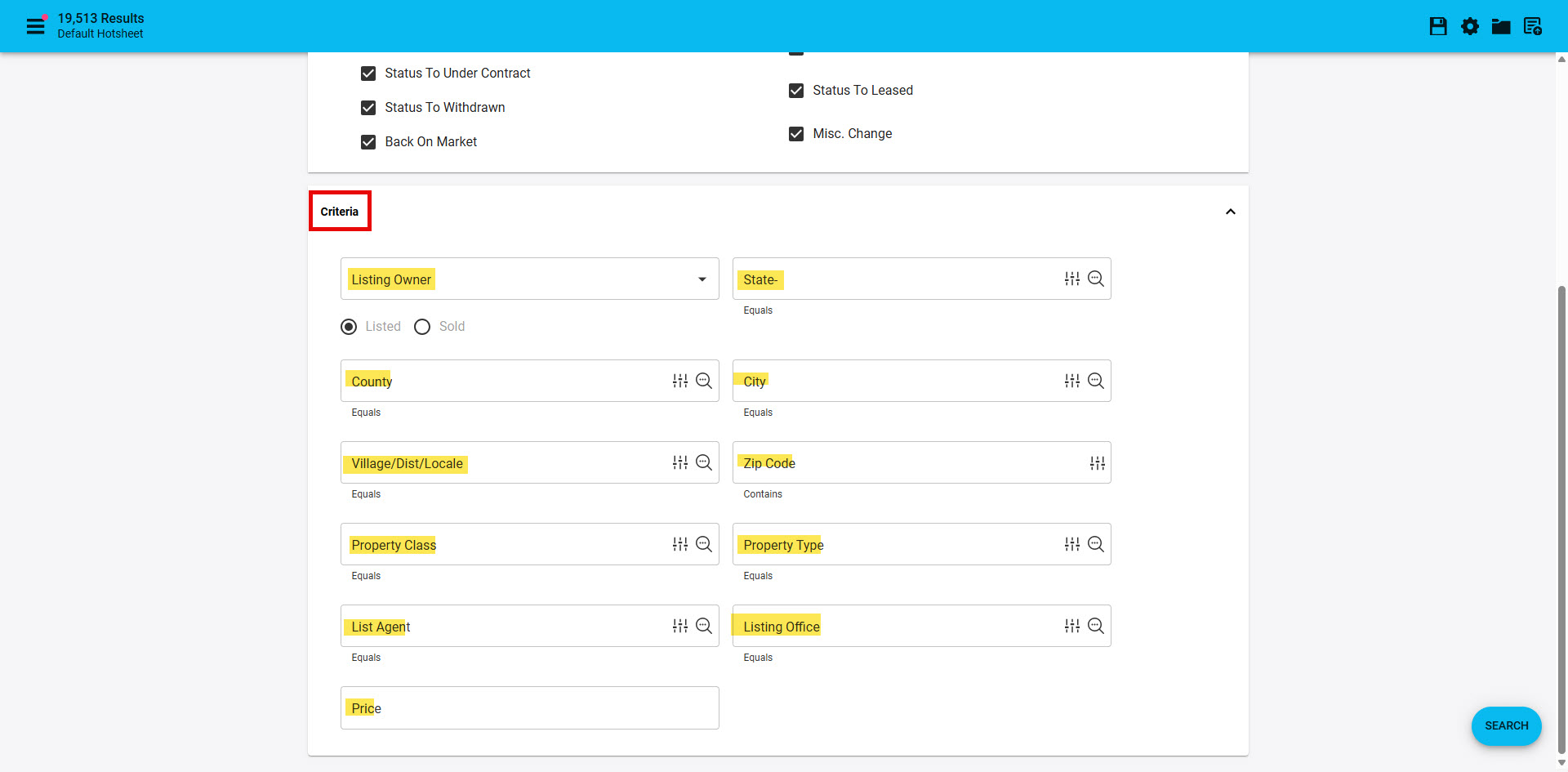
5. Any field with a "magnify glass" icon will display all available criteria for that field with the ability to "Select All" or check only the criteria you want to display in the field.
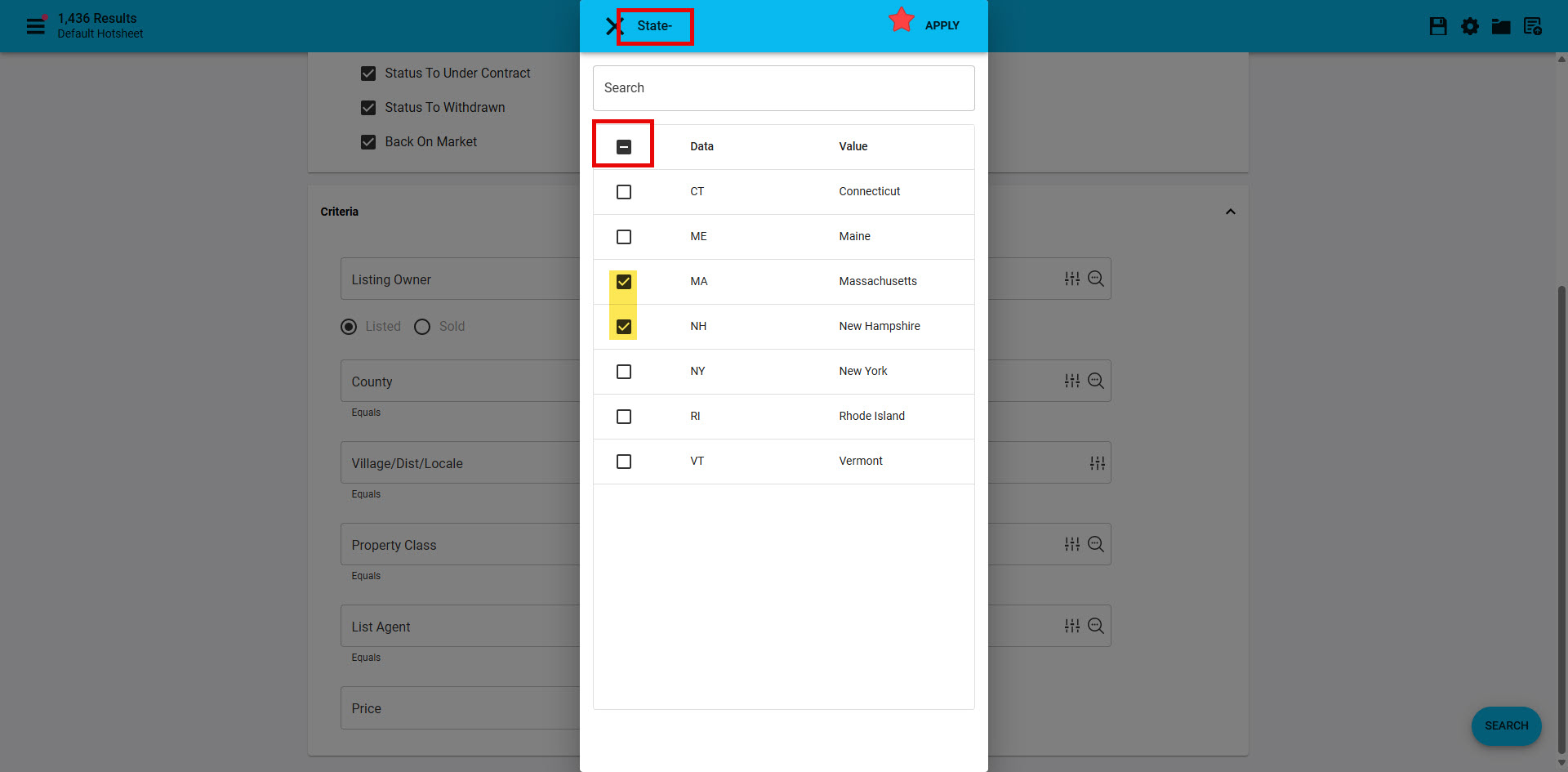
6. Once you have a state or state selected you will likely want to continue to narrow down what you want to see the Daily Hotsheet by County (or multiple counties), City (or multiple cities) and Property Class
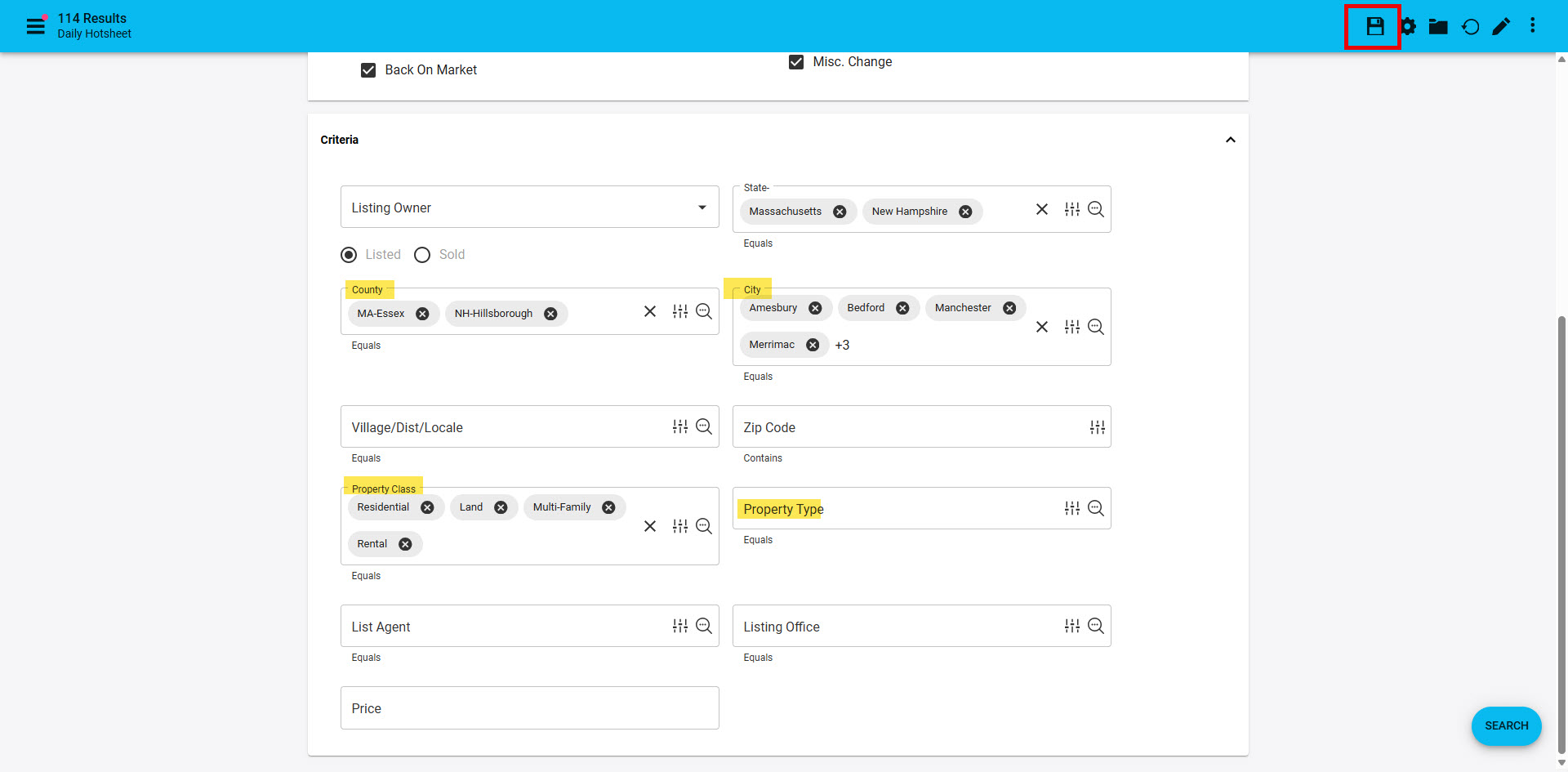
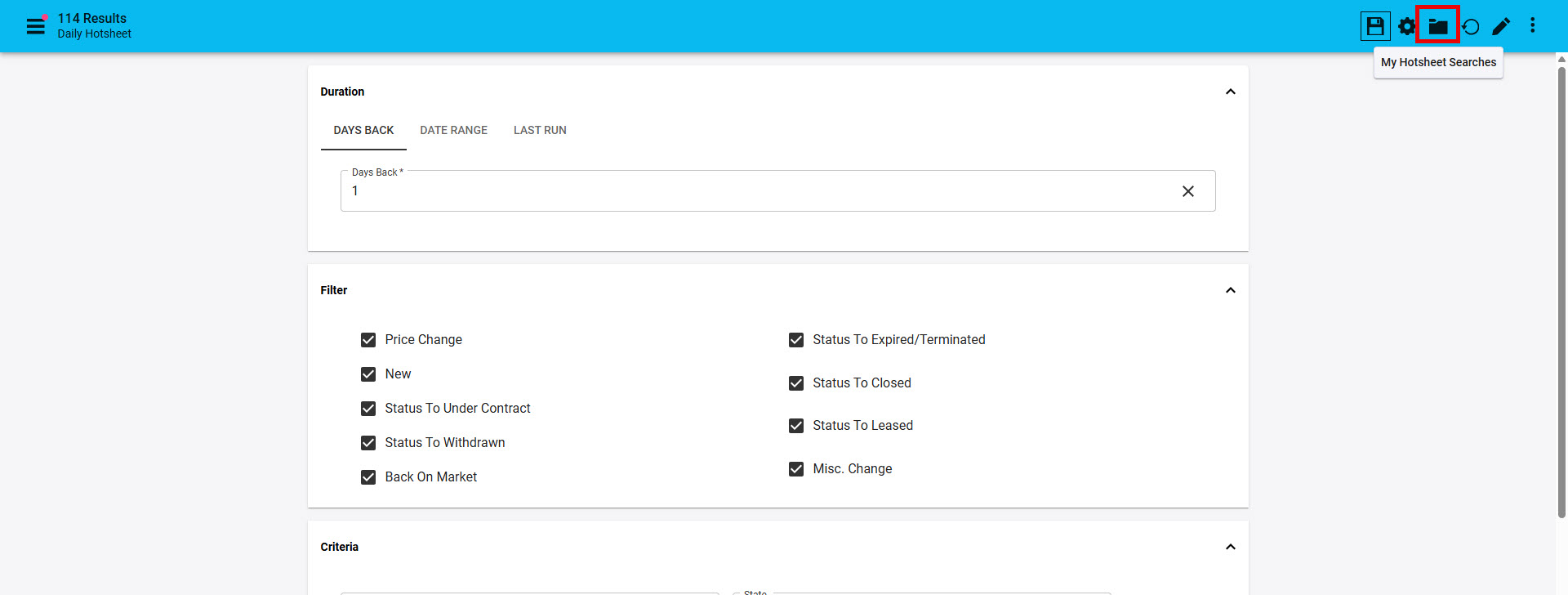
7. When you have finished narrowing down the fields you will click on the "disk" icon in the top right corner to "Save" the criteria you want to see on the Daily Hotsheet. You will get a green pop-up bar letting you know "Hotsheet search is saved"