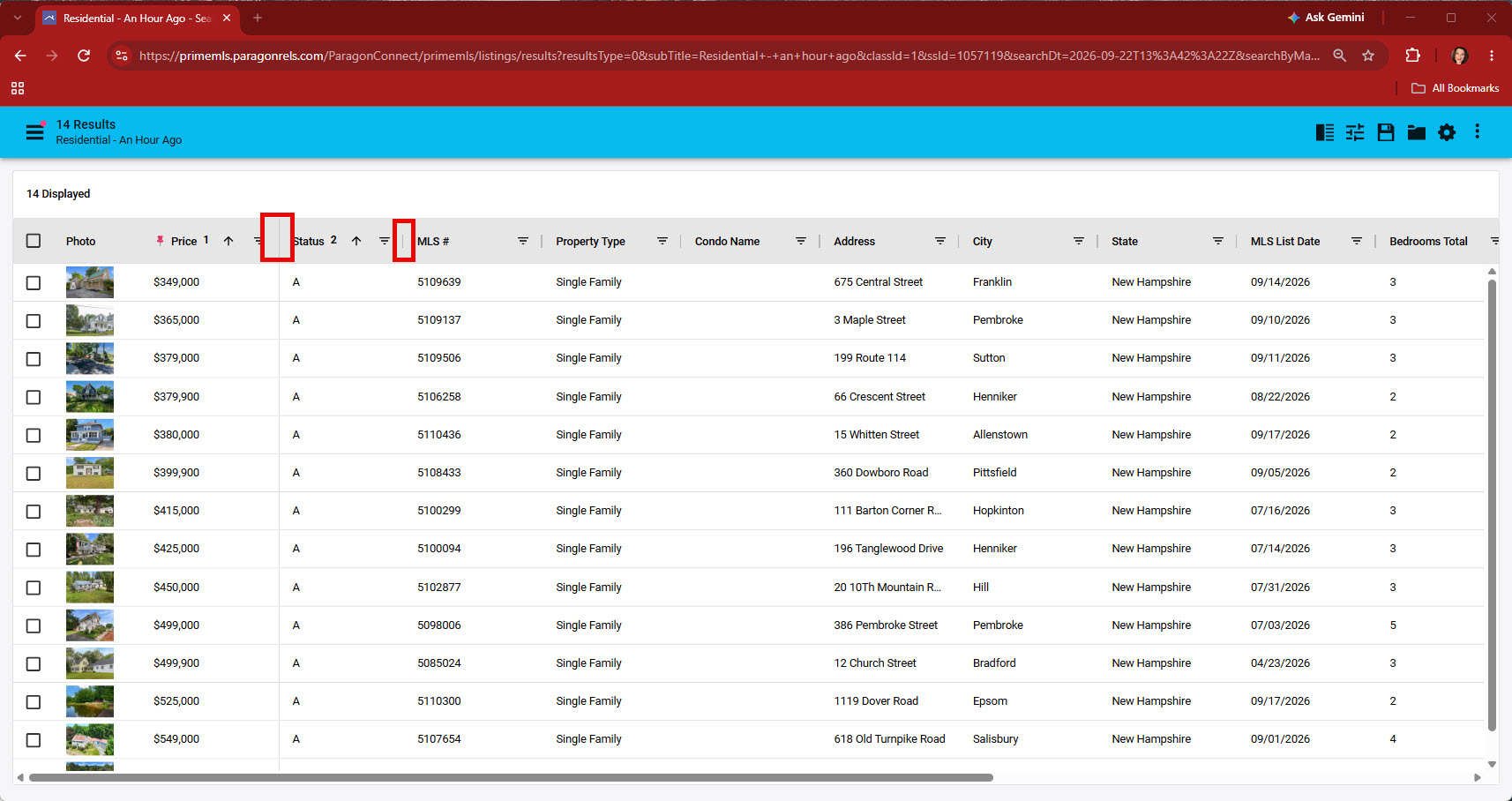
Create custom spreadsheets any time, anywhere to easily display the data you want to view based on the search you have run.
Adding Fields to a Copied Spreadsheet
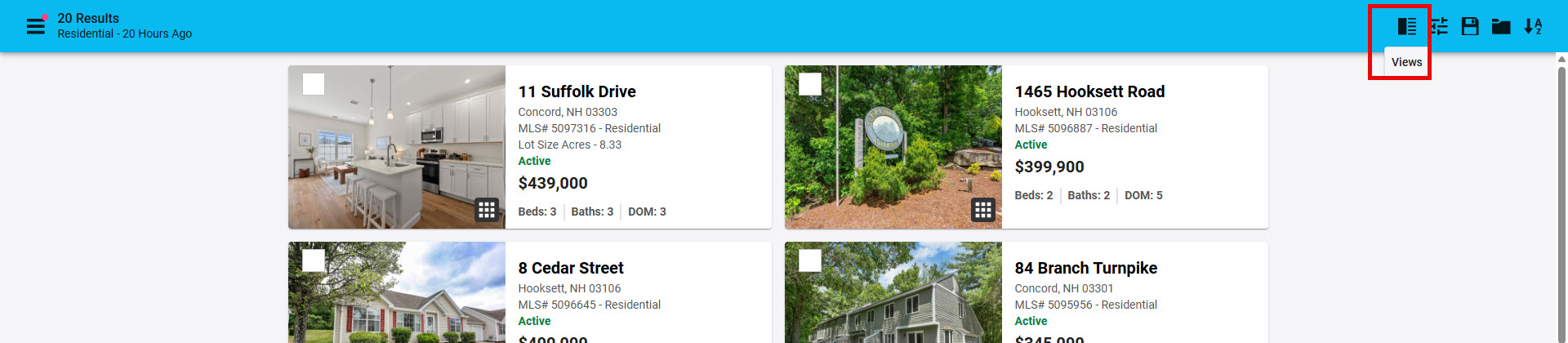
1. From Results click on the "Views" icon in the top right corner
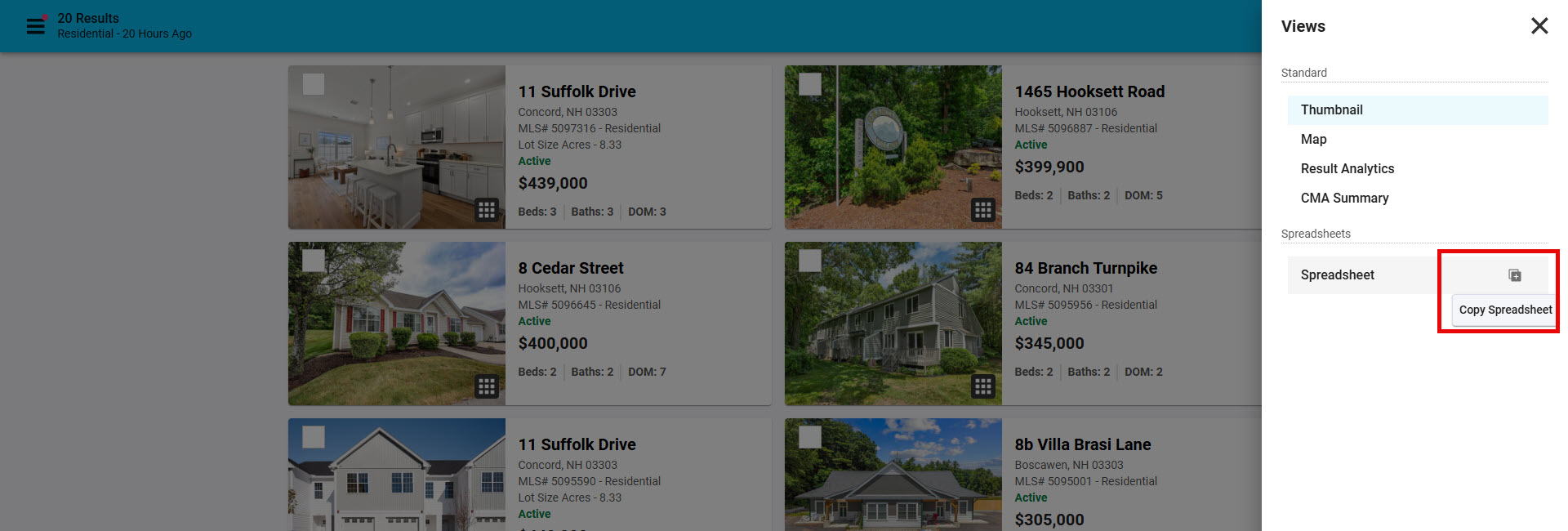
2. Under Speadsheets, select "Copy Spreadsheet". You can have up to 5 custom spreadsheets for each property class
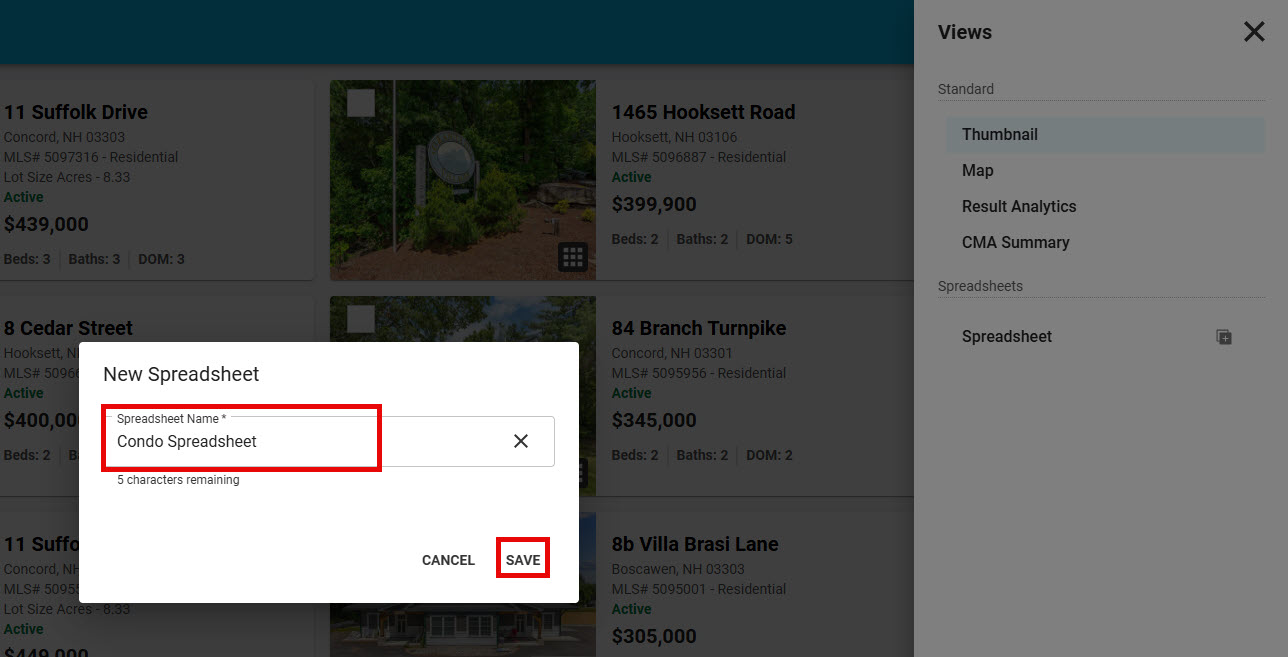
3. Give your new spreadsheet a meaningful name, based on the search you have run and spreadsheet columns you'll add, and click "Save"
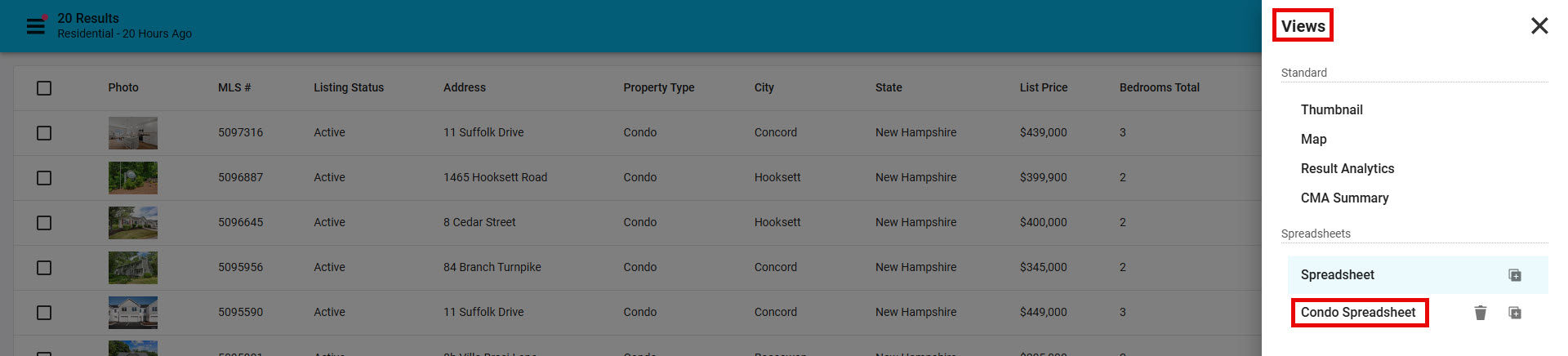
4. Cick on "Views" icon and choose the newly added speadsheet to cusomize
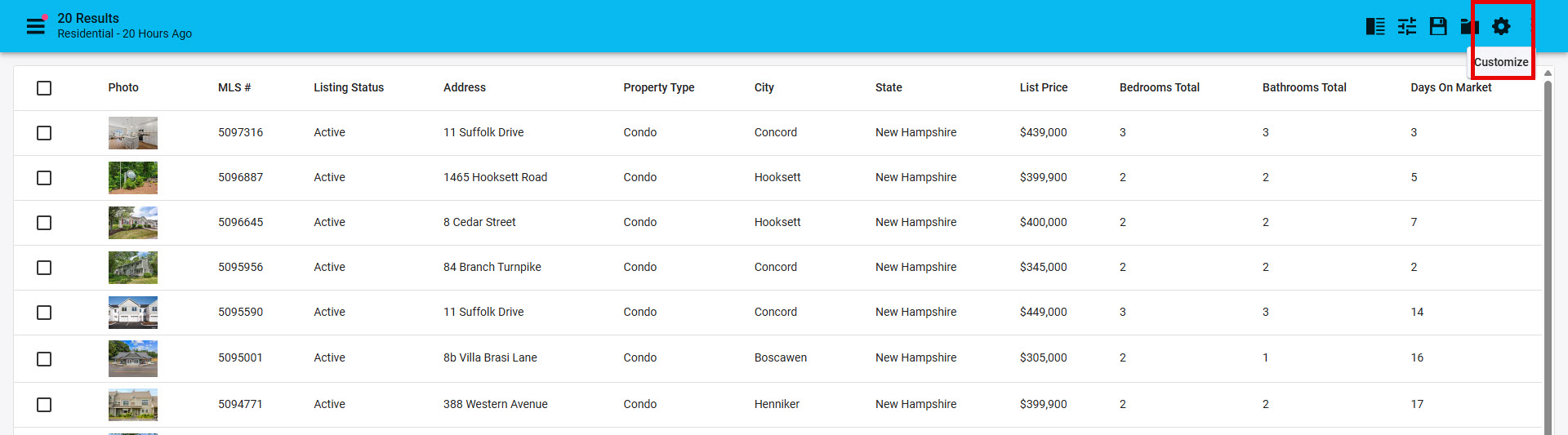
5. Click on the "Customize" icon in the top right corner
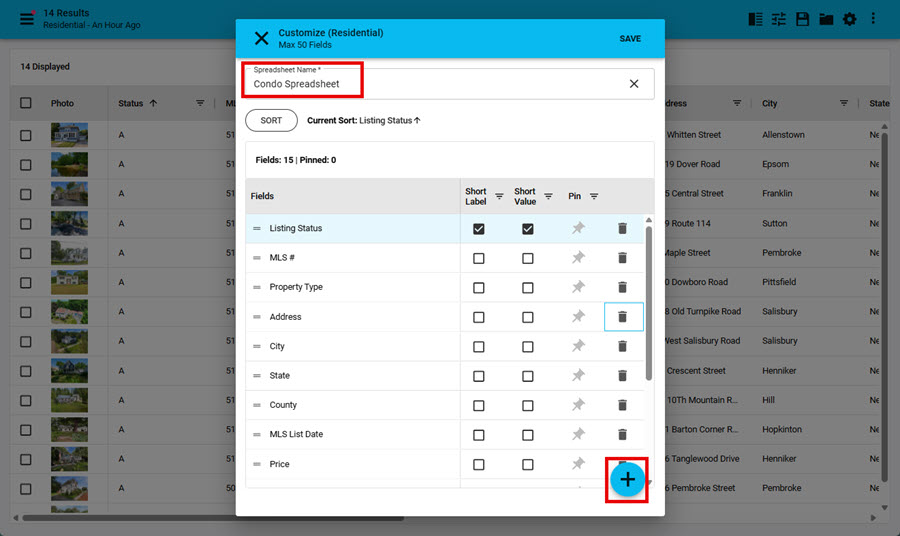
6. Click on the "+" in the bottom right corner of the Customize popup to add fields to your spreadsheet.
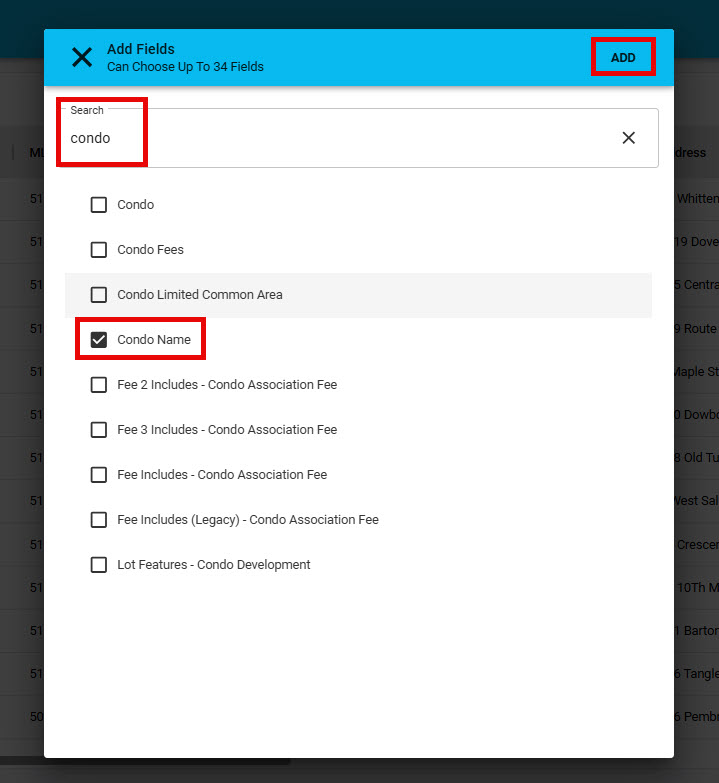
7. Scroll to see all the fields that can be added to the spreadsheet, or, for quicker results, start typing in the "Search" fields to have the list of options narrow so you can easily find the field you want to "check" to "Add"
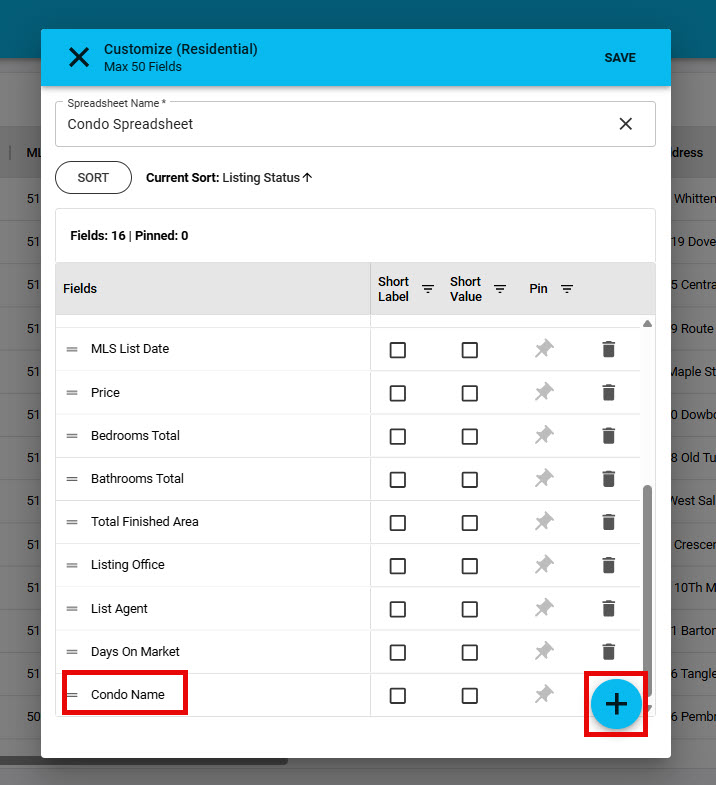
8. Added fields will always display at the very bottom of the list of fields showing on the spreadsheet. Use the "+" to add additional fields to the spreadsheet. You can have up to 50 fields on the spreadsheet.
Rearrange and Remove Fields
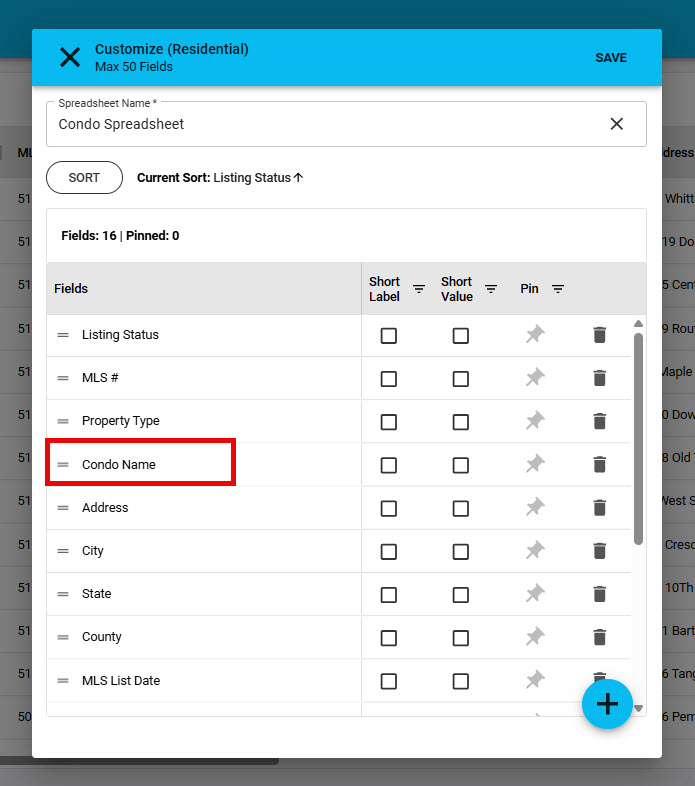
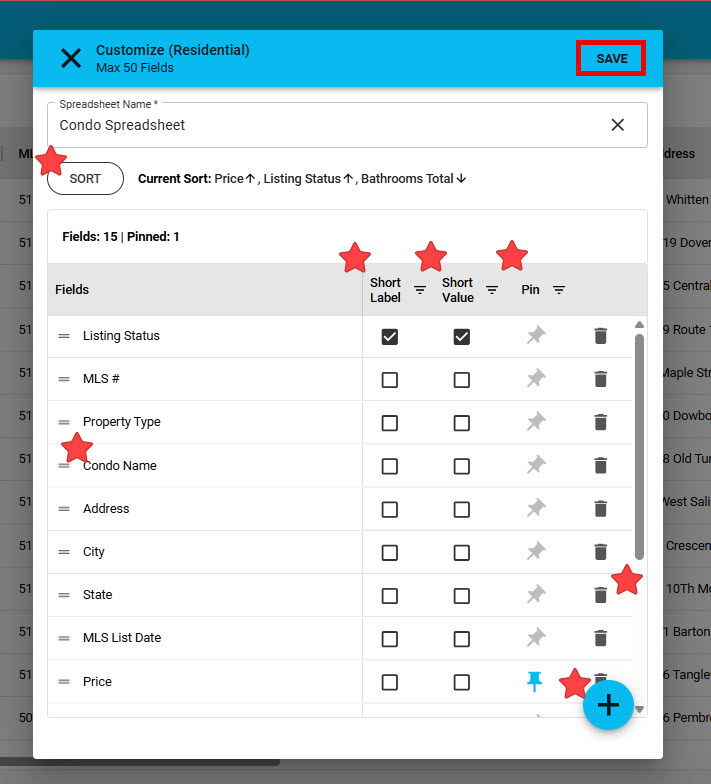
1. Rearrange fields by "click, hold and dragging" the field you want to move, to where you want it to display on the spreadsheet. Newly added fields can be moved from the bottom of the list, towards the top of the list. This will prevent you from having to scroll on the spreadsheet view to see that data in the newly added fields
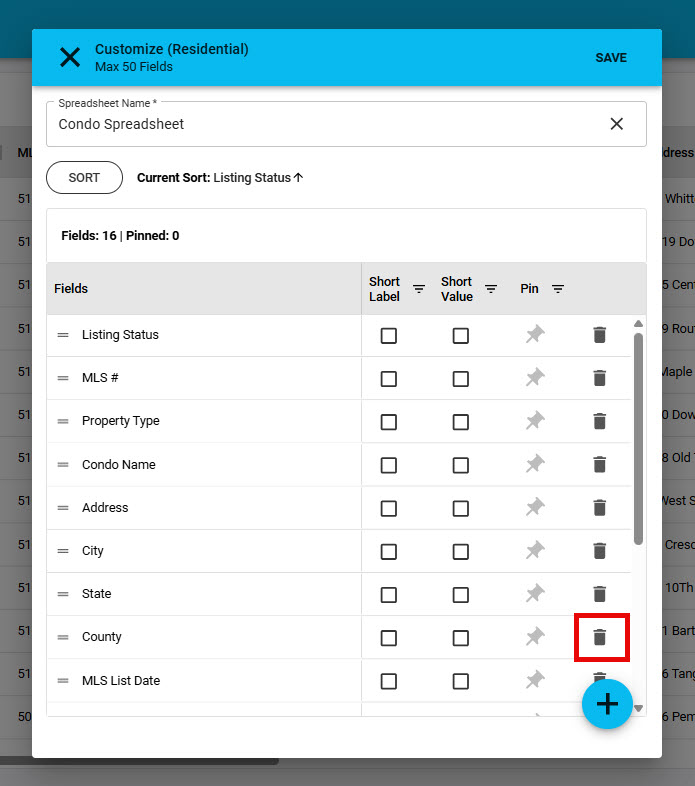
2. If there is a field you do not need on the speadsheet, click on the "trashcan" and it will be removed
Short Label, Short Value, and Pin
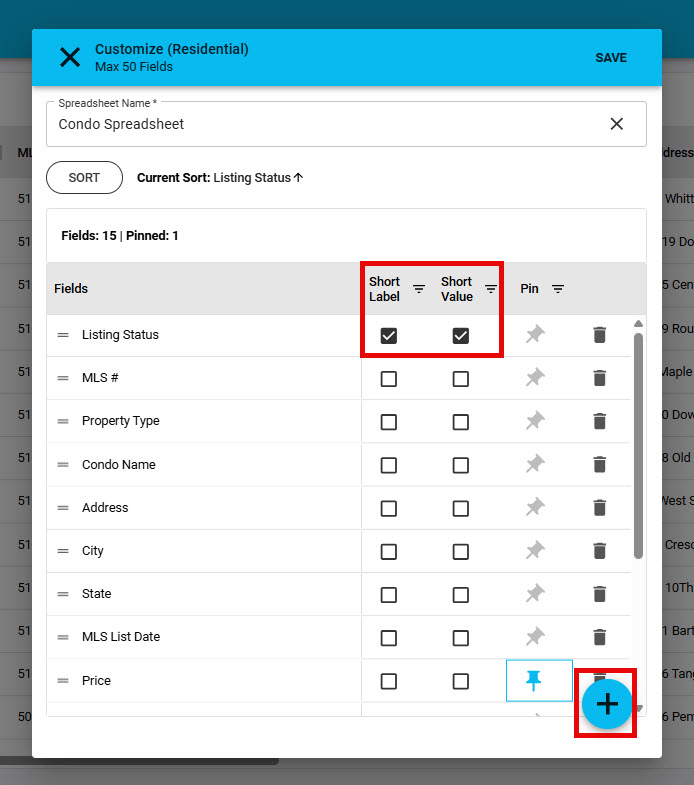
1. Short Label replaces a column headed with a shorter name. For example "Listing Status" would be replaced by "Status".
2. Short Value abbriviates the column data. For example "Active" would display as "A".
3. Pin automatically places that column to the far left of the spreadsheet preventing the need to scroll to see the data. You can Pin multiple columns and the rearrage by click, hold & dragging column names until the spreadsheet is set up to your liking.
Sort
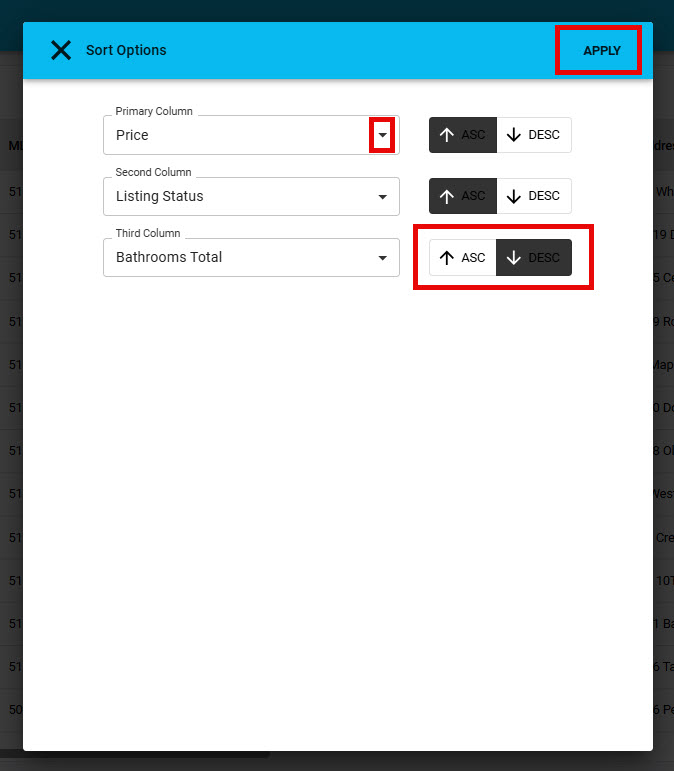
1. You can sort up to 3 columns on the spreadsheet by choosing the column from the dropdown. And each column can be sorted in ascending or descending order. Click "Apply" to save your sort options
2. Once you've finished customizing the spreadsheet, click "Save"
3. Your newly named and customized spreadsheet is now saved and available as a selection under "Views" "Spreadsheet". To make spreadsheet columns wider or more narrow: click, hold and drag the lines between the column Header.