
The Collab Center isn't just for Buyers, but your Sellers can benefit from it, too! With a quick set up, Sellers can receive email updates and review the Collab Center for statistics and analytics on how many times their listing has been viewed and so much more. Watch this video to learn how easy it is to provide this valuable information to your Sellers, or follow the instructions below.
Learn More
My Seller is Saved as a Contact
Step 1: Find listing and attach contact
Once the listing is live in Paragon, go to the Home page.
Find the "Contact Activity" widget and open the "Sellers" tab. This will display a list of your Active inventory.
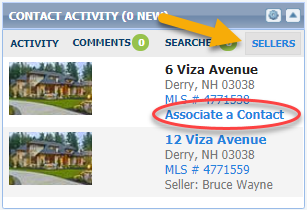
Click "Associate Contact" on the applicable listing. In the pop-up, type the contact's name into the field and select it when it appears, then click "Save & Continue."
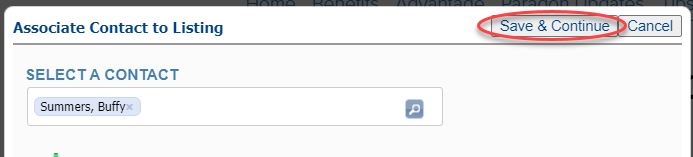
Step 2: Turn on Seller Activity
The system will navigate you to the profile for the contact. Seller Activity will be open and you'll find the listing details there.
Notice the red "Disabled" button. Click that to flip the switch to "Enabled."
Once it's enabled, you'll have the option to "Send Welcome Email." This will provide them their initial access to the seller side.
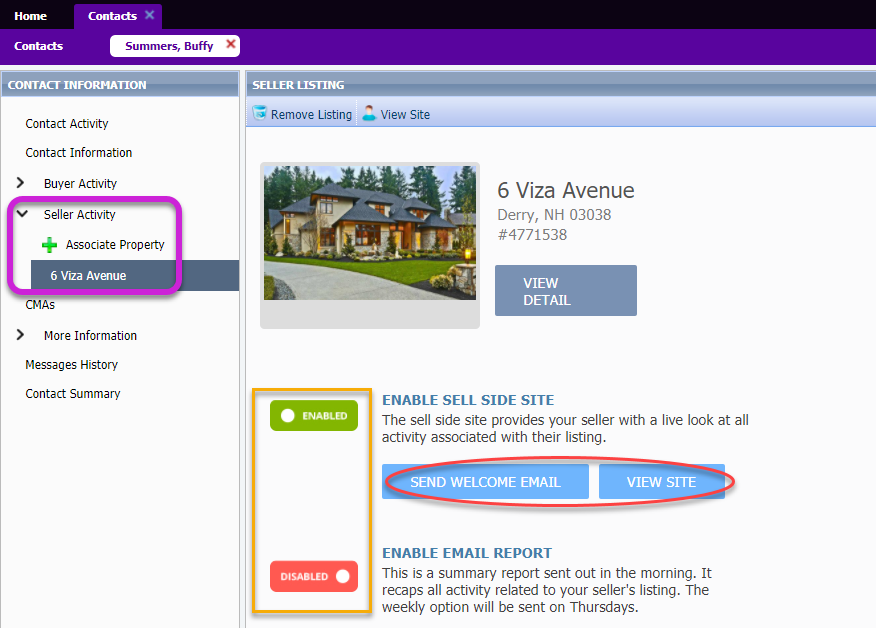
Once the welcome email is sent, you can then enable the email report, which can be sent daily or weekly on Thursdays.
Now that they’re set up, click “View Site” to review the activity your Seller will see, including how many times their property has been favorited, commented on, emailed from Paragon, viewed, etc. Plus, if this seller is also a buyer, both sides can be easily viewed from the same Collab Center site.
My Seller is Not Saved as a Contact
Step 1: Find listing and add new contact
Once the listing is live in Paragon, go to the Home page.
Find the "Contact Activity" widget and open the "Sellers" tab. This will display a list of your Active inventory.
Click "Associate Contact" on the applicable listing. In the pop-up, click "Add New Contact"
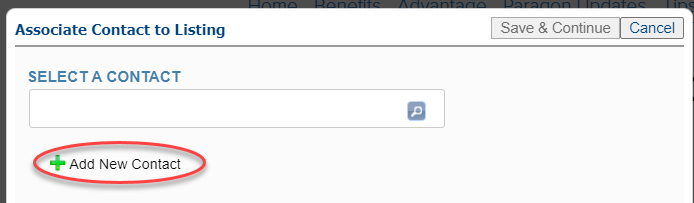
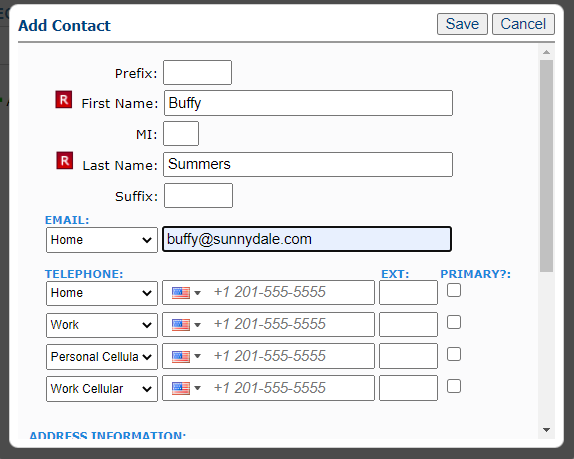
To add a new contact, First and Last Name are required to save, but you'll also want to include the email address in order to enable the Collab Center. Phone numbers and addresses are optional to add. Click "Save" then click "Save and Continue."
Step 2: Turn on Seller Activity
The system will navigate you to the profile for the newly saved contact. Seller Activity will be open and you'll find the listing details there.
Notice the red "Disabled" button. Click that to flip the switch to "Enabled."
Once it's enabled, you'll have the option to "Send Welcome Email." This will provide them their initial access to the seller side.
Once the welcome email is sent, you can then enable the email report, which can be sent daily or weekly on Thursdays.
Now that they’re set up, click “View Site” to review the activity your Seller will see, including how many times their property has been favorited, commented on, emailed from Paragon, viewed, etc. Plus, if this seller is also a buyer, both sides can be easily viewed from the same Collab Center site.