
Did you know you can bulk email your contacts via Paragon? It's easy with Groups! First, you must create the groups and then you can bulk email them. Watch this video to learn how or follow the below instructions.
USING GROUPS
Creating Groups
Step 1: Add group
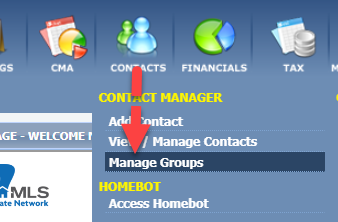
Go to the Contacts menu
Select "Manage Groups."
Tip: Look at a current contact and review the "Types" available. Create some of the same groups as you have for types - that way you'll always have the option to bulk email or creating mailing labels for your contacts.
Step 2: Add groups
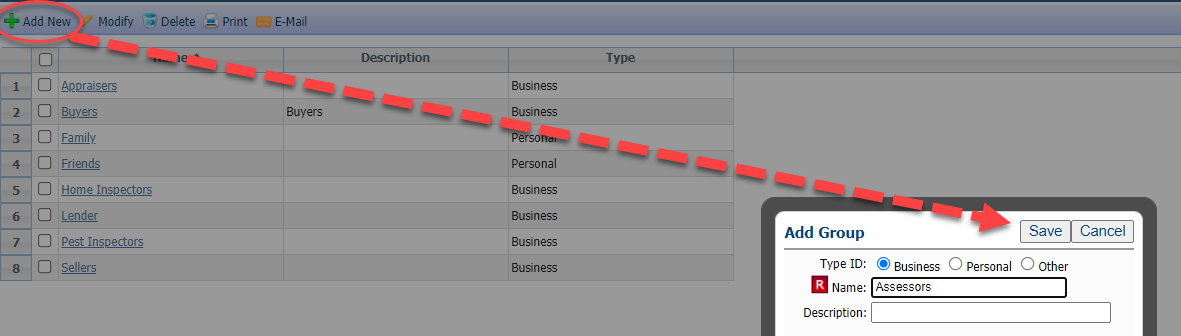
Click "Add New"
Enter the group in the "Name" field."
Click "Save."
Bulk Emailing Groups
To bulk email groups, the contacts you have must be in a group. If you haven't included any contacts in groups, click here to learn how.
Step 1: Compose the email
Click "Compose email" in the top, right corner of Paragon.
Enter whatever message you wish to send.

Step 2: Choose the group
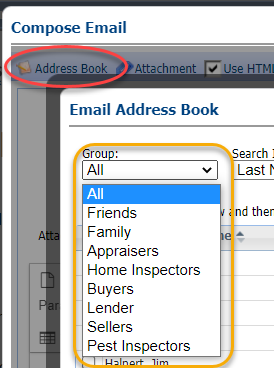
- Click "Address Book" in the top, left corner of the email.
- In the "Group" drop-down, select the group you wish to contact.
Step 3: Choose contacts
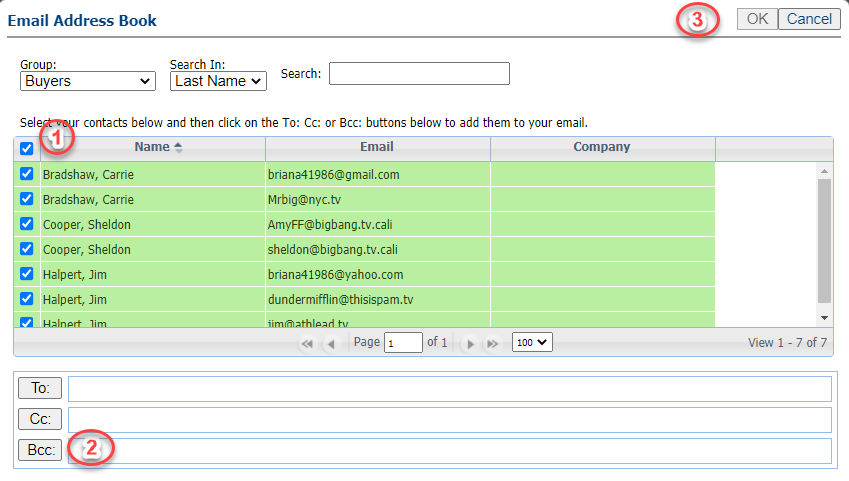
- Upon selection of a group, the list of contacts in the grid will update.
- Check the boxes for the contacts you wish to contact OR check the box at the very top of the grid to select all.
- Click the "BCC" button. This will populate the email addresses into the blind copy section of the email, which is important so that the recipients can't see each other's email addresses.
- Click OK."
Step 4: Finish your email
- Upon clicking OK, all email addresses will populate into the BCC field of your email.
- Finish up your message and click "Send."