The Collaboration Center for buyers is a portal for them to review listings they are receiving from the system. They can favorite listings, mark others as possible or reject listings. They can add comments and requests showings, which go directly to their agent. They can compare listings and more. All of this can be done on any device, as the portal is entirely mobile friendly. This page covers how to set up additional searches under a contact.
Setting Up A Buyer with Additional Searches
Step 1: Create the Search
Go to the "Search" menu and choose the class.
Enter the criteria needed for the search. Remember that less is more. The more criteria you enter, the less results you may get, as the search becomes more and more specific.
Step 2: Save the Search
Once all criteria is entered, tap the "Save" button at the top of the search template and choose "Save Search As."
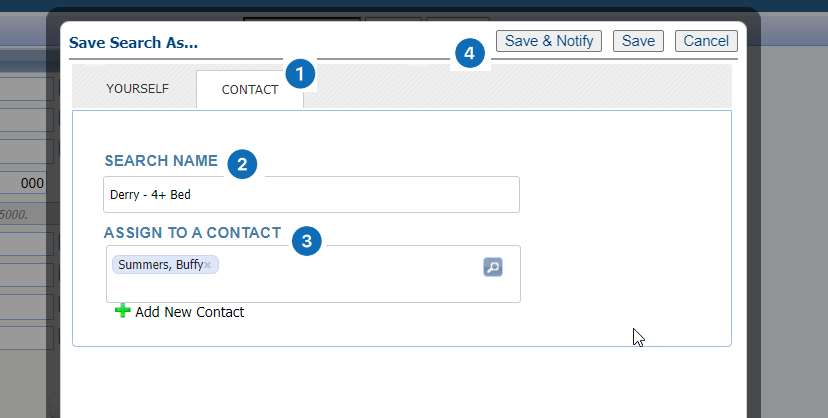
In the pop-up that appears, choose "Contact," then provide a name for the search.
Type the name of the contact in the "Assign to a Contact" field and select their name when it pops up (or go to the magnifying glass to select the name from your list of contacts).
Tap "Save and Notify"
Step 3: Save the Search
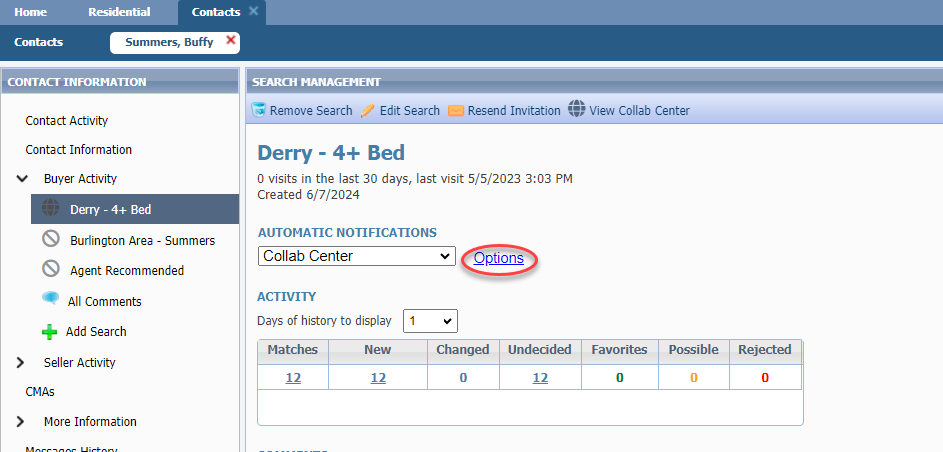
This navigates you to your contact's profile. Notice the Collab Center is turned on for this newly added search.
Tap "Options" to customize what the contact will be emailed about, as well as how often they will be emailed.
Similar to the other searches you have set up, they will start receiving auto-emails on this newly added search based on the schedule you've set.