The Collaboration Center for buyers is a portal for them to review listings they are receiving from the system. They can favorite listings, mark others as possible or reject listings. They can add comments and requests showings, which go directly to their agent. They can compare listings and more. All of this can be done on any device, as the portal is entirely mobile friendly. It also allows buyers to run their own searches! Keep your customers/clients in the Collab Center with information direct from the MLS by setting them up with Buyer Search!
TABLE OF CONTENTS
Enabling Buyer Search
Step 1: Find the Contact
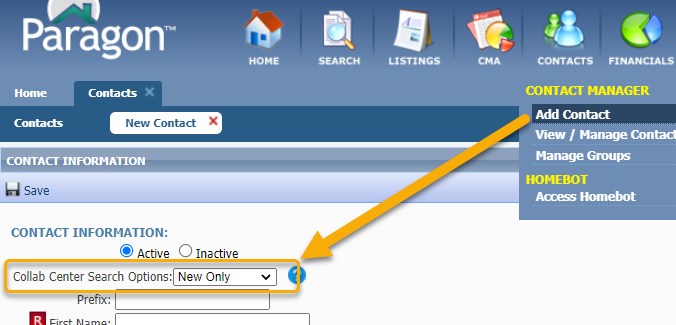
- If the contact has not yet been created, click the "Contacts" menu and choose "Add New." This navigates to the Contact Information page. Within the "Collab Center Search Options" dropdown menu, select "New Only." Enter the rest of the information about your contact and be sure to click "Save."
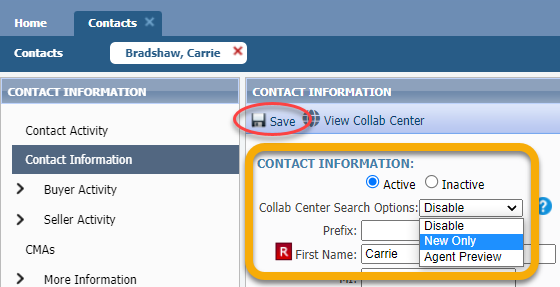
- If the contact already exists, go to the "Contacts" menu and choose "View/Manage Contacts." Click the name of the contact and from the menu on the left, choose "Contact Information." Within the "Collab Center Search Options" dropdown menu, select "New Only." Click "Save."
Setting Buyer Search as the Default
Step 1: Open Preferences
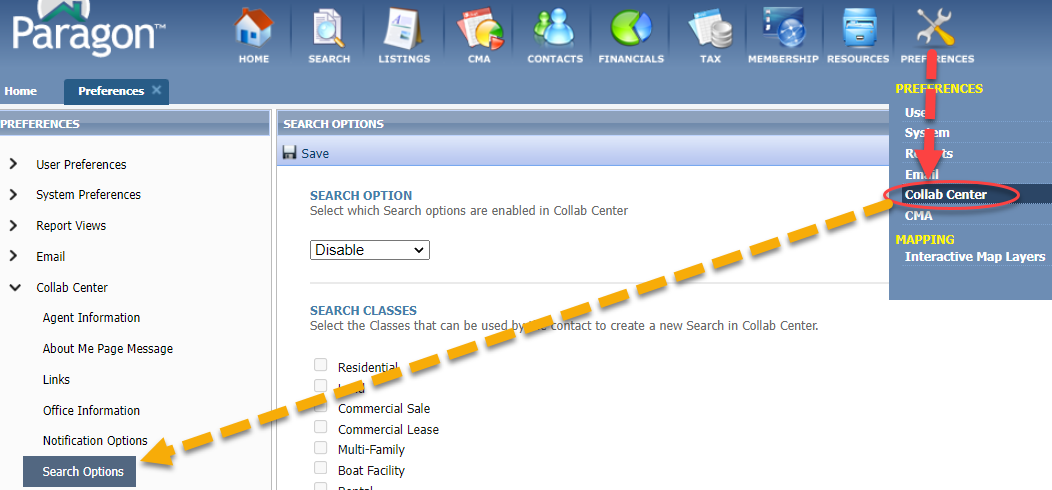
Go to the Preferences menu and select "Collab Center."
From the menu on the left, choose "Search Options."
Step 2: Update Settings
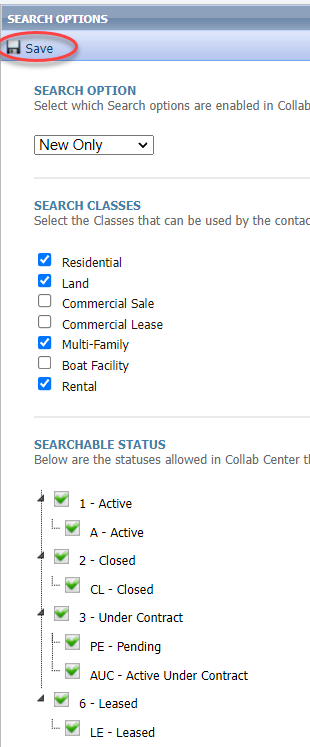
From the drop-down menu, choose "New Only." This means that all listings that match the search the agent created will be automatically emailed to the customer/client and it enables the ability for the customer/client to run their own searches.
Next, you can decide what classes you'd like to allow customers/clients to search. Check all classes.
Lastly, you can decide what statuses you want to enable for customers/clients to be able to search.
Click "Save."