
Reverse Prospecting is a feature that you can opt your contacts in and allows list agents to review their own active inventory and take the initiative in the home buying process. As list agents look at their listings, they'll see the Name, Email Address, and Phone Number for a buyer's agent and the "alias" the buyer agent entered for their contact. Then, the list agent can reach out to the other agent about their contact! Watch the video to learn how to use this, or follow the below instructions.
USING REVERSE PROSPECTING
Setting Up Contacts with Reverse Prospecting
Reviewing Your Inventory for Reverse Prospecting Matches
Confirming What Contact To Which An Alias Matches
Setting Up Contacts with Reverse Prospecting
Step 1: Open Contact
Go to the "Contacts" menu and select "View/Manage Contacts."
Click the name of the contact
From the menu on the left, choose "Contact Information."
Step 2: Opt In to Reverse Prospecting
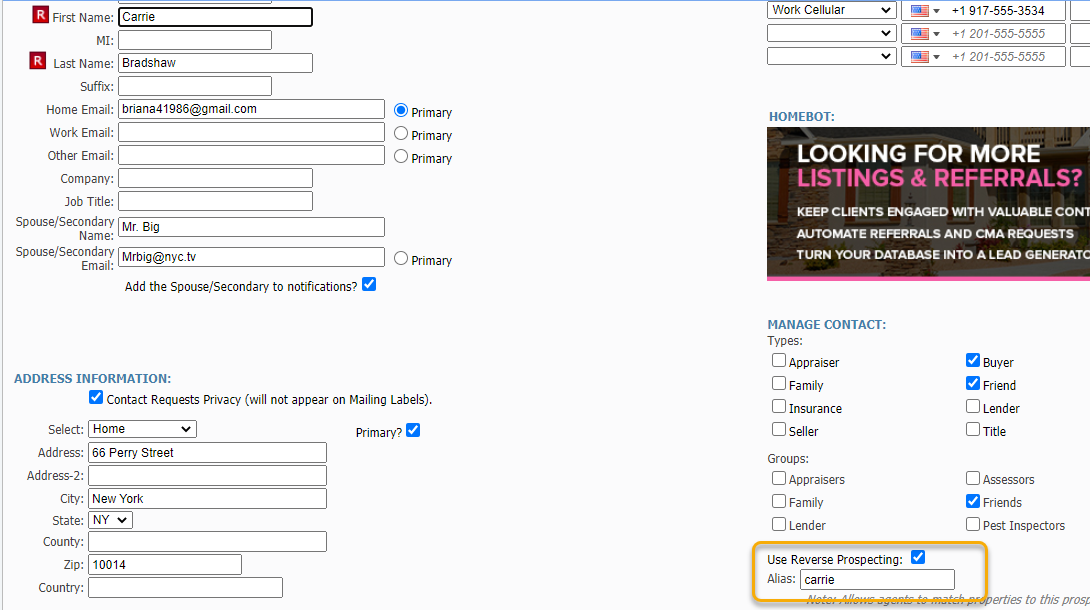
Check the box for "Reverse Prospecting," then enter an Alias. The alias is the only piece of information that list agents will see regarding your contact and is how they will identify the person to you. This can be their first name or last name or anything you want. Only you and the other agent will see the alias.
Click "Save."
Reviewing Your Inventory for Reverse Prospecting Matches
Step 1: Review Inventory
Go to the "Contacts" menu and select "Reverse Prospecting."
This navigates you to your inventory list.
Step 2: Get Matches
Click on a listing - avoid clicking the MLS Number, as that will pop-up a "quick view" of listing information.
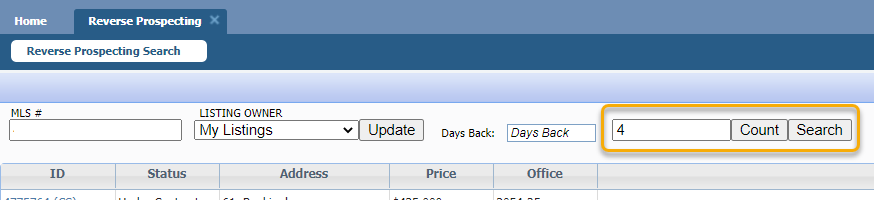
Once the listing is selected, it will be highlighted. Click "Count."
If a number more than 0 appears, there are matches. Click "Search."
Step 3: Review Matches
You'll be navigated to a spreadsheet that includes the agent's name, email address, and phone number, plus the "prospect name."
The Prospect Name is the alias that the agent entered to identify the contact who matches to this listing. When contacting the agent, be sure to include that.
Tip: If you have a match without an alias, still reach out to that agent. They may only have 1 contact, or 1 contact searching in that particular area so they'll be able to figure out who matches it. Plus, it'll be a good educational moment for them to realize the importance of entering an alias when they opt contacts in to Reverse Prospecting.

Confirming What Contact To Which An Alias Matches
If you receive a message from a list agent indicating that your contact has matched to one of their listings, this is due to you having opted that contact in to Reverse Prospecting.
Use the "Alias" the list agent has hopefully provided to confirm the match.
Once you have the alias, go to the "Contacts" menu and select "View/Manage Contacts."
On this list, look to the column on the far right, which is the Alias column.
Alternatively, enter the alias into the "Find" box and as you type, the contact who matches to the alias will appear.
Now you can reach out to that contact and see if they have any interest in the property, or answer whatever question or comment the list agent may have had.
