CRS Tax Auto-Fill uses the public records available in the CRS database to auto-populate fields to your listing upon input. This features allows the system do the work for you by completing several required fields, plus it syncs your listing with the CRS public records database.
How to Enter a Listing with CRS Tax Auto-Fill in Paragon Professional
Step 1: Begin the listing
Go to the Listings menu and under "Add Listing," select the class.
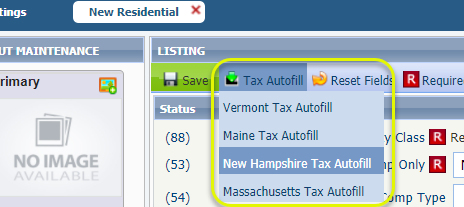
From the listing input screen, go to the toolbar and select "Tax-Auto-fill."
Chose the State in which the property is located.
Step 2: Find the Property
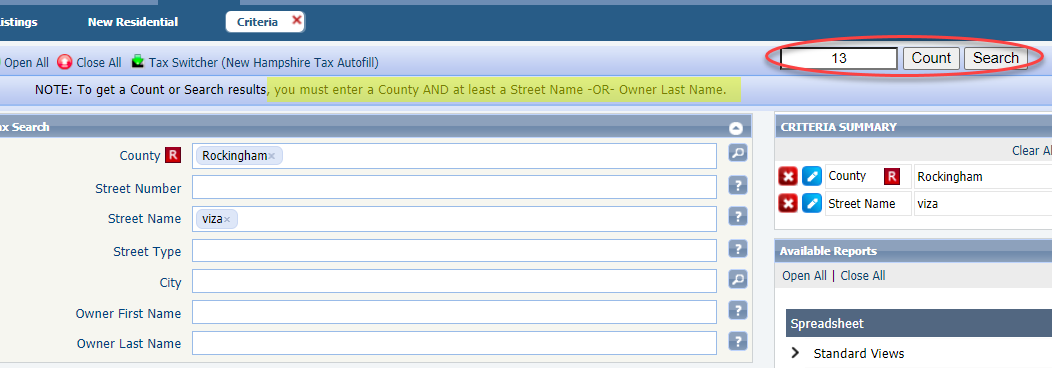
From the Tax Auto-Fill search, begin by entering the County of the property.
You must also enter at least the Street Name or Owner's Last Name.
TIP: Street Name tends to be easier, but Owner's Name can be helpful for condos that all have the same address, save for a varying unit number. The maximum number of results you'll receive is 30, so if the amount of condos is over 30, search by the City and Owner's Last Name.
Less is more with this search, so as you enter additional criteria beyond what is required, watch the number of results you have.
Click "Search."
Step 3: Confirm the property
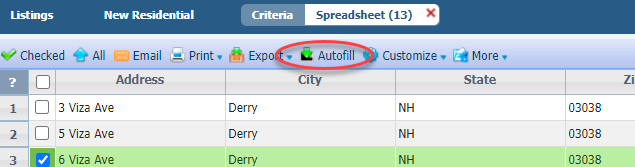
No matter how many results you have, you'll land on a spreadsheet to confirm the results.
Check the appropriate result and click "Auto-fill."
Step 4: Populate
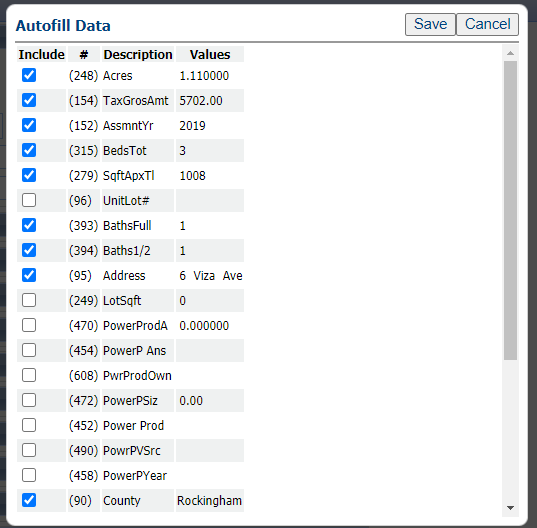
Upon clicking "Autofill," you'll be navigated to the listing input screen with a pop-up showing the information that will auto-populate.
Review the data and if there's anything you don't want to populate, uncheck the box.
Note: For properties in NH, VT, and MA that have photovoltaic (solar power) details, that information will auto-populate to the listing!
Click "Save."
The pop-up will close and all information, including the complete address, will be auto-populated.