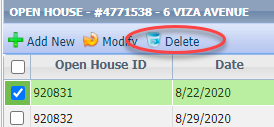
On your listings, you can add open house and tour events, including live stream events. This page covers how to create traditional events and live stream events. The below video covers how to create both types of events, including recurring open houses/tours.
JUMP TO A SECTION:
Definitions
Tour: a scheduled event intended for brokers/agents only. These events do not go out in the data feed to PrimeMLS.com, Commercial.PrimeMLS.com, IDX, and third party sites; however, they do display in the Collaboration Center with the option for agents to have their customers/clients notified via email about scheduled tours.
Open House: a scheduled event intended for agents and the public. These events are included in the data feed to PrimeMLS.com, Commercial.PrimeMLS.com, IDX, and third party sites. Open houses also display in the Collaboration Center with the option for agents to have their customers/clients notified via email about scheduled open houses.
Live Stream: a scheduled event that is watchable online. The agent may be at the property or not, but the event occurs at a specific time through a specific live stream service.
Permitted Sites | Domain | Permitted Sites | Domain | |
| Blue Jeans | www.bluejeans.com | Periscope | www.periscope.com | |
| Facebook Live | www.facebook.com | Skype | www.skype.com | |
| GoToMeeting | www.gotomeeting.com | Microsoft Teams | teams.microsoft.com | |
| GoToWebinar | www.gotowebinar.com | Webex | www.webex.com | |
| Google Hangouts | hangouts.google.com | Whereby | www.whereby.com | |
| Google Meet | meet.google.com | YouTube Live | www.youtube.com | |
| Join.me | join.me | Zoho | www.zoho.com | |
| Vimeo Livestream | www.livestream.com | Zoom | www.zoom.us |
Scheduling an Open House
Step 1: Find the listing (if you are currently adding a listing, skip to Step 2)
Click the Listings menu and select "Listings" under "Maintain."
Find the listing you wish to edit by filtering by Status or Class, or searching by Address or MLS Number through your listing.
Click the MLS Number.
Step 2: Add the Open House
- From the menu on the left, click "Add/Edit Open House"
- If this is to be a live stream event, check the "Live Stream" box and paste the access URL into the "Live stream URL" field.

- Select the date(s) by clicking each date on the calendar. If this is a recurring open house, you may select up to 20 dates.
- Set the Start and End times.
- Enter any comments to highlight special details about the event.
- Click "Save."
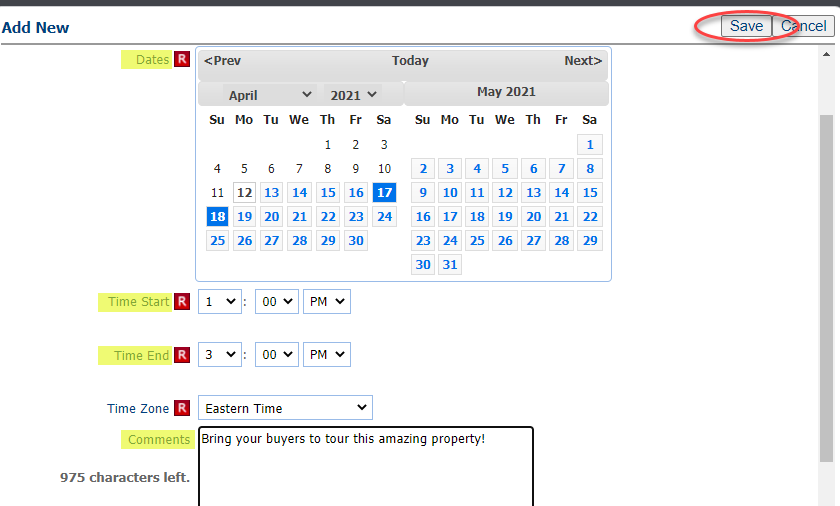
- If you selected multiple dates, notice each date is saved as an individual event, which makes it easy for editing.
Scheduling a Tour
Step 1: Find the listing (if you are currently adding a listing, skip to Step 2)
- Click the Listings menu and select "Listings" under "Maintain."
- Find the listing you wish to edit by filtering by Status or Class, or searching by Address or MLS Number through your listing.
- Click the MLS Number.
Step 2: Add the Tour
- From the menu on the left, click "Add/Edit Tour"
- If this is to be a live stream event, check the "Live Stream" box and paste the access URL into the "Live stream URL" field.

- Select the date(s) by clicking each date on the calendar. If this is a recurring tour, you may select up to 20 dates.
- Set the Start and End times.
- Enter any comments to highlight special details about the event.
- Click "Save."
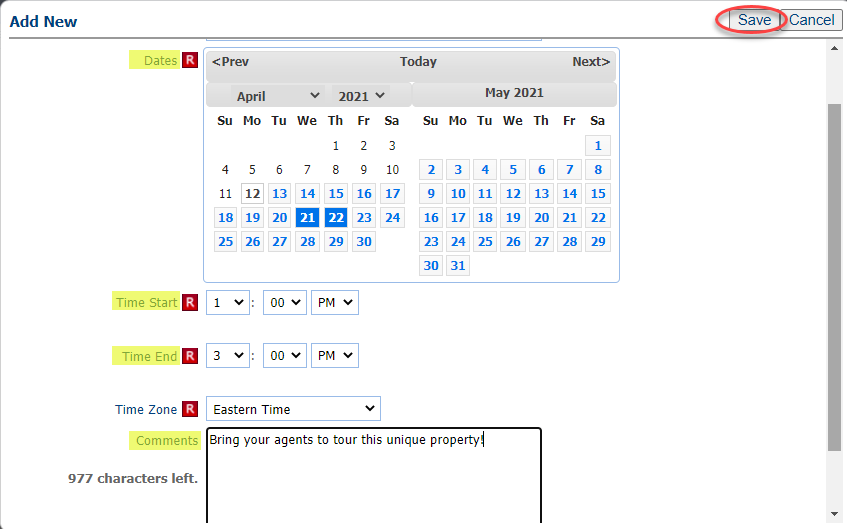
- If you selected multiple dates, notice each date is saved as an individual event, which makes it easy for editing.
Editing or Cancelling an Open House or Tour
Step 1: Find the listing
- Click the Listings menu and select "Listings" under "Maintain."
- Find the listing you wish to edit by filtering by Status or Class, or searching by Address or MLS Number through your listing.
- Click the MLS Number.
Step 2: Edit the event
- Click "Add/Edit Open House" or "Add/Edit Tour."
- Check the box of the event you wish to edit and click "Modify."
- Edit the details that must be updated and click "Save."
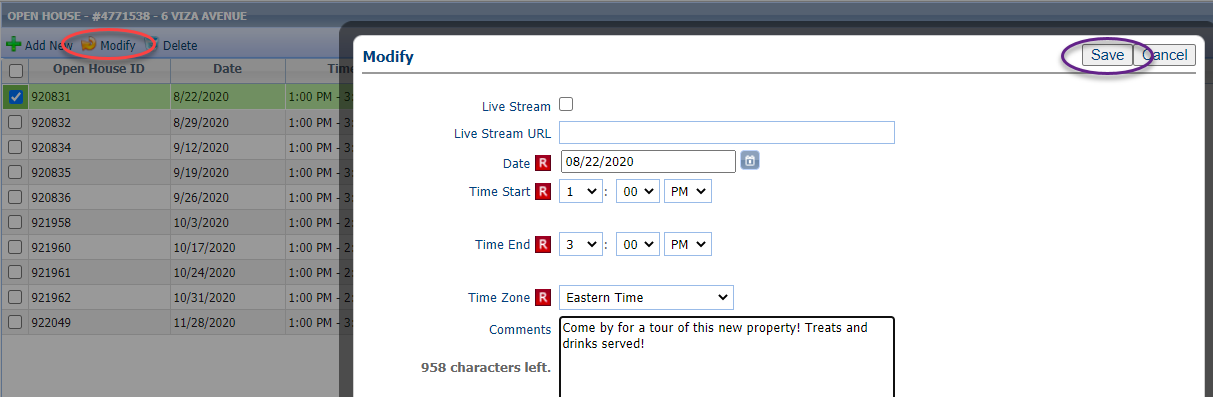
--OR--
- Check the box of the event you wish to cancel and click "Delete."