This page explains how to easily update statuses on your listing in Paragon. PrimeMLS Rules, all status changes are to be updated in the MLS within 2 business days.
CHOOSE A STATUS CHANGE:
Update to Active Under Contract
Update to Pending
Update to Closed
Update to Terminated
Update to Withdrawn
Update Back to Active
Update to Active Under Contract
If a listing has gone under contract and you are ready to update the status, Active Under Contract indicates the seller will continue to allow showings prior to closing and the listing is included in the data feeds to syndication sites.
Step 1: Find listing
Click the Listings menu and choose "Listings."
Find the listing in your inventory by filtering by status or class, or searching by MLS number or address.
Click the MLS number to edit the listing.
Step 2: Update status
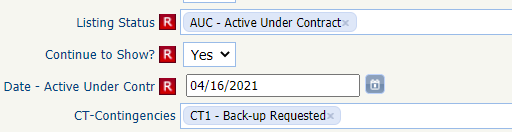
From the "Listing Status" field, clear the current status and select "Active Under Contract."
The "Continue to Show?" field will appear and is required. This is to remind the list agent that Active Under Contract status will remain reasonably available for showings. Select "Yes."
Enter the appropriate "Date-Under Contract"
Enter any applicable Contingencies.
Click "Save Listing."
Update to Pending
If a listing has gone under contract and you are ready to update the status, Pending status indicates that there is no MLS requirement to conduct further showings, and the property is removed from the syndication website MLS data feeds.
Step 1: Find listing
Click the Listings menu and choose "Listings."
Find the listing in your inventory by filtering by status or class, or searching by MLS number or address.
Click the MLS number to edit the listing.
Step 2: Update status
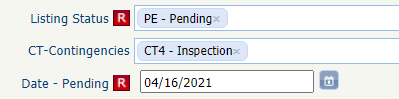
From the "Listing Status" field, clear the current status and select "Pending."
Enter the appropriate "Date-Pending"
Enter any applicable Contingencies.
Click "Save Listing."
Update to Closed
Step 1: Find listing
Click the Listings menu and choose "Listings."
Find the listing in your inventory by filtering by status or class, or searching by MLS number or address.
Click the MLS number to edit the listing.
Step 2: Update status
From the "Listing Status" field, clear the current status and select "Closed."
Enter the appropriate "Date-Closed."
Entering the appraiser information is required, including their name and phone number.
If your office allows entering of concessions, you may include that information.
Enter the Closing Price, Buyer Financing, and Selling Agent Information. If the selling agent is a non PrimeMLS member, follow these instructions.
Once all required information is entered, click "Save Listing."
Update to Terminated
Terminated status indicates that the listing agreement for the property has been terminated prior to the expiration date.
Step 1: Find listing
Click the Listings menu and choose "Listings."
Find the listing in your inventory by filtering by status or class, or searching by MLS number or address.
Click the MLS number to edit the listing.
Step 2: Update status
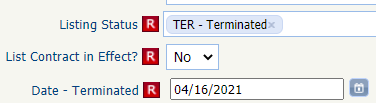
From the "Listing Status" field, clear the current status and select "Terminated."
The "List Contract in Effect?" field will appear and is required. This is to remind the list agent that Terminated listings no longer have a contract in place. Select "No."
Enter the appropriate "Date-Terminated."
Click "Save Listing."
Update to Withdrawn
Withdrawn status indicates that a current agreement remains in place for the property, but the listing is not being marketed actively within the MLS.
Step 1: Find listing
Click the Listings menu and choose "Listings."
Find the listing in your inventory by filtering by status or class, or searching by MLS number or address.
Click the MLS number to edit the listing.
Step 2: Update status
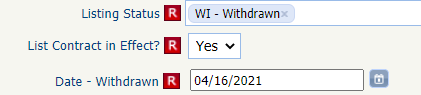
From the "Listing Status" field, clear the current status and select "Withdrawn."
The "List Contract in Effect?" field will appear and is required. This is to remind the list agent that Withdrawn listings do have a listing contract still in effect. Select "Yes."
Enter the appropriate "Date-Withdrawn."
Click "Save Listing."