The "Features" section in Search helps you to find properties by searching specific details on behalf of Buyers. The Features section is where you can search by Style, in-law, 55 and 62 AND, and more. This page explains how to get the most out of this search field.
JUMP TO A SECTION
Feature Categories
How to Search by Features
Same Selection in Multiple Categories
Paragon Listing Input Forms
Feature Categories
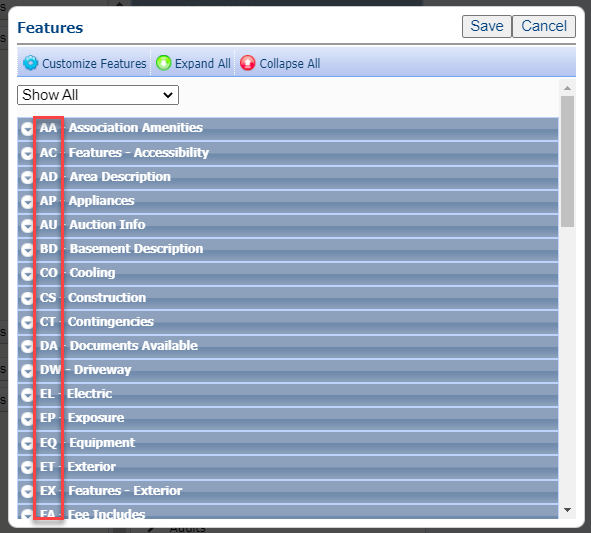
Each Feature Category has a specific abbreviation or code. This chart breaks down each Feature Category and its associated Code. In Search, you'll find some feature selections that are located in multiple feature categories, i.e Barn. This document will assist you in deciphering each code so you'll know which option to select based on the needs of the search.
Feature Category | Code | Feature Category | Code | Feature Category | Code |
| Association Amenities | AA | Fee Includes (Legacy) | FD | Restrictions | RC |
| Features - Accessibility | AC | Financing | FI | Roads | RD |
| Area Description | AD | Financing - Possible Opt | FJ | Roof | RF |
| Appliances | AP | Financing - Current | FK | Rooms: Level B | S1 |
| Auction Info | AU | Flooring | FL | Rooms: Level 1 | S2 |
| Basement Description | BD | Foundation | FO | Rooms: Level 2 | S3 |
| Cooling | CO | Green H2O Conservation | GC | Rooms: Level 3 | S4 |
| Construction | CS | Garage Description | GD | Rooms: Level 4 | S5 |
| Contingencies | CT | Green Energy Efficient | GE | Sale Includes | SA |
| Documents Available | DA | Green Energy Generation | GG | Sewer | SE |
| Driveway | DW | Green Indoor Air Quality | GI | Showing Instructions | SH |
| Electric | EL | Green H2O Sustainability | GS | Style | ST |
| Exposure | EP | Heat Fuel | HF | Suitable Use | SU |
| Equipment | EQ | Heating | HT | Utilities | UT |
| Exterior | ET | Features - Interior | IN | Water Access Detail | WD |
| Features - Exterior | EX | Lot Description | LT | Water Heater | WH |
| Fee Includes | FA | Negotiable | NG | Water | WT |
| Fee 2 Includes | FB | Parking | PK | ||
| Fee 3 Includes | FC | Possession | PO |
How to Search by Features
The Features section of search has 3 boxes: Must Have, Must Not Have, and Must Have 1 or More.
Must Not Have: data entered here will render results that do not have whatever is entered into that field, per selections not made by the list agent in listing maintenance. In the below example, the results rendered will not include properties where the list agent selection "Log" as the Style.

Must Have and Must Have 1 or More: data entered into either of these fields will render results wherein the list agent has made those particular selections when adding the listing in listing maintenance.
Must Have can be more restrictive if you enter multiple selections from the same category. For example, entering multiple Styles into Must Have will likely render less results. If your buyer is open to multiple styles, enter each style into Must Have 1 or More and the system will render results for each style.
TRY IT OUT: Open a Residential search template and begin with a blank template. Into the "Must Have" feature field, enter "Split Level," "Split Entry," "Victorian," and "Bungalow." Check your total results, which will likely be minimal or 0. This is because the system is looking for properties that are categorized as all 4 styles. Now, into the "Must Have 1 or More" feature field, enter those same styles and check your results. The system will render results with each of those styles.
Same Selection in Multiple Categories
Some feature selections are in multiple Feature Categories. An example is Barn. This is because Barn is applicable to multiple Feature Categories: Garage Description, Features - Exterior, and Sale Includes.
In these examples, it may be appropriate for all selections to be entered into "Must Have 1 or More." That way, no matter how the list agent coded it when they added the listing, the system will render all results that include Barn as a feature.
Let's look at another example: Above Ground Pool. There are 2 feature categories that include this selection: Association Amenities and Features - Exterior. This is an example where the selection you make in search may make a difference in the results. In this case, look to the code.
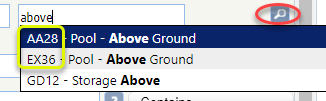
The code, AA28 and EX36 tells you the feature category - AA28 = Association Amenities and approximately 28th in the list; EX36 = Features - Exterior and approximately 36th in the list. Click the magnifying glass (see above image), which will show you each Feature Category and its associated Code. You can also use the Feature Categories list above to assist.
Paragon Listing Input Forms
The listing input forms provide every field and every possible selection in Listing Maintenance for agents to easily gather every detail they need from sellers and keep the information in an organized manner for input into Paragon. These documents are especially helpful for getting the most out of the various Features.
On the input forms, you'll see every selection available for any given feature so when meeting with sellers, you can be sure you're recording every specific and unique detail about the property to market it in Paragon to the fullest extent. The more specific list agents are in listing maintenance, the more likely buyer agents are to find exactly what their buyers need. You'll be helping yourself and your seller, plus other agents and their buyers!
These forms are fillable online!
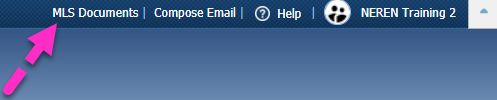
The listing input forms are located via MLS Documents in Paragon, a link in the top, right corner.