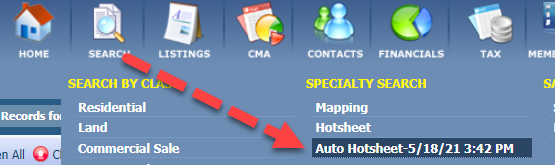
The Hotsheet search is a way for you to review and track changes that have occurred over time in a particular market. The Auto-hotsheet is a quick access option! This tool is similar to the Market Monitor, but the Market Monitor is meant to be customized once and reference as needed. You can have multiple hotsheets saved for easy access.
CHOOSE A TOPIC:
Using the Hotsheet Search
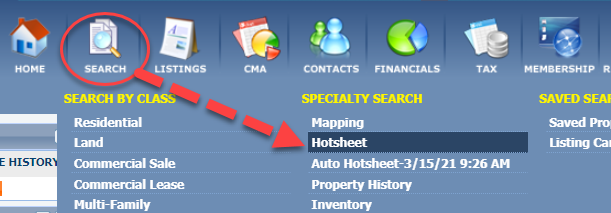
Step 1: Access the search
Go to the "Search" menu.
Choose "Hotsheet."
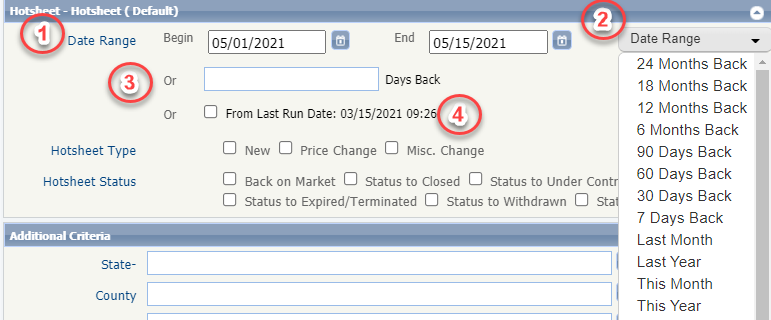
Step 2: Choose a time frame
Choose a date range to search by entering a time frame or selecting it from "Date Range" dropdown menu.
You can also search by a number of days back or "from last run date," which will show you all updates since the last time you ran a hotsheet search.
Step 3: Choose a Hotsheet Type and Status
Select the information you want to see by making selections with in the "Hotsheet Type" and "Hotsheet Status" section.

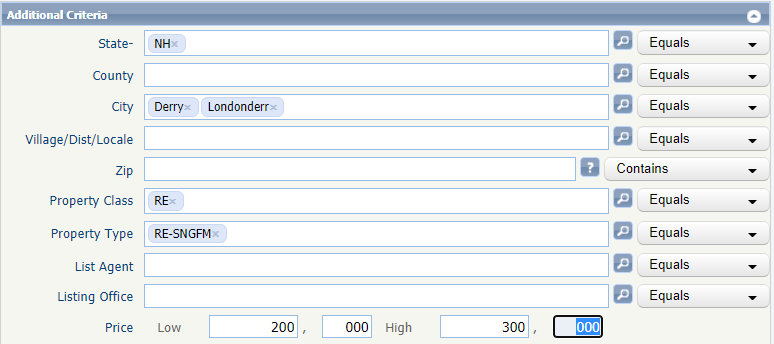
Step 4: Specify Location and other details
You may enter as many states, counties, and cities as you wish. If you want a hotsheet for a specific part of a city, you can use Zip Code.
Enter the class
If you have a preferred price range, you may enter that.
You can run a search based on list agent or office, as well.
Step 5: Specify Sort
If you wish, you can choose how the spreadsheet should be sorted.
By default, it is sorted by "Hotsheet Type."
You may sort by 2 additional criteria.

Step 6: Run the search
Click "Search."
You can choose different Hotsheet report views.
Similar to spreadsheets in traditional search results, you can re-size columns, rearrange, update the sort and customize by adding more columns. Click here to learn how to customize the spreadsheet.
Saving Multiple Hotsheets
Step 1: Create a hotsheet
Multiple Hotsheets can be saved. Begin by following Steps 1-5 above.
Then, click "Save Search" and choose "Save Search As."
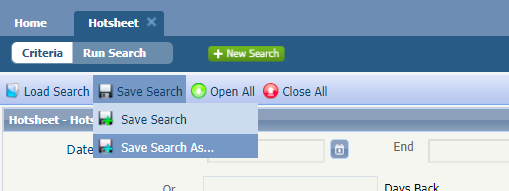
Step 2: Save the hotsheet
Provide a name - the name is how it will show in your list of hotsheets.
If this is the hotsheet you will use most often, check "Set as my default Hotsheet search." If you use this setting, ensure your date range was not a specific moment in time, i.e 05/20/21 to 06/20/21, as the same date range will always populate. You'll want it to be a generic timeframe selected in the "Date Range" drop down, or a specific number of days back.
Click "Save."
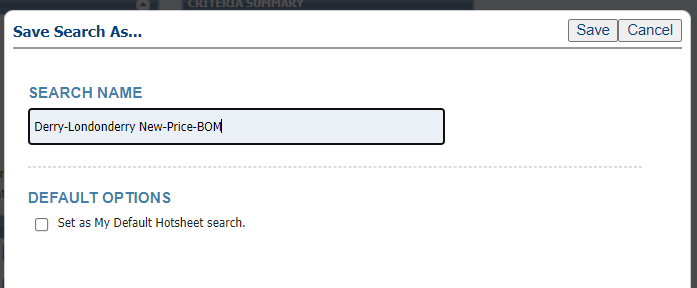
Access your saved Hotsheets by going to "Load Search" and "Load Saved Search," then click the name of the one you need.
Using the Auto-Hotsheet
Upon running a hotsheet, you'll notice the date for the "Auto-Hotsheet" updates. The auto-hotsheet will show you simply the updates since the last time you ran a hotsheet search. This will be any hotsheet search.