Texting listings is a great way to get results fast to the recipient. Texting listings is fast and easy, but there is a one-time set up process that must be completed first. Watch this quick video to learn how, or follow the below guide.
Select a Topic
Set Up the Ability to Text Message Listings
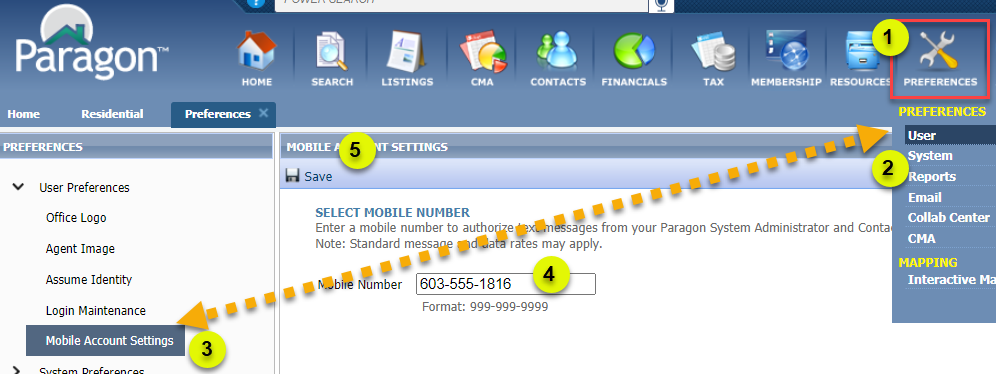
Step 1: Preferences
Before you can text message listings, you must have your cell phone number saved in Paragon
Go to the Preferences menu and select "User."
Step 2: Enter Cell Phone
From the menu on the left, choose "Mobile Account Settings."
Enter your cell phone number and click "Save."
How to Text Message Listings
Step 1: Select Listings
- From results, select listings to email, then click "Share."
- Choose "Text"
Step 2: Select a Contact & Send
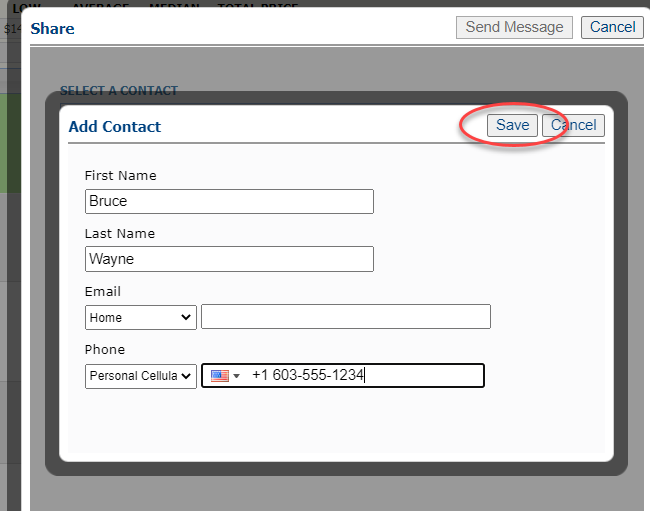
- In order to text a listing, the recipient must be saved as a contact. If the recipient is not saved, click "Add New Contact." First Name, Last Name, and at least 1 phone number are required.
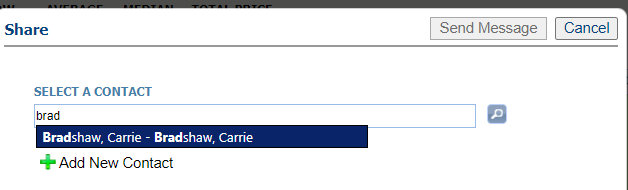
- If the recipient is already saved as a contact, begin typing their name into the "Select a Contact" box. Select the name as it appears.
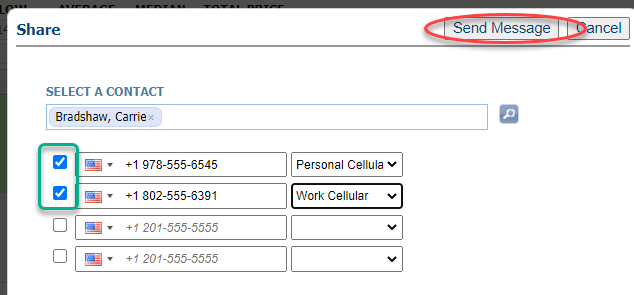
- Upon selecting the contact, all phone numbers saved for that person will appear. You may text to multiple numbers.
- If a phone number needs to be added, enter the phone number. Upon texting the contact, this phone number will be automatically saved to their profile.
- Select phone numbers and click "Send Message."