Setting Favorites is beneficial because it will organize the reports you use most often! Setting favorites is super simple - learn how in this video or follow the below guide.
FAVORITING REPORTS
Setting Favorite Reports
Step 1: Review Reports
- Run a search and you'll be able to view reports
- Click the green "Reports" button on the right side of the screen.
- There are several sections for reports: Favorites, Spreadsheets, Details, Multi-Ups, Specialty Views, CMA, Reports. All of these reports have the ability to become a favorite (with the exception of the reports already in the Favorites section).
Step 2: Set Favorites
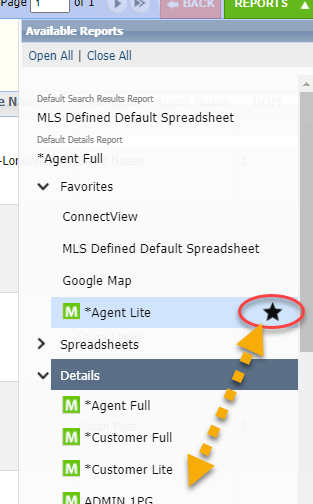
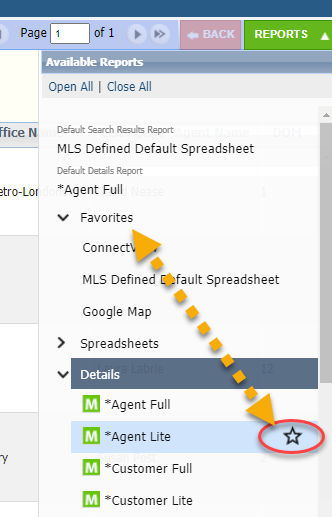
- When you find a report you like, hover over it and click the star icon that appears.
- This automatically adds to the list of Favorites at the top.
- When setting favorites, think about reports you will view in the system, as well as what your print and email because your favorites will be at the top when you print and email listings.
NOTE: You can also access reports directly from a search template and favorites can be set there, too!
Removing Favorites
If a report is no longer a favorite, click the star icon on it from the "Favorites" section. This will drop it back into its original section.