
The Power Search is available no matter what section of Paragon you are in and, just as it says in the name, it is pretty powerful! Watch the below video to learn about what you can use Power Search for, or review the instructions.
WHAT CAN YOU DO WITH POWER SEARCH?
Search by MLS Number
Search for Member/Office Contact Information
Search by Address
Search for Contacts
Open Saved Searches
Search by MLS Number
- Type the MLS number and the result will appear for selection.
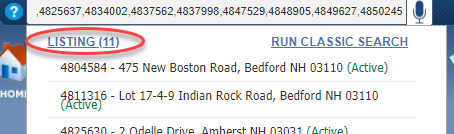
- Type up to 30 MLS numbers, separated by a comma only (no spaces)
- To review multiple results, click the "Listing" hyperlink in the top, left corner of the Power Search Results list.
Search for Member/Office Contact Information
Members
- Enter the First Name or Last Name of the member you are searching for.
- Up to 10 results will appear based on what you type. For more common names, you may need to type the full name.
- Click the member's name and a pop-up of their contact information will appear.
Offices
- Enter a portion of the Office name of the office you are searching for.
- Up to 10 results will appear based on what you type.
- Click the Office's name and a new tab in Paragon will open showing you the office contact information and the names of everyone in that office.
Search by Address
- Enter the address and as you type, up to 10 results will appear.
- Active inventory will populate at the top of the list.
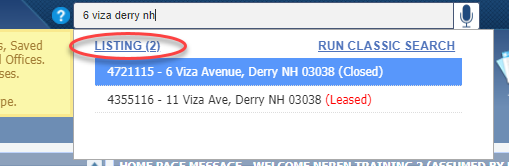
- If you are not getting the results you expect, it may be how you typed the address. For example, typing "6 Viza Ave" "6 Viza Avenue" or "6 Viza" will return different results, as it is based on how the listing was entered by the list agent.
- Make sure you also include the City and State; this will help narrow down results, as PrimeMLS is a multi-state MLS.
- You do not need to worry about capitalization or commas as you type the address.
- To review multiple results, click the "Listing" hyperlink in the top, left corner of the Power Search Results list.
Search for Contacts
- Enter the First Name and or Last Name of the saved contact and the result will appear for selection.
- Up to 10 results will appear.
- Click their name and the system will navigate to their contact profile.
Open Saved Searches
- Enter the name of the search either from the beginning of the name or even a portion of it. For example, with the saved search named "Lake Winnipesaukee," type either Lake or Winnipesaukee and the saved search will appear for selection.
- Up to 10 results will appear.
- Clicking the name of the search will open the search template for you to run and return results.