There are 2 options for printing results out of Paragon. This guide explains both options.
PRINT OPTIONS
This print option will print exactly what's on the screen and is a good option if you need to print 1 report and 1 report view.
Step 1: Selecting Listing
- After running a search, the default report view is the spreadsheet. If you print from here, it will print the spreadsheet.
- If the spreadsheet is not the report you wish to print, go to the green "Reports" button and select the report you wish to print.
Step 2: Print Listing
- Once you are on the listing you want to print and the report view you want to print, click "Print" from the toolbar and select "Print."
- The print preview will appear for you to select the print and make any other adjustments before printing.
Print+
This print option allows you to print multiple listings and, if you wish multiple report views.
Step 1: Selecting Listings
- After running a search, select the listings you wish to print with the checkbox on each listing.
- In the toolbar, click "Print" and select "Print+"
Step 2: Print Listings
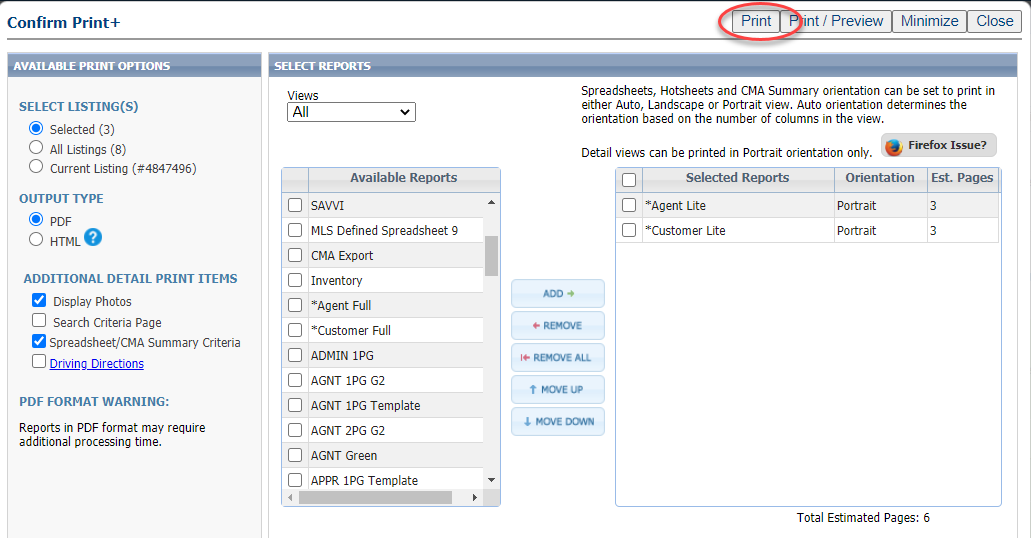
- In the pop-up, you'll notice that the listings you selected are ready to print, with the option to print all.
- The report you are currently on is what will be set as the "Selected Report." It is checked for easy removal. If this is not the report you wish to print, click "Remove."
- Choose the report(s) you wish to print. Double-click each report to add it to the "Selected" side, or check the reports and click "Add."
- Click "Print." This is will give you print preview for you to then print.